


Aspect Ratios Explained: Common Ratios and How to Resize Without Stretching
 Mujahid H.
- October 20, 2026
- 15 min read
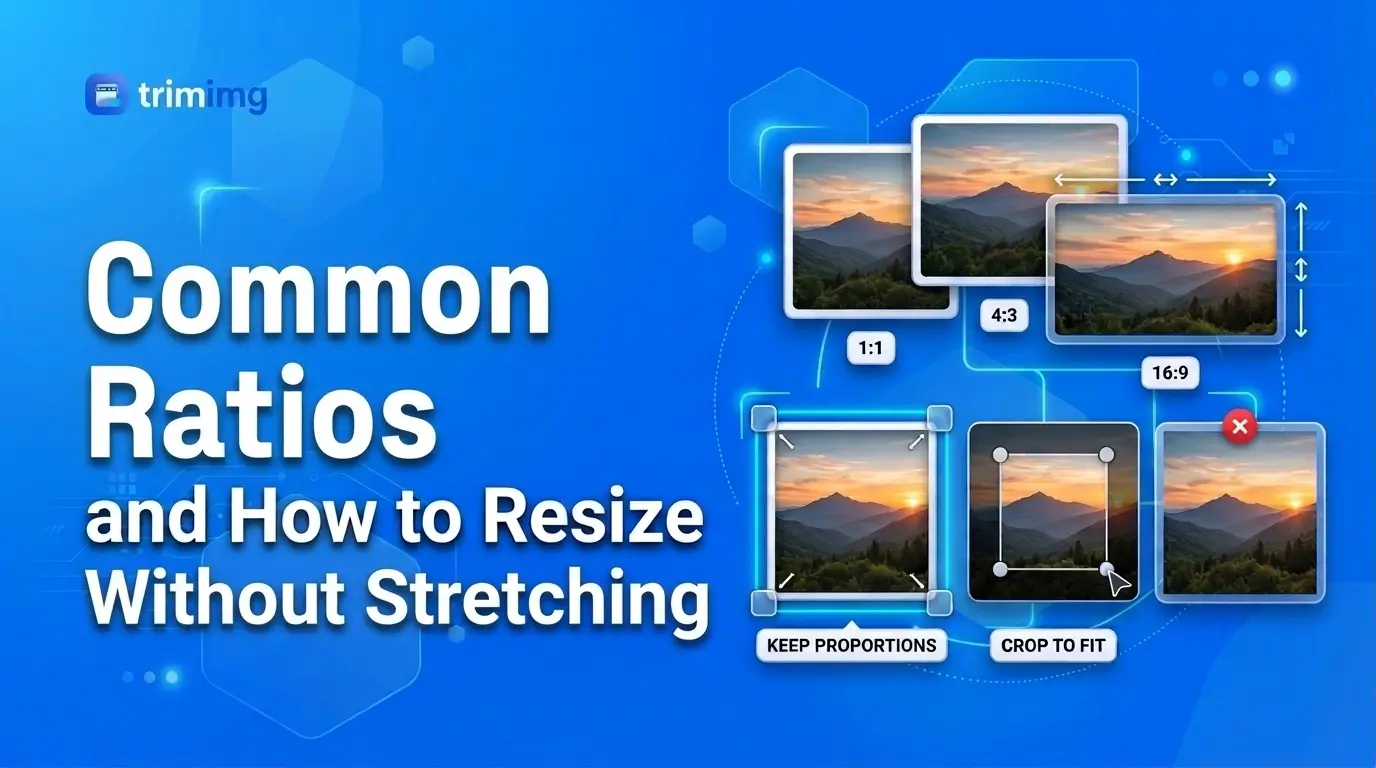
An aspect ratio is the shape of an image: its width compared with its height, written as two numbers like 16:9 or 4:3. A 1920 × 1080 photo and a 640 × 360 photo are different sizes but the same shape, because both are 16:9.
Most stretched, squashed or oddly cropped pictures come from one mistake: forcing an image into a new shape without deciding how. This guide explains aspect ratios, lists the common ones with pixel sizes, and shows three safe ways to change an image's shape: lock the ratio, crop, or add padding. The rule never changes. Don't stretch.
Quick answer: how do you resize without stretching?
- Lock the proportions when the new size shares the same ratio as the original.
- Crop when you need a different shape and can afford to lose the edges.
- Pad when you need a different shape but the whole picture must stay visible.
Whatever you do, never stretch an image by setting width and height independently. That is what turns circles into ovals and faces into something unrecognisable.
What Is an Image Aspect Ratio?
An image aspect ratio describes how wide a picture is compared with how tall it is. The first number is the width and the second is the height, so 3:2 means three units across for every two units down. It describes shape, not size. Squarespace's help center makes the point with a simple example: a 500 × 500 image and a 1500 × 1500 image are both 1:1.
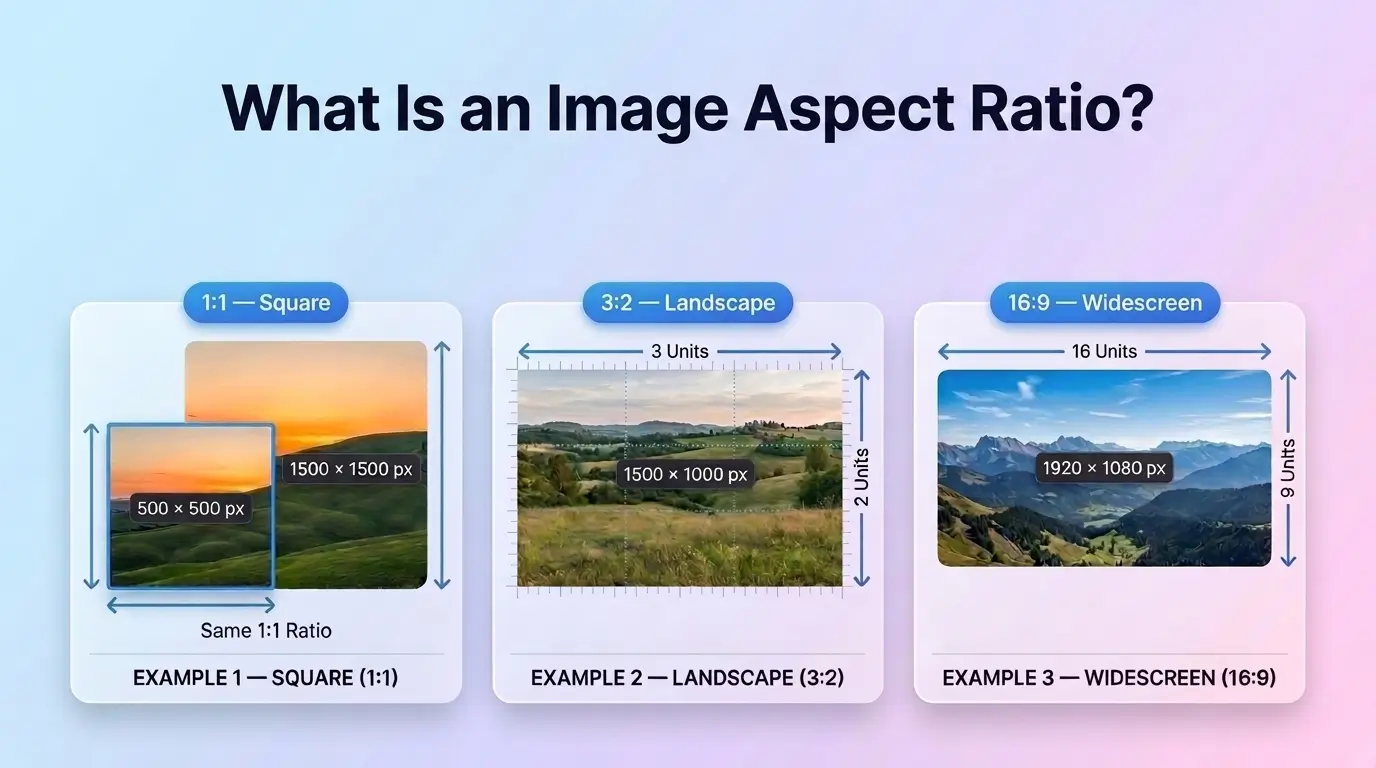
The same idea covers every screen format. Screen proportions, video proportions and photo proportions are all aspect ratios. Your phone screen, your TV and a sheet of paper each have one.
Aspect Ratio vs Resolution, Image Size, Dimensions and Orientation
These terms get mixed up constantly, and mixing them up causes most resizing errors.
- Resolution is the pixel count, such as 1920 × 1080. Many resolutions share one aspect ratio.
- Dimensions are the width and height of an image in pixels (or inches or centimetres for print). They set the size, and the ratio comes from them.
- Image size can mean dimensions or file size in KB and MB. Neither one is a ratio.
- Orientation is landscape, portrait or square. 3:2 and 2:3 are the same proportions turned sideways, so the order of the numbers tells you which side is the width.
Display aspect ratio vs pixel aspect ratio. Display aspect ratio is the shape of the finished frame. Pixel aspect ratio is the shape of each individual pixel. Photos and modern screens use square pixels, so you can ignore the second one unless you edit older anamorphic video.
How to Calculate Aspect Ratio
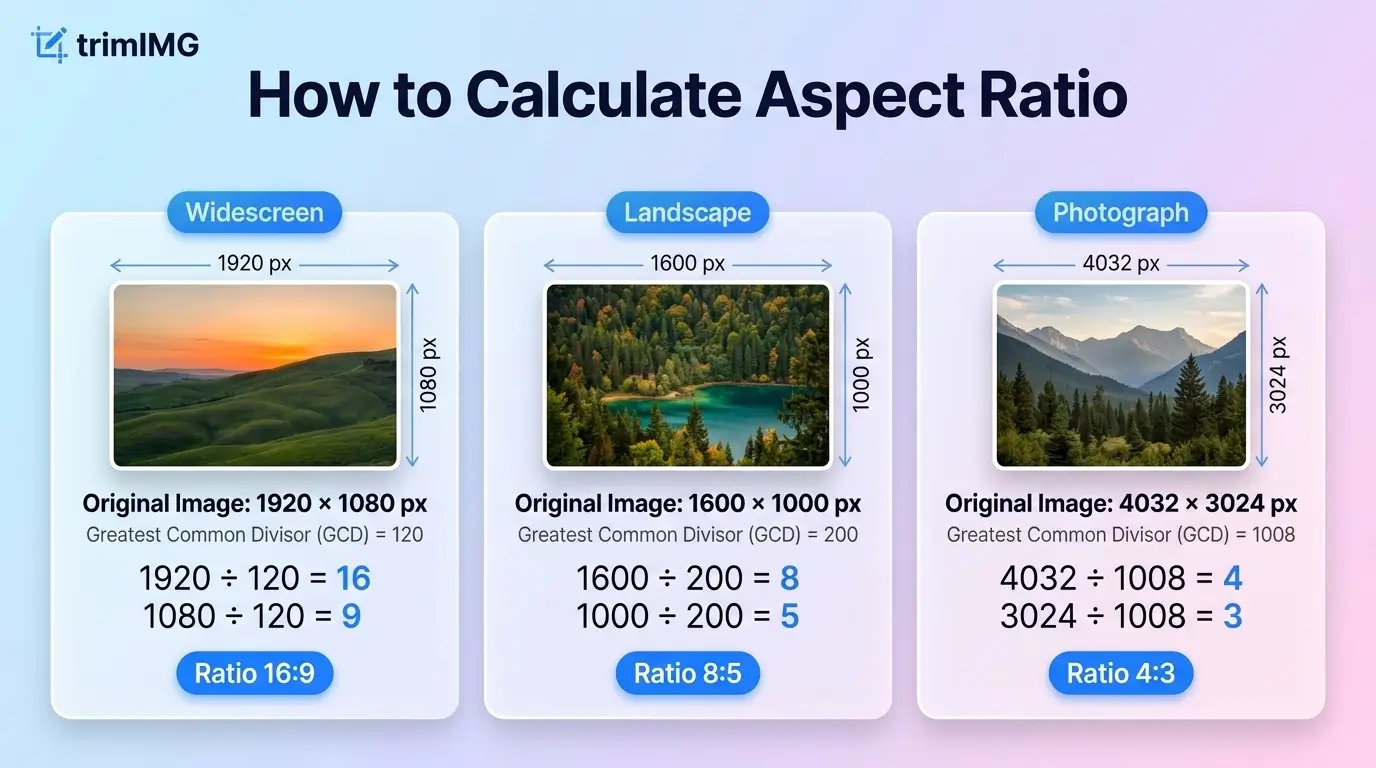
Divide the width and the height by their greatest common divisor, which is the biggest number that goes into both. The result is the ratio in whole numbers.
- 1920 × 1080: the divisor is 120, so the ratio is 16:9.
- 1600 × 1000: the divisor is 200, so the ratio is 8:5.
- 4032 × 3024: the divisor is 1008, so the ratio is 4:3.
Dividing width by height gives the decimal form. 1920 ÷ 1080 is 1.78. Decimals are handy for comparing shapes, but crop tools and platforms ask for the whole number version, so always reduce it. An aspect ratio helper or ratio calculator does this in one step, and a 16:9 calculator is the same tool with 16:9 preset.
To find a missing side when you already know the ratio, use this formula:
How to Find the Aspect Ratio of an Image
Start by reading the pixel size. On Windows, right-click the file, open Properties, then Details. On a Mac, use Get Info or Preview's Inspector. On a phone, open the photo's info panel. Then reduce the two numbers as above. An aspect ratio detector or image size finder shows the width and height instantly, which saves you the maths.
Common Aspect Ratios and Where Each One Fits
A common aspect ratio is one that cameras, screens or platforms have adopted as a standard. A handful of shapes cover nearly everything you will meet.
| Ratio | Decimal | Where you see it |
|---|---|---|
| 1:1 | 1.00 | Profile pictures, square posts, product thumbnails |
| 5:4 | 1.25 | Landscape 10 × 8 and 20 × 16 prints, large-format photos |
| 4:3 | 1.33 | Phone and tablet cameras, compact cameras, older monitors |
| 3:2 | 1.50 | 35mm film, DSLR and mirrorless cameras, 6 × 4 landscape prints |
| 16:10 (8:5) | 1.60 | Many laptop screens |
| 16:9 | 1.78 | HD and 4K video, TVs, monitors, YouTube |
| 1.91:1 | 1.91 | Link preview images, landscape social posts |
| 2:1 | 2.00 | Wide banners, some films and streaming shows |
| 21:9 | About 2.33 | Ultrawide monitors, some films |
| 4:5 | 0.80 | Portrait feed posts |
| 3:4 | 0.75 | Portrait photos from phones |
| 2:3 | 0.67 | Portrait 35mm photos, Pinterest pins |
| 9:16 | 0.56 | Stories, Reels, TikTok, Shorts |
The Most Common Aspect Ratio: 16:9
16:9 is the most common aspect ratio for screens and video. It is the standard landscape video size, from phone clips to televisions. Common HD resolutions use it: 1280 × 720 is 720p, 1920 × 1080 is 1080p, and 3840 × 2160 is 4K UHD. When people search for aspect ratio HD, they almost always mean this shape. If an editing menu offers video format 16x9, it means the same thing. YouTube Help identifies 16:9 as the standard for its player and explains that other shapes may have padding around them.
It exists because of a compromise. Kerns Powers of SMPTE proposed it in 1984. He overlaid the popular ratios of the time, from 4:3 television to 2.35:1 CinemaScope, and found that 16:9 sat in the middle and fit them all with the least waste. Computer screens followed around 2008.
One caution: 4K is not always 16:9. Consumer UHD at 3840 × 2160 is, but cinema 4K at 4096 × 2160 is closer to 1.9:1.
4:3 and 3:4
4:3 is the old television and monitor shape. It is also a common default aspect ratio for smartphone photos, which is why a typical phone photo of 4032 × 3024 reduces to 4:3. Classic 4:3 resolutions include 640 × 480 and 1024 × 768, and the full list is in the pixel table further down. Turn the same frame upright and it becomes 3:4, a portrait shape used by phone cameras and accepted by Instagram for feed posts.
1:1, 4:5 and 5:4
1:1 means equal sides, so any square is a 1:1 resolution, and 1080 × 1080 is a common social size. It crops evenly and suits profile pictures, grid posts and product thumbnails. 4:5 is a slightly taller portrait at 1080 × 1350 and is a common Instagram feed choice because it takes more screen height than a square. Turned sideways, it becomes 5:4, the shape of landscape 10 × 8 and 20 × 16 prints.
3:2
3:2 is the shape of a 35mm film frame, which measures 36 × 24 mm, and of most DSLR and mirrorless sensors. A full-frame camera shoots 3:2 at sizes like 6000 × 4000. It matches a 6 × 4 landscape print exactly, so those prints need no cropping from those cameras.
16:10 and 21:9
16:10 reduces to 8:5. Laptops use it at 1920 × 1200 and 2560 × 1600 to gain a little height over 16:9. The 21:9 label is a rounded marketing name. Monitors sold as ultrawide sit between about 2.33 and 2.4 to 1, and the film standard behind the name is closer to 64:27.
Film and Cinematic Aspect Ratios
Searches for aspect ratio film usually mean the cinema shapes. The Academy ratio, 1.37:1, ruled early sound film and looks close to 4:3. Flat widescreen is 1.85:1. Anamorphic scope is about 2.39:1 and gives the classic cinematic frame size. It is wide enough that a 16:9 TV shows black bars above and below. A newer compromise is 2:1, which some directors and streaming shows use.
Cinematic dimensions depend on the camera and the delivery format, so no single pixel size applies. A common delivery size for 2.39:1 inside a 16:9 container is 1920 × 804.
Aspect Ratios Compared
- 4:3 vs 16:9. 4:3 is taller and 16:9 is wider. A 4:3 image on a 16:9 screen gets bars at the sides, and a 16:9 image on a 4:3 screen gets bars on top and bottom.
- 3:2 vs 4:3. 3:2 is 12.5 percent wider. The same scene shot on a DSLR and a phone will frame differently for that reason.
- 16:9 vs 16:10. 16:10 is about 11 percent taller, which gives you more rows of text on a laptop.
- 1:1 vs 4:5. 4:5 is 25 percent taller, so it fills more of a phone feed.
- 16:9 vs 9:16. Same proportions turned a quarter turn. Use 16:9 for desktop and TV, and 9:16 for phones held upright.
Aspect Ratio to Pixels: Common Sizes by Ratio
Any size works as long as the ratio holds, and you can scale a size up or down by multiplying both sides by the same number. These are the sizes you will meet most often.
| Ratio | Common pixel sizes |
|---|---|
| 1:1 | 1080 × 1080, 1200 × 1200, 2000 × 2000 |
| 4:3 | 800 × 600, 1024 × 768, 1600 × 1200, 2048 × 1536, 4032 × 3024 |
| 3:4 | 768 × 1024, 1080 × 1440, 1536 × 2048, 3024 × 4032 |
| 3:2 | 1500 × 1000, 3000 × 2000, 6000 × 4000 |
| 2:3 | 1000 × 1500, 2000 × 3000, 4000 × 6000 |
| 4:5 | 1080 × 1350, 1440 × 1800, 2400 × 3000 |
| 16:10 | 1280 × 800, 1920 × 1200, 2560 × 1600 |
| 16:9 | 1280 × 720, 1920 × 1080, 2560 × 1440, 3840 × 2160 |
| 9:16 | 720 × 1280, 1080 × 1920, 2160 × 3840 |
| 1.91:1 | 1080 × 566, 1200 × 630 |
| 21:9 | 2560 × 1080, 3440 × 1440 |
Print and Paper Sizes
Prints complicate things because paper and frames come in sizes chosen by manufacturers, not by ratio. The ratio depends on whether you write the dimensions in portrait or landscape orientation.
- A 4 × 6-inch portrait print is 2:3; in landscape orientation, it is 3:2.
- A 5 × 7-inch portrait print is 5:7; in landscape orientation, it is 7:5.
- An 8 × 10-inch portrait print is 4:5; in landscape orientation, it is 5:4.
- A 16 × 20-inch portrait print is 4:5; in landscape orientation, it is 5:4.
- An 18 × 24-inch portrait print is 3:4; in landscape orientation, it is 4:3.
A4 paper measures 210 × 297 mm, a ratio of approximately 1:1.414, which ISO 216 chose so that halving the long side gives the same shape again. A5 is exactly half of A4 in area and retains the same proportions.
A 3:2 camera photo fits a 6 × 4-inch landscape print without cropping. An 8 × 10-inch print has a different ratio, so a 3:2 camera photo needs cropping to fit it exactly. Check the canvas size ratio before you order anything. Passport photos vary by country: a US photo is 2 × 2 inches (1:1), while many other countries use 35 × 45 mm (7:9). Check the issuing authority's current rules.
Aspect Ratio Sizes for Instagram, YouTube and Other Platforms
Platforms crop or pad anything that does not match their frame, so set the ratio before you upload. These are common sizes, but specifications can change. Confirm the latest requirements in each platform's help center before publishing.
| Platform and placement | Ratio | Common size |
|---|---|---|
| Instagram feed post | 4:5 | 1080 × 1350 |
| Instagram Stories and Reels | 9:16 | 1080 × 1920 |
| YouTube video | 16:9 | 1920 × 1080 |
| YouTube Shorts | 9:16 | 1080 × 1920 |
| YouTube thumbnail | 16:9 | 1280 × 720 |
| TikTok | 9:16 | 1080 × 1920 |
| Facebook feed | 4:5 or 1:1 | 1080 × 1350 or 1080 × 1080 |
| LinkedIn shared image | 1.91:1 | 1200 × 627 |
| LinkedIn profile banner | 4:1 | 1584 × 396 |
| X (Twitter) image | 16:9 | 1200 × 675 |
| Pinterest pin | 2:3 | 1000 × 1500 |
| Open Graph link preview | 1.91:1 | 1200 × 630 |
| Blog featured image | 16:9 or 3:2 | 1200 × 675 or 1200 × 800 |
| Website hero image | 16:9 or 21:9 | 1920 × 1080 |
| Ecommerce product photo | 1:1 | 2000 × 2000 |
| Profile picture | 1:1 | 400 × 400 or larger |
Advice on Instagram conflicts across the web, so here is the short version. Instagram's supported feed-photo ratios have included formats from 1.91:1 to 3:4, while many publishing tools impose narrower limits. A 4:5 image remains a common choice for portrait feed posts because it takes up more screen height than a square. Check Instagram's current specifications and your publishing tool's restrictions before scheduling. If an Instagram crop keeps cutting your photo, the ratio may be the cause.
Leave a safe zone. Keep faces and text away from the edges, because Stories, Reels and thumbnails overlay buttons and timestamps there. If you shoot for several platforms, shoot wide with space around the subject and crop down later. You cannot crop a vertical frame into a full-width 16:9 image without losing substantial content.
Why Images Look Stretched or Squished
An image looks stretched when its width and height are scaled by different amounts. The software has no idea the subject was round. It just moves pixels to fit the new box.
Here is what that does. Force a 4000 × 3000 photo into 1920 × 1080 and the width scales by 0.48 while the height scales by 0.36. Everything ends up 33 percent too wide. Faces broaden and circles turn into ovals. Squeeze a wide image into a narrow box and the opposite happens, so people look squished.
It usually happens in a few places:
- CSS that fixes both width and height on an image
- A platform that forces a photo into a frame of another shape
- Dragging a side handle instead of a corner handle in a document editor
- A TV or video player set to a stretch mode
- Uploading a 4:3 image into a 16:9 slot
Black bars are a different thing. Black bars mean the image kept its shape and the leftover space was filled. That is the safe outcome. Stretching is the unsafe one.
How to Resize an Image Without Stretching
Three methods keep the subject intact, and the right one depends on the new size. If the new size has the same ratio as the old one, lock the proportions. If it has a different ratio, crop or pad.
Resize Proportionally by Locking the Aspect Ratio
Locking ties width and height together, so changing one changes the other. Tools call it lock aspect ratio, constrain proportions, keep proportions or maintain aspect ratio. They all mean the same thing.
The formula behind it is the same one above: new height = new width × original height ÷ original width. Take a 4000 × 3000 photo and set the width to 1200. The height becomes 1200 × 3000 ÷ 4000, which is 900, so the result is 1200 × 900. To go the other way, new width = new height × original width ÷ original height. Scaling by percentage works too, since 50 percent turns 4000 × 3000 into 2000 × 1500.
Batch resizing follows the same logic. Set one side, usually the width, and let each image's height follow. A mixed folder then keeps every original ratio. Setting both sides for a folder of mixed shapes is how stretching sneaks in.
Crop an Image to a New Aspect Ratio
Crop when you need a different shape and can afford to lose the edges. Keep the long side and trim the short side. Squarespace gives the same advice, and it warns against scaling up the long side because that blurs the image.
The formula is height = width × H ÷ W for a target ratio of W:H. Using a 4000 × 3000 photo:
- 16:9: crop to 4000 × 2250 by trimming 750 pixels from the height.
- 1:1: crop to 3000 × 3000 by trimming 1000 pixels from the width.
- 4:5: crop to 2400 × 3000 by trimming 1600 pixels from the width.
Converting landscape to portrait costs more. From a 1920 × 1080 frame, a 9:16 crop keeps only about 608 × 1080, about a third of the width. Choose the subject first. Smart crop and content-aware tools can find faces, but check what they pick. Once the crop is right, resize to the final pixel size. Cropping first and resizing second also wastes fewer pixels than the reverse.
Add Padding Instead of Cropping
Padding keeps the whole picture by adding space around it. A wide image in a taller frame gets bars above and below, which is letterboxing. A tall image in a wider frame gets bars at the sides, which is pillarboxing. Fill the space with white, a brand colour or a blurred copy of the image.
To make a 1920 × 1080 image square without cropping, extend the canvas to 1920 × 1920, which adds 420 pixels above and 420 below. Design tools describe the choices as fit, fill and stretch. Fit pads, fill crops, and stretch distorts. Only the first two are safe.
Expand the Canvas with AI
Generative tools such as Adobe's Generative Expand invent new background pixels to extend an image to a new ratio. They work well on skies, walls and soft backgrounds. They struggle with repeating patterns, hands and text, so inspect the edges before you publish.
Which Method to Choose
| Situation | Method | What you give up |
|---|---|---|
| New size has the same ratio | Lock proportions | Nothing |
| New ratio, edges don't matter | Crop | The edges |
| New ratio, everything must show | Pad | Space taken by bars |
| New ratio, you need more scene | AI expand | Some authenticity |
| Any case | Never stretch | Natural shapes |
What Resizing Does to Image Quality
Shrinking an image is safe because the software averages pixels down. Enlarging adds pixels that were never in the photo, so the picture gets softer, not sharper. Enlarge only a little, and start from the biggest original you have.
Cropping blurs nothing, but it throws pixels away. Cropping a 4000 × 3000 photo to 16:9 leaves 9 million pixels where there were 12 million. Enlarge a tight crop and it goes soft. Changing the aspect ratio does not damage a picture. Losing pixels and resampling do. File size follows pixel count, so crop first, resize second and compress last.
Resize an Image with TrimIMG
Need to resize an image without stretching it? TrimIMG's resize and compression tools help you lock the right proportions and prepare a file for your website or social media.
Crop first if the shape needs to change: TrimIMG doesn't currently include a dedicated crop tool, so crop with your phone's or computer's built-in photo editor before resizing.
Resize to the target dimensions: Open the Image Resizer, enter the target width, and keep proportions locked. Check that the height it returns is what you expect.
Compress if the file is still heavy: Run the result through the Image Compressor if the file size is still too large for your upload.
Check the final file: View the image at 100 percent and check the edges before you upload or publish it.
Resize in Photoshop, Canva, Word, PowerPoint, Preview, Paint and on Your Phone
- Photoshop: Image > Image Size. Keep the chain link between width and height switched on. Adobe's help pages also cover the Resample option for changing pixel count.
- Canva: drag a corner handle to scale with the ratio kept.
- Figma: use the lock proportions control or the appropriate modifier for your current version.
- Word and PowerPoint: right-click the picture, open the size settings and tick Lock aspect ratio.
- Mac Preview: Tools > Adjust Size, then tick Scale proportionally.
- Windows Paint: Resize and Skew, then tick Maintain aspect ratio.
- iPhone Photos and Google Photos: Edit, then Crop, then tap the aspect ratio button to pick a shape.
Aspect Ratio in HTML and CSS
On a website, stretching usually comes from CSS that fixes both width and height on an image. Set one dimension and let the other follow.
Add width and height attributes to every image tag, using the file's intended intrinsic dimensions with no units. Browsers read them to work out the ratio and reserve space before the image loads. That prevents layout shift, a Core Web Vitals problem measured as CLS. Missing dimensions can contribute to layout shifts, according to web.dev and Shopify's performance documentation. Pair the attributes with max-width: 100% and height: auto.
For boxes with a fixed shape, such as cards, thumbnails and video embeds, use the CSS aspect-ratio property. MDN notes that it helps define the preferred width-to-height ratio when at least one dimension is automatic.
img {
max-width: 100%;
height: auto;
}
.card img {
aspect-ratio: 4 / 3;
width: 100%;
object-fit: cover;
}For a fixed box, use object-fit to control how the image fills the space. The value cover crops to fill the box. The value contain fits the entire image inside the box, potentially leaving empty space. Both preserve proportions, and object-position moves the focal point of the crop.
If you serve several sizes through srcset, keep the intended aspect ratios consistent when they represent the same crop. If the crops have different ratios, define the layout and responsive image behavior deliberately to avoid unexpected shifts.
Common Aspect Ratio Mistakes
- Dragging a side handle instead of a corner handle
- Setting both width and height for a folder of mixed shapes
- Resizing before cropping, which can waste pixels
- Scaling up the long side to reach a new ratio, which makes the image blurry
- Matching pixel dimensions when only the ratio needs to match, since two images can share a ratio at different sizes
- Using one image for every platform instead of making one version per ratio
- Placing text close to the edges where platforms crop
- Adding black bars to a video file before upload. YouTube Help advises against it because baked-in padding can prevent the player from adapting to the screen
Frequently Asked Questions
What is aspect ratio?
Aspect ratio is the proportion between an image's width and height, written as two numbers such as 16:9. It describes shape, not size, so images of different pixel sizes can share one ratio.
What is the most common aspect ratio?
16:9 is the most common aspect ratio for screens and video. 3:2 and 4:3 are common in photography, while 4:5 and 9:16 are widely used on social platforms.
How do I calculate aspect ratio?
Divide the width and height by their greatest common divisor. For 1920 × 1080, the divisor is 120, which gives 16:9. Dividing width by height gives the decimal form, 1.78.
What aspect ratio is 1920 × 1080?
It is 16:9. So are 1280 × 720, 1600 × 900 and 3840 × 2160.
What aspect ratio is 4K?
Consumer 4K UHD at 3840 × 2160 is 16:9. Cinema 4K at 4096 × 2160 is about 1.9:1, so it is a slightly different shape.
How do I resize an image without stretching it?
Lock the aspect ratio, then change either width or height and let the other follow. If the new size has a different ratio, crop the image or add padding first, then resize.
Does changing the aspect ratio reduce quality?
Not by itself. Quality drops when you lose pixels through cropping, or when you enlarge an image and the software has to invent new pixels. Start from the largest original and avoid heavy enlargement.
Does resizing change the aspect ratio?
Only if width and height change by different amounts. Resize with proportions locked and the ratio stays exactly the same.
Is cropping the same as resizing?
No. Resizing changes the pixel dimensions, and it keeps the shape when proportions are locked. Cropping removes part of the image, so it changes the shape.
What is the difference between 16:9 and 4:3?
16:9 is wider, at 1.78 against 1.33. 4:3 shows more height, which is why older TVs and many phone and tablet cameras use it.
What is the best aspect ratio for Instagram?
4:5 at 1080 × 1350 is a common choice for portrait feed posts. Instagram also supports other feed ratios, including landscape images, and uses 9:16 for Stories and Reels. Check the current platform specifications before publishing.
What aspect ratio is a 4 × 6 photo?
A 4 × 6-inch landscape print is 3:2. An 8 × 10-inch portrait print is 4:5, and a 5 × 7-inch portrait print is 5:7, so a 3:2 camera photo needs cropping to fit either print exactly.
How do I convert 16:9 to 9:16?
Crop, pad or recompose. Cropping a 1920 × 1080 frame to 9:16 keeps only about a third of the width. Padding keeps everything but leaves bars above and below.
Which aspect ratio is best for a website or blog image?
16:9 works for hero images and banners, and 3:2 suits blog photos. Whatever you pick, add width and height attributes and keep a consistent ratio across a gallery where possible so the layout stays steady.
Choose the ratio first, then resize
Use TrimIMG's crop and resize tools to choose the right proportions, preserve the important parts of your image and prepare it for your website or social media.
Sources and further reading:
- Squarespace Help Center, Understanding aspect ratios
- YouTube Help, Video resolution and aspect ratios
- Instagram Help Center, photo sizes and supported aspect ratios
- MDN Web Docs, CSS aspect-ratio
- web.dev, Cumulative Layout Shift
- Shopify Developer Docs, Prevent image layout shift with width and height
- Adobe Photoshop Help, Resize an image and Image Size options
- Wikipedia, 16:9 aspect ratio (history of the ratio and Kerns Powers's 1984 SMPTE proposal)
- Adobe Firefly, common video aspect ratios and Generative Expand
Found this helpful? Share it with your team:
Related Articles

Hello, it's Mujahid Hussain Creative and Professional Senior Software Engineer with 6+ years of experience building rich and interactive websites. I have a comprehensive understanding of WordPress themes, plugins, databases, and its functions.