


Image Resolution Explained: Pixels, PPI and DPI in Plain English
 Mujahid H.
- October 15, 2026
- 11 min read
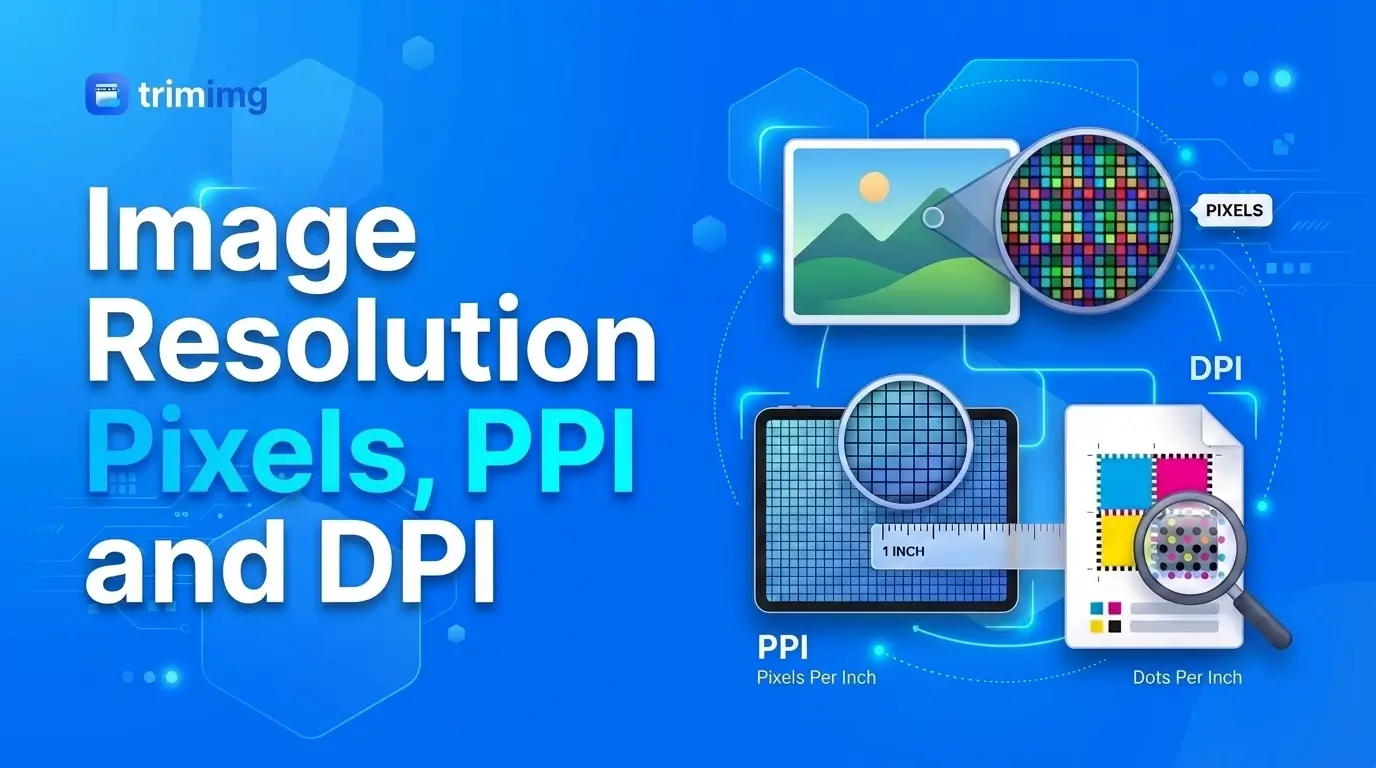
You export a photo that looks sharp on your screen, send it to a printer, and it comes back soft and blocky. Or a print shop asks for a "300 DPI" file and you have no idea which number to check. The confusion comes from four terms that sound alike: pixels, resolution, PPI and DPI.
This guide explains each one in plain English, shows how DPI and PPI relate, and gives you simple formulas and tables so you can pick the right image size for print or screen.
Quick answer:
- Pixel: the smallest dot of color in a digital image.
- Image resolution: how many pixels an image contains, for example 3000 × 2000.
- PPI (pixels per inch): how many pixels fit into one inch of a screen or a print.
- DPI (dots per inch): how many ink dots a printer places in one inch.
The rule to remember: pixels decide how much detail an image has. PPI and DPI only describe how that detail is spread across a physical size.
What Is a Pixel?
A pixel, short for "picture element," is the smallest unit of a digital image: one tiny square of color. Photos, screenshots and web graphics are raster images, which means they are grids of pixels. Zoom in far enough and you can see the individual squares. Each pixel stores a color, usually as a mix of red, green and blue values.
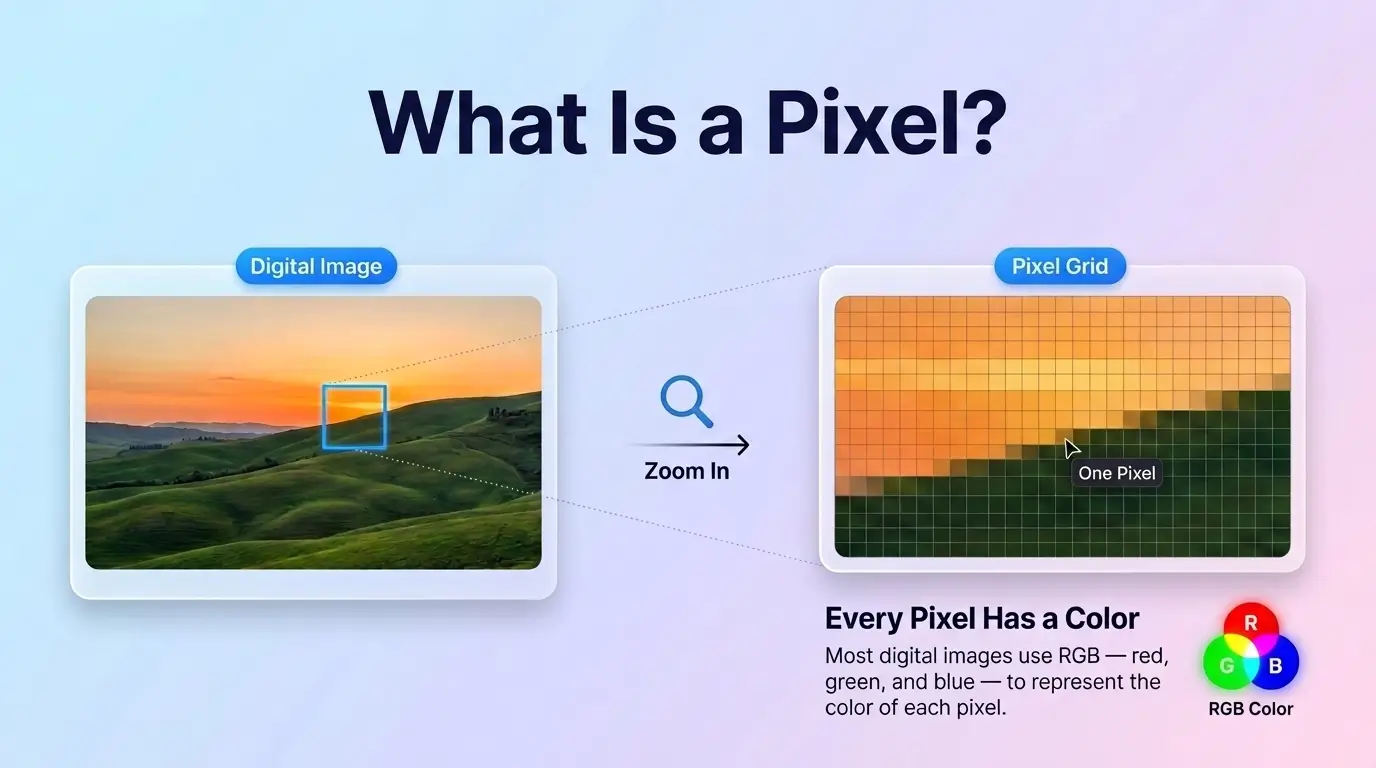
A pixel has no fixed physical size. It looks tiny on a phone and large on a billboard because the same grid is stretched across a different surface. That is why questions like "how large is a pixel" have no single answer, and why PPI and DPI exist.
You count pixels by multiplying width by height. A full HD image of 1920 × 1080 pixels contains 2,073,600 pixels, or about 2.1 megapixels.
What Is Image Resolution?
Image resolution is the number of pixels in an image, written as width × height. A photo that is 4000 pixels wide and 3000 pixels tall has a resolution of 4000 × 3000, which is 12 megapixels. More pixels means the image can hold more detail and can be printed or displayed larger before it looks soft.
The word "resolution" is used in three slightly different ways, which is a big reason people get confused:
- Pixel dimensions: the total pixels, such as 1920 × 1080.
- Pixel density (PPI): how tightly those pixels are packed per inch.
- Printer resolution (DPI): how finely a printer can lay down ink dots.
What Counts as High Resolution?
There is no universal number. An image is high resolution when it has enough pixels for the size and distance at which it will be seen. A 1920-pixel-wide image fills a full HD screen perfectly, but the same image printed on an A3 poster will look soft. Judge resolution by the job, not by a single figure.
What Is PPI (Pixels Per Inch)?
PPI stands for pixels per inch. It measures how many pixels sit inside one inch of a digital image when it is displayed or printed at a given size. Higher PPI means pixels are packed more tightly, so the image looks sharper and finer.
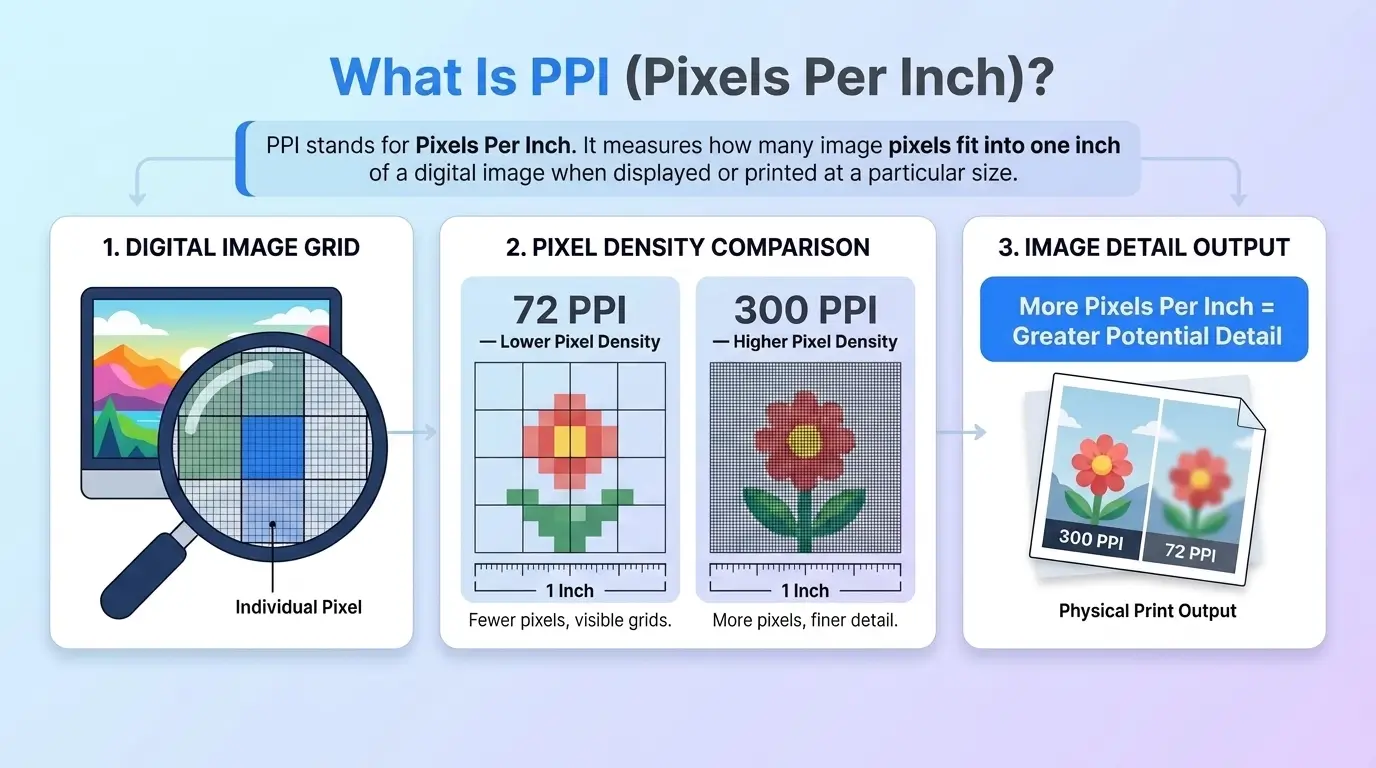
PPI is about your image data. The same pixels can be spread over a small area (high PPI) or stretched over a large area (low PPI).
How to Calculate Pixels Per Inch
For a photo you plan to print, use this formula:
Example: an image that is 3000 pixels wide printed 10 inches wide is 300 PPI. Print the same image 20 inches wide and it drops to 150 PPI. The pixels did not change. They were just spread across more inches.
For a screen, PPI is the diagonal pixel count divided by the diagonal screen size in inches. A 24-inch monitor running 1920 × 1080 works out to about 92 PPI. Many modern phones are well above 400 PPI, which is why text on them looks so crisp.
How Many Pixels Are in an Inch?
It depends on the PPI. At 300 PPI there are 300 pixels in an inch. At 96 PPI there are 96, and at 72 PPI there are 72. There is no fixed answer, because an inch of screen or paper can hold as many pixels as the display or print setting allows. This also explains pixel density, the term used for PPI on screens: a higher density packs more pixels into each inch.
What Is DPI? Dots Per Inch Meaning and Definition
DPI stands for dots per inch. By definition, it is the number of tiny ink dots a printer can place within a one-inch line on paper. It is a property of the printer, not of your image file.
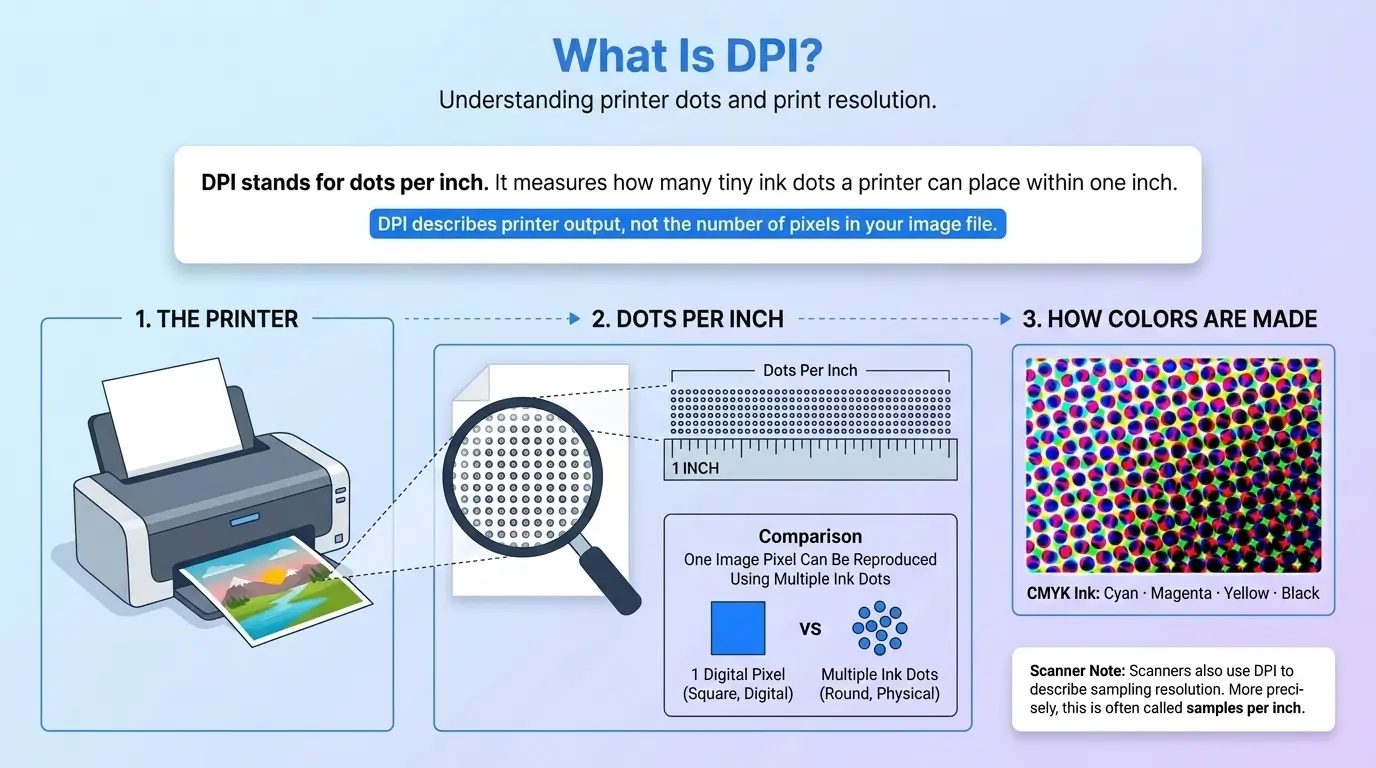
Printer dots are not the same as pixels. An inkjet printer builds the color of a single pixel by combining several dots of cyan, magenta, yellow and black ink. That is why a printer's DPI figure is usually much higher than the PPI of the image you send it. Scanners also quote DPI, although the more precise term is samples per inch.
What Does 300 DPI Mean?
When a print shop, stock site or design app asks for a 300 DPI image, it almost always means 300 PPI: 300 pixels for every inch of the printed size. For a printer specification, 300 DPI means the printer can place 300 dots in an inch. Context tells you which one is meant, and for your image file it is the pixel count that matters.
300 DPI vs 600 DPI
A 600 DPI printer places finer dots than a 300 DPI printer, which gives smoother gradients and sharper small text. It does not mean your image needs 600 pixels per inch. For photos viewed at a normal distance, a 300 PPI image prints well even on printers rated at 600 DPI or higher.
DPI vs PPI: What Is the Difference?
PPI describes the pixel density of a digital image. DPI describes the dot density of a printer. One belongs to your file and the other belongs to your hardware.
| PPI (Pixels Per Inch) | DPI (Dots Per Inch) | |
|---|---|---|
| Measures | Pixels packed into one inch | Ink dots placed in one inch |
| Belongs to | The digital image or screen | The printer or scanner |
| You control it by | Changing pixel dimensions or print size | Choosing a printer or print quality setting |
| Where you see it | Image editors, screen specs | Printer specs, print shop requirements |
Is DPI the Same as PPI?
Technically no, but in everyday use people mix them up. Photoshop, Windows file properties and many print shops label pixel density as "DPI." So when you are asked for "300 DPI" for an image file, treat it as 300 PPI.
DPI to PPI and PPI to DPI Conversion
There is no formula to convert DPI to PPI, because they measure different things. In practice, the numbers are carried over one to one:
- 300 DPI to PPI: 300 PPI
- 200 DPI to PPI: 200 PPI
- 96 DPI to PPI: 96 PPI
- 72 DPI to PPI: 72 PPI
A PPI to DPI converter therefore returns the same number you typed in. The calculation that actually matters is how many pixels you need, covered next.
How Many Pixels Do You Need for 300 DPI?
Use this formula:
For a 300 PPI resolution image, multiply each side of the print by 300. For example, an 8 × 10 inch print needs 2400 × 3000 pixels, which is about 7.2 megapixels.
| Print size | 300 PPI (best quality) | 150 PPI (large prints, viewed from a distance) |
|---|---|---|
| 4 × 6 in | 1200 × 1800 px | 600 × 900 px |
| 5 × 7 in | 1500 × 2100 px | 750 × 1050 px |
| 8 × 10 in | 2400 × 3000 px | 1200 × 1500 px |
| A4 | 2480 × 3508 px | 1240 × 1754 px |
| A3 | 3508 × 4961 px | 1754 × 2480 px |
Viewing distance matters. Photos and brochures held in the hand look best at around 300 PPI. Large inkjet prints are commonly fine at 150 to 200 PPI, and banners seen from far away can go lower still.
72 DPI vs 300 DPI: The Web vs Print Myth
You may have heard that web images must be 72 DPI and print images must be 300 DPI. This is mostly a myth. The 72 figure comes from early Macintosh screens. Browsers today display an image by its pixel dimensions and ignore the stored DPI value.
Changing the number only changes the print size the file claims, not its detail. Take an image that is 1200 × 800 pixels:
- At 72 PPI it would print about 16.7 × 11.1 inches.
- At 300 PPI it would print about 4 × 2.7 inches.
Same pixels, same sharpness, different size. Setting 300 DPI on a small image does not make it sharper. If you need a bigger print, you need more pixels.
How to Find the DPI or PPI of an Image
- Windows: right-click the file, choose Properties, open the Details tab, and look under Image for horizontal and vertical resolution.
- Mac: open the image in Preview, go to Tools, then Show Inspector, and check the details tab, or use Tools, then Adjust Size to see the resolution field.
- Photoshop: go to Image, then Image Size, and read the Resolution value.
The value you see is metadata. Screenshots and web images often show 72 or 96, or nothing useful at all. Always check the pixel dimensions as well, because they tell you what the image can really do.
What Resolution Should You Use for Web and Screens?
On screens, pixel dimensions are what count. Size the image to roughly the width it will be displayed at. For example, a blog content image is often fine at 1200 to 1600 pixels wide. For sharp display on high-density screens, you can supply an image about twice the displayed size, but only where the extra sharpness is worth the extra file weight.
Image Resolution vs File Size
Pixel dimensions and file size are different things. File size, measured in KB or MB, depends on pixel count, image format and compression. Two images with identical pixel dimensions can have very different file sizes. After resizing, compress the image so your pages load quickly.
Common Image Resolution Mistakes
- Enlarging a small image and expecting it to stay sharp. Stretching adds pixels but not real detail.
- Trusting the DPI number instead of checking pixel dimensions.
- Changing width and height separately, which distorts the picture. Lock the aspect ratio.
- Re-saving a JPG repeatedly, which lowers quality each time.
- Using a social media download as a print file. These copies are usually compressed and small.
How to Fix Image Resolution Problems with TrimIMG
Image is the wrong size or too large: use the TrimIMG Image Resizer to set exact width and height in pixels. Keep the aspect ratio locked and download the result.
Image is too small or blurry: try the TrimIMG Image Upscaler, which can enlarge images up to 4x. Upscaling can add plausible detail, but it cannot fully recover detail that was never captured, so a better original is always the best fix.
Image file is too heavy: use the TrimIMG Image Compressor to cut the file size without changing the pixel dimensions you chose.
Frequently Asked Questions
What does DPI mean in simple words?
DPI means dots per inch. It tells you how many tiny ink dots a printer can place in one inch of paper. A higher DPI means finer detail and smoother color in the printout. It describes the printer's ability, not the number of pixels in your image.
What does PPI mean?
PPI means pixels per inch. It shows how many pixels are packed into one inch of an image on a screen or in a print. A higher PPI means a sharper, more detailed image at that size. You calculate it by dividing the image's pixel width by its width in inches.
Is 300 DPI the same as 300 PPI?
Not technically, but in daily use they usually mean the same thing. When a print shop asks for a 300 DPI image, it wants 300 pixels per inch at the final print size. Printer DPI is a separate hardware specification.
How do I convert DPI to PPI?
You do not need to convert them. They measure different things, and tools simply carry the number across, so 300 DPI becomes 300 PPI. What you should calculate instead is the pixel size needed: print size in inches multiplied by PPI.
Is 72 DPI or 300 DPI better?
For screens, neither matters, because browsers use pixel dimensions. For print, 300 PPI is the common target for photos. The number only changes the stated print size of a file, so make sure the image has enough pixels for the size you want.
Can I increase DPI without losing quality?
Changing the DPI value alone does not change quality, because it does not add pixels. Adding pixels through resampling or AI upscaling makes the image larger, but it cannot create real detail. Starting with a higher-resolution original gives the best result.
What is a good PPI for printing?
A good PPI for printing photos is 300. Large prints viewed from a distance can use 150 to 200 PPI, and very large banners can go lower. Check your print provider's guidelines when exact requirements matter.
How many pixels is 300 DPI?
300 DPI, read as 300 PPI, means 300 pixels per inch. To find the total, multiply your print size in inches by 300. A 4 × 6 inch print needs 1200 × 1800 pixels, and an 8 × 10 inch print needs 2400 × 3000 pixels.
Pixels are what matter, not the DPI label
Pixels are what an image is really made of. PPI describes how closely they are packed at a given size, and DPI describes how finely a printer lays down ink. Whenever someone asks for 300 DPI, work out the pixels you need by multiplying print size by 300, and ignore the old 72 DPI web rule.
Found this helpful? Share it with your team:
Related Articles
Hello, it's Mujahid Hussain Creative and Professional Senior Software Engineer with 6+ years of experience building rich and interactive websites. I have a comprehensive understanding of WordPress themes, plugins, databases, and its functions.