


The Complete Guide to Resizing Images: Methods, Sizes & Quality (2026)
 Mujahid H.
- October 13, 2026
- 9 min read
Quick answer: To resize an image, first decide whether you need smaller dimensions (pixels) or a smaller file (KB). For pixels, open the image in an editor or a free online tool such as the TrimIMG Image Resizer, keep the aspect ratio locked, type the new width and download. For KB, shrink the dimensions first, then lower the quality until the file fits.
A job portal rejects your photo for being over 50KB. Instagram chops the top off your carousel. Your blog's header image takes four seconds to load on a phone. All three are "resize" problems, but each one needs a different fix.
This guide shows you which fix you need, then walks you through it on any device. Every method here is free, including TrimIMG, our browser-based image toolkit that needs no account or download.
Pixels or kilobytes? The two things "resize" means
Resizing can mean changing an image's dimensions or its file size. They are linked, but they are not the same thing.
Dimensions are the width and height in pixels, such as 4000 × 3000. They decide how big the image looks on screen and how large it can print.
File size is how much storage the image takes, measured in kilobytes (KB) or megabytes (MB). It decides whether the image fits an upload limit and how fast it loads.
Here is how they connect. A 12-megapixel phone photo is about 4000 × 3000 pixels, or 12 million pixels. Stored with no compression at all, that is roughly 36 MB of colour data. JPEG compression usually brings it down to a few megabytes.
Now halve the width and height to 2000 × 1500. You are left with 3 million pixels, a quarter of the original. Halving both width and height leaves a quarter of the pixels, and the file shrinks in roughly the same proportion.
That is why reducing dimensions is the most powerful way to cut file size. Quality settings and file format matter too, and we cover both below.
| Dimensions (pixels) | File size (KB/MB) | |
|---|---|---|
| What it measures | Width × height | Storage space |
| What changes it | Resizing, cropping | Dimensions, quality setting, format, metadata |
| Why it matters | On-screen size, print size, platform specs | Upload limits, page speed, email limits |
| Typical request | "Make it 1080 px wide" | "Must be under 50KB" |
Pick your goal first
The right method depends on where the image is going. Find your goal in the table, then jump to the matching section.
| Your goal | What to change | Practical target | TrimIMG tool |
|---|---|---|---|
| Meet a form or portal limit ("max 50KB") | Dimensions first, then quality | What the form states, in KB and pixels | Image Resizer + Image Compressor |
| Post on Instagram | Aspect ratio, then dimensions | 1080 × 1350 px (4:5) | Image Resizer |
| Speed up a website or blog | Width to match display size, modern format | 1200–2000 px wide; heroes around 100–300 KB | Image Resizer + Image Converter (to WebP) |
| Email photos | Dimensions | 1200–1600 px on the long edge | Image Resizer |
| Print a photo | Pixels per inch | 300 pixels for every inch of print | Image Resizer |
| Profile picture or thumbnail | Crop square, then shrink | 320–400 px square | Image Resizer |
How to resize an image by dimensions
Whichever tool you use, three rules apply:
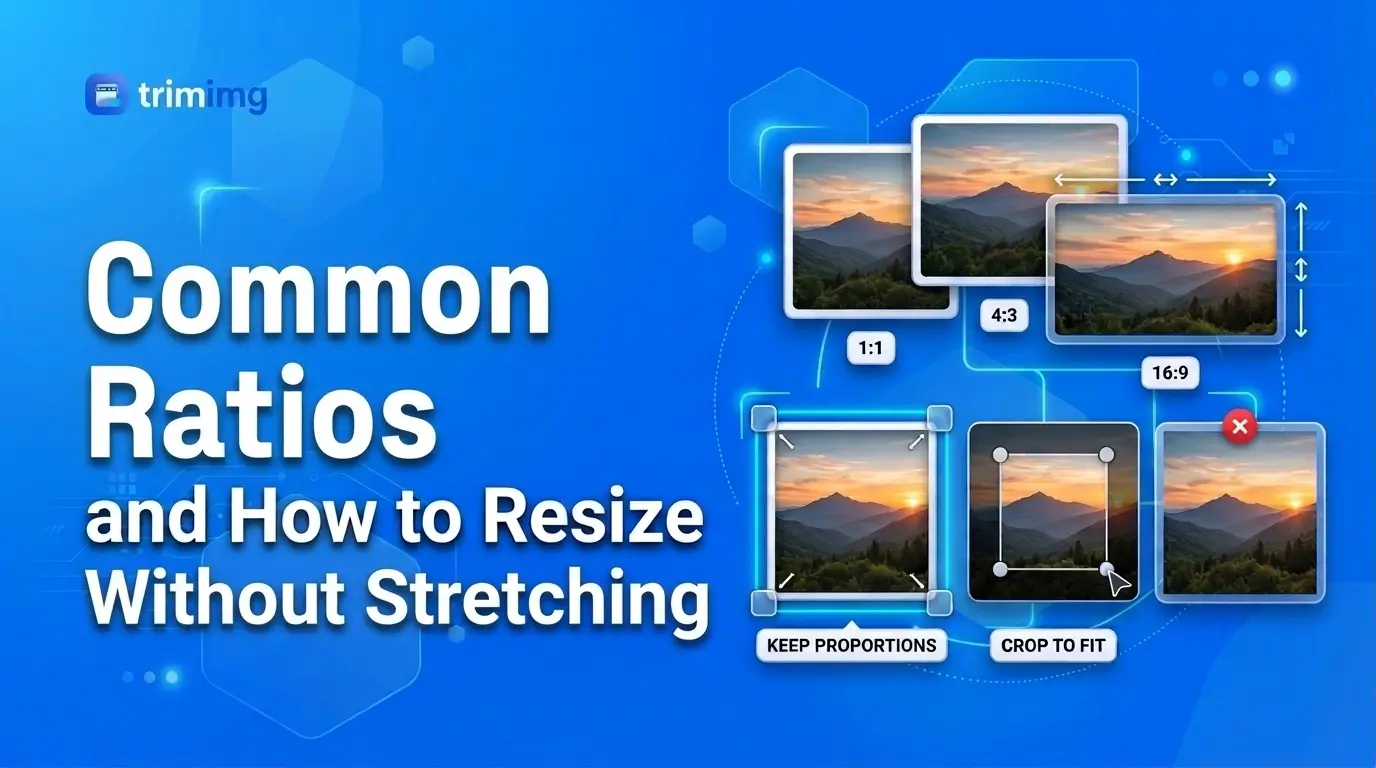
- Lock the aspect ratio (the chain icon or "keep proportions" option) so the image doesn't stretch.
- Work from the original, not a copy you've already shrunk.
- Save as a new file so you can go back if needed.
Online with TrimIMG (any device)
This is the quickest route on a phone, Chromebook or work laptop where you can't install software. TrimIMG works in any browser and handles PNG, JPG, WebP, HEIC, GIF and more.
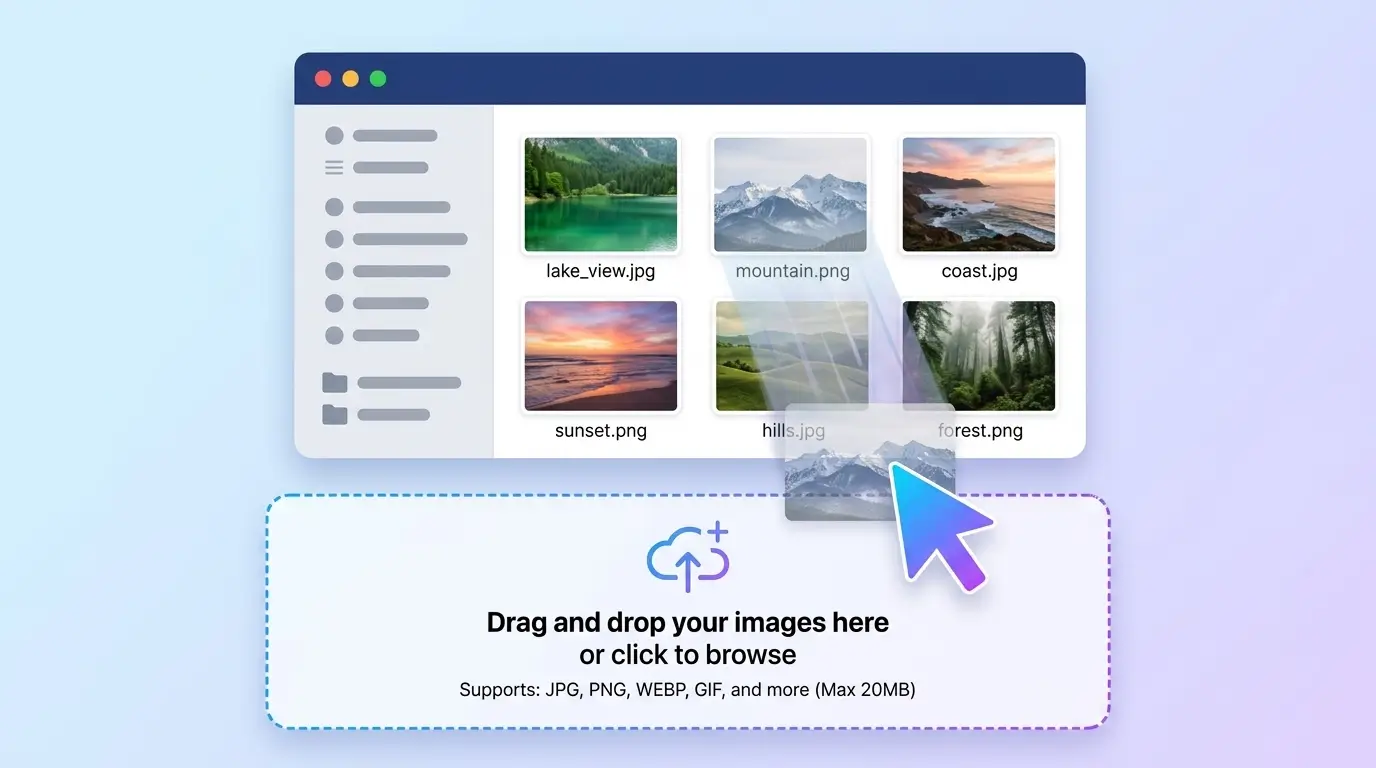
- Open the TrimIMG Image Resizer.
- Drop your image onto the page or tap to upload it.
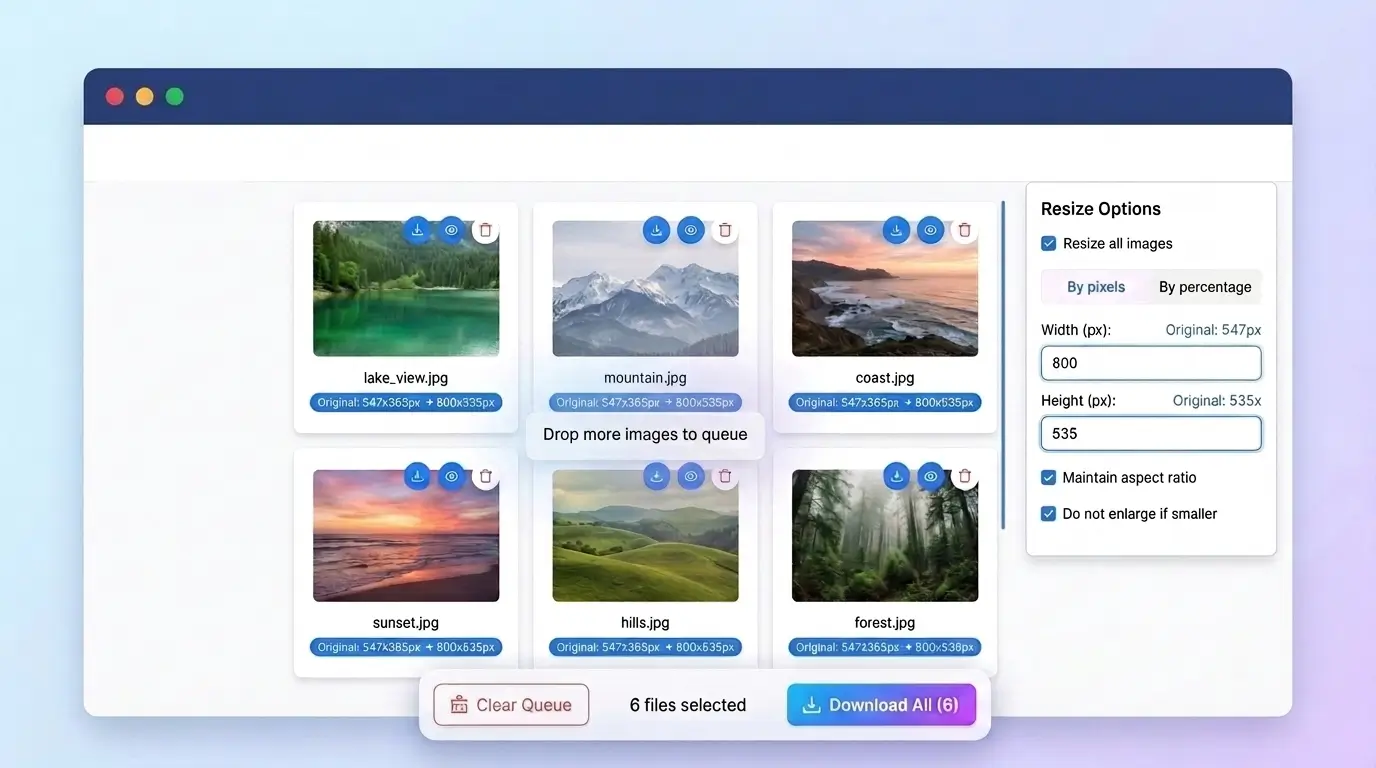
- Choose pixels, or a percentage to scale by.
- Keep the aspect ratio locked and type the new width. The height follows automatically.
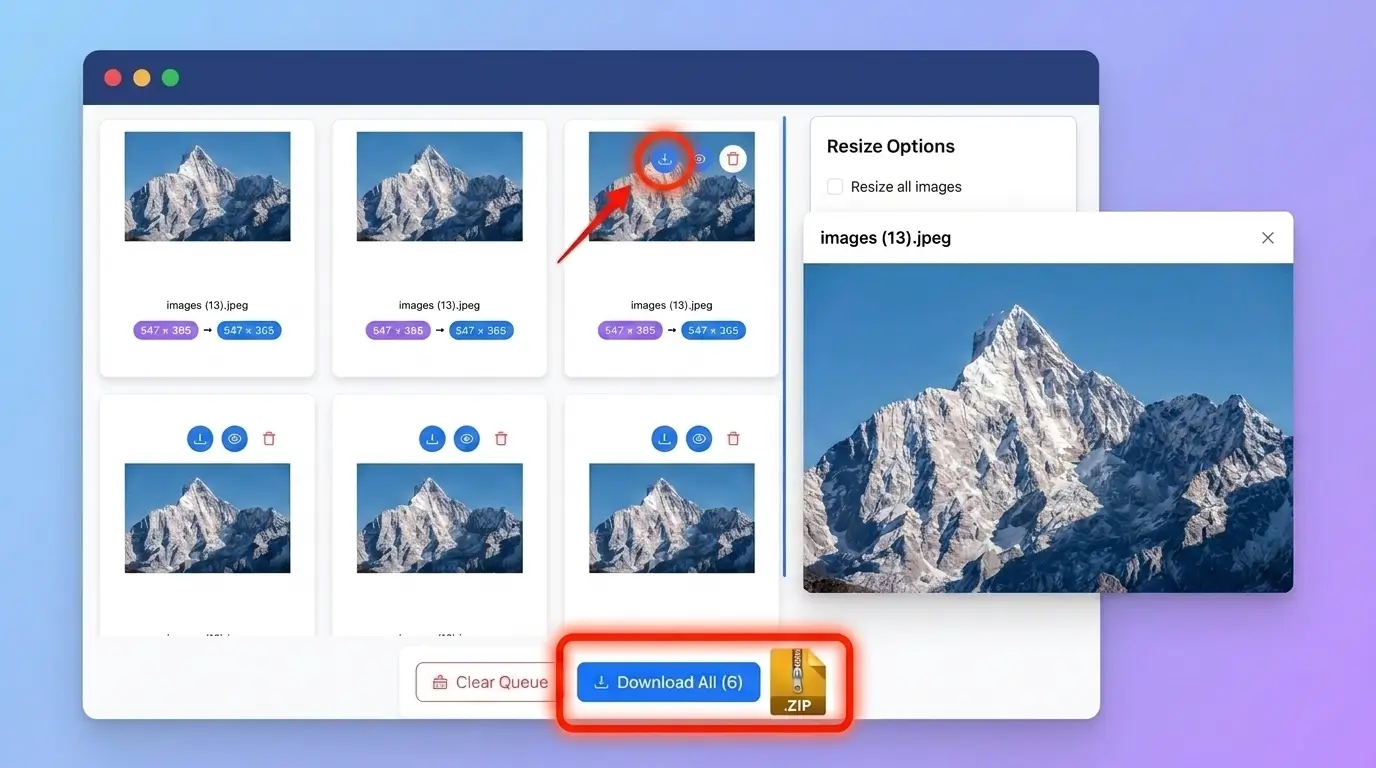
- Download the resized image.
On Windows
Photos app (Windows 11): open the image, select the … (See more) menu, choose Resize image, then set custom dimensions in pixels with Maintain aspect ratio ticked. Save as a copy.
Paint: open the image, select Resize on the Home tab (or press Ctrl + W), choose Pixels, tick Maintain aspect ratio, enter the width and save with File > Save as.
On Mac
Preview: open the image, go to Tools > Adjust Size, set the unit to pixels, keep Scale proportionally ticked and enter the width. Use File > Export to save a new copy and keep the original.
On iPhone
The Photos app can crop but has no pixel resize option. iPhone photos are also usually saved as HEIC, which many websites won't accept. You have three free routes:
- Online: open TrimIMG in Safari and use Resize HEIC or the Image Resizer. You can also convert HEIC to JPG with the Image Converter.
- Shortcuts app: build a shortcut with the actions Select Photos → Resize Image → Save to Photo Album. After that, resizing is one tap.
- Mail trick: attach the photo to an email and choose Small, Medium or Large when Mail offers to reduce the size.
On Android
Menus vary by brand and Android version. On most Samsung phones, open the photo in Gallery, tap ⋮ (More options) > Resize image and pick a preset. Google Photos can crop but doesn't offer a pixel resize, so use an online resizer like TrimIMG in Chrome instead.
How to reduce image size in KB
To hit a KB limit, reduce the dimensions first, then lower the quality, then change the format if needed. Doing it in that order keeps the image sharp.
Most people do the opposite. They take a 4000-pixel photo and crush the quality until it fits 20KB, which leaves a blocky, smeared image. Shrinking the dimensions first removes pixels the form will never display anyway, so far less compression is needed.
The three levers, in order
Dimensions – the biggest lever. If a portal shows your photo at 200 × 230 pixels, there is no reason to upload 4000 × 3000.
Quality – for JPEG, a quality setting around 70–80 usually looks almost identical to the original at a fraction of the size. Go lower only if you must.
Format and metadata – photos saved as PNG are often far larger than the same photo as JPEG or WebP. Removing hidden camera data (EXIF) also trims a few kilobytes.
KB targets: where to start
Use these as starting points, then adjust. Busy, detailed photos need more KB than plain backgrounds.
| Target size | Common use | Start with (long edge) | JPEG quality to try |
|---|---|---|---|
| 20KB | Exam and ID form photos, signatures | 200–350 px | 60–75 |
| 50KB | Application forms, profile photos | 400–600 px | 70–80 |
| 100KB | Listings, documents, email | 800–1000 px | 75–85 |
| 200KB+ | Blog images, portfolios | 1200–1600 px | 80–85 |
Worked example: a 20–50KB form photo
Many exam, visa and job portals ask for something like "JPG, 200 × 230 pixels, between 20KB and 50KB". Here is how to meet that in one pass:
- Crop the photo to the required shape so the face isn't squashed. Your phone's photo editor can do this.
- Resize to exactly 200 × 230 pixels in the TrimIMG Image Resizer.
- Compress it as a JPG with the TrimIMG Image Compressor and check the new size.
- If it is still over 50KB, compress again at a lower quality. If it falls under the 20KB minimum, use a higher quality setting.
Note that last step. Some forms set a minimum as well as a maximum, and an image that is too small gets rejected too.
How to resize an image without losing quality
Making an image smaller is almost always safe. Making it bigger is where quality suffers, because the software has to invent pixels that were never captured.
Follow these habits to keep resized images crisp:
- Downscale, don't upscale. Start from the largest original you have.
- Lock the aspect ratio. A stretched face is the most noticeable quality loss of all.
- Resize once. Each save of a JPEG adds a little more compression damage, so avoid shrinking a file that was already shrunk.
- Use a good resampling method. Bicubic or Lanczos resampling (offered in Photoshop, GIMP and most quality tools) keeps edges smoother than basic "nearest neighbour" resizing.
- Sharpen lightly after a big reduction. Shrinking softens fine detail; a small amount of sharpening brings it back.
- Match format to content. JPEG for photos. PNG for screenshots, logos, text and transparency. WebP for websites, where it handles both well.
What if you need a bigger image? An AI upscaler such as the TrimIMG Image Upscaler can enlarge photos up to 4x and look convincing, but it predicts detail rather than recovering it. That is fine for social posts and presentations. It is not suitable for ID photos, evidence or anything where accuracy matters.
Image sizes for Instagram, websites and email (2026)
The safest Instagram feed size in 2026 is 1080 × 1350 pixels (4:5). Instagram switched its profile grid from square to a taller 3:4 preview in January 2025, then added native 3:4 posts in May 2025.
That means the grid crops every thumbnail to 3:4. A 4:5 image only loses thin strips at the sides, so keep faces, products and text in the centre.
| Where it's going | Size (pixels) | Ratio | Notes |
|---|---|---|---|
| Instagram feed post (default) | 1080 × 1350 | 4:5 | Most screen space; survives the grid crop |
| Instagram grid-matched post | 1080 × 1440 | 3:4 | No crop on the profile grid |
| Instagram square post | 1080 × 1080 | 1:1 | Shows with empty space on the new grid |
| Instagram Stories and Reels | 1080 × 1920 | 9:16 | Keep text away from top and bottom edges |
| Instagram profile photo | 320 × 320 | 1:1 | Displays as a small circle |
| Website full-width banner | ~1920 wide | Varies | Your heaviest image, so compress it well |
| Image inside a blog post | ~1200 wide | Varies | Matches most content-column widths |
| Email photo | 1200–1600 long edge | Original | Keeps attachments light |
Platforms change their specs without notice, so check the platform's help centre before a big campaign.
Resizing for print: the PPI math
For a sharp print, you need about 300 pixels for every inch of paper. Multiply the print size in inches by 300 to get the pixels you need.
| Print size | Pixels needed at 300 PPI |
|---|---|
| 4 × 6 in (10 × 15 cm) | 1200 × 1800 |
| 8 × 10 in (20 × 25 cm) | 2400 × 3000 |
| A4 (8.27 × 11.69 in) | 2481 × 3507 |
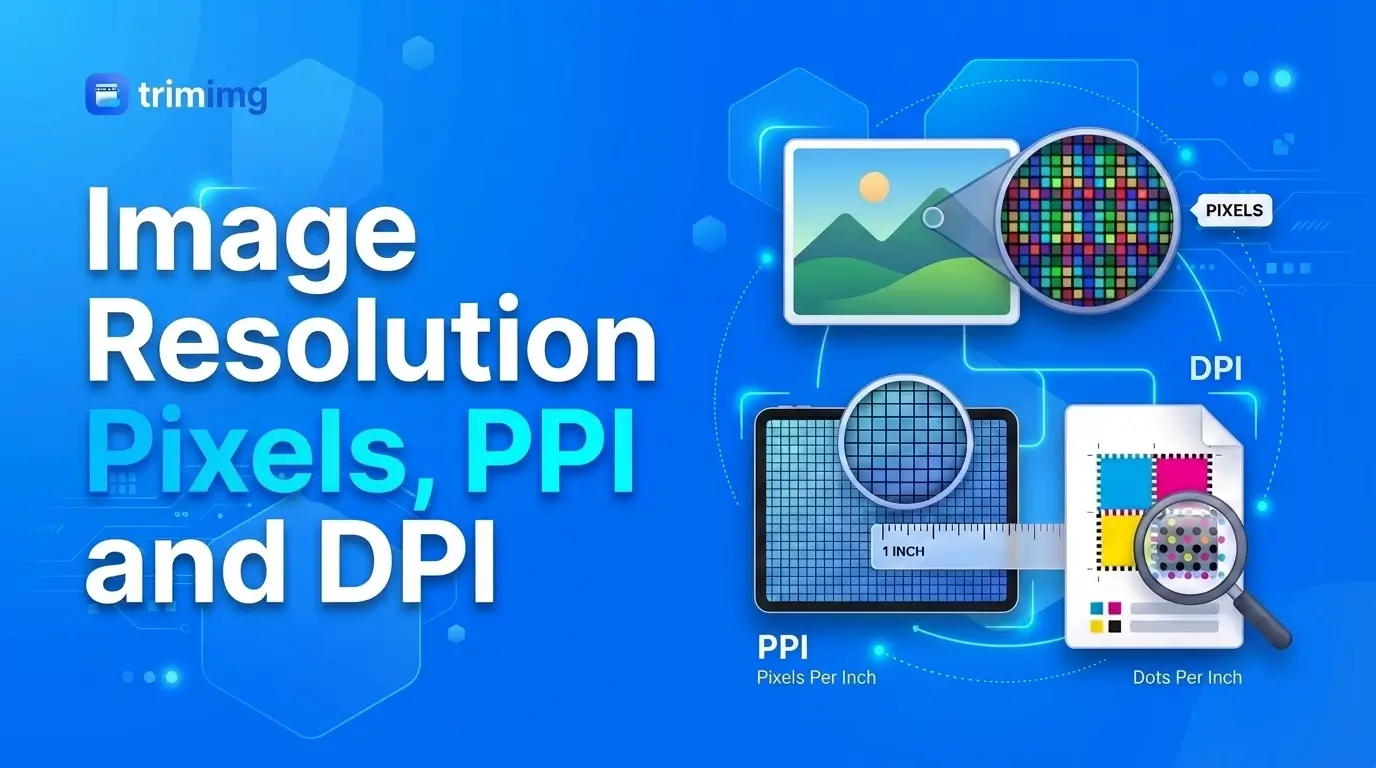
Two terms get mixed up here. PPI (pixels per inch) describes the image file. DPI (dots per inch) describes how a printer lays down ink. When you change the PPI number with resampling turned off, the pixels stay the same; only the planned print size changes.
So a "72 DPI" photo is not low quality by itself. What matters is the total pixel count compared with the size you want to print.
Mistakes that ruin resized images
- Stretching the image because the aspect ratio was unlocked.
- Compressing a huge photo to a tiny KB target without shrinking it first.
- Enlarging a small image and expecting it to print sharply.
- Saving screenshots and logos as low-quality JPEGs, which blurs text.
- Overwriting the original, so there is nothing to go back to.
- Uploading at the wrong ratio and letting the platform crop out faces or text.
Frequently asked questions
How do I resize an image without losing quality?
Make it smaller rather than bigger, keep the aspect ratio locked, start from the original file and export once. For photos, a JPEG quality of 75–85 keeps visible quality while cutting size.
How do I reduce an image to 20KB?
Resize it to small dimensions first (around 200–350 pixels on the long edge), then compress it as a JPEG and lower the quality until it fits. TrimIMG's Image Resizer and Image Compressor handle both steps for free.
Does resizing an image reduce its file size?
Yes, when you make it smaller. Fewer pixels means less data, so halving the width and height typically cuts the file to around a quarter.
What is the difference between resizing and cropping?
Resizing scales the whole picture up or down. Cropping cuts away part of the picture and keeps the rest at the same scale.
Can I make a small image bigger without it going blurry?
Only up to a point. Traditional enlargement softens the image, while AI upscalers add predicted detail. Neither recovers detail the camera never captured.
How do I resize a photo on iPhone without an app?
Open an online resizer like TrimIMG in Safari, or use the free Shortcuts app with the "Resize Image" action. Mail also offers Small, Medium and Large sizes when you attach photos.
Is it safe to resize images online?
It depends on the tool. Use a resizer that doesn't require an account and has a clear privacy policy, and avoid uploading sensitive documents to sites you don't trust. TrimIMG is free and needs no sign-up.
Resize smarter, not harder
Start with the goal, not the tool. Shrink dimensions before you compress, keep the aspect ratio locked and always keep your original. When you need a quick, free fix on any device, TrimIMG has the resizer, compressor and converter in one place.
Found this helpful? Share it with your team:
Related Articles
Hello, it's Mujahid Hussain Creative and Professional Senior Software Engineer with 6+ years of experience building rich and interactive websites. I have a comprehensive understanding of WordPress themes, plugins, databases, and its functions.