


Resize vs Compress vs Crop: What Is the Difference and How to Reduce Image Size Without Losing Quality
 Mujahid H.
- October 19, 2026
- 12 min read
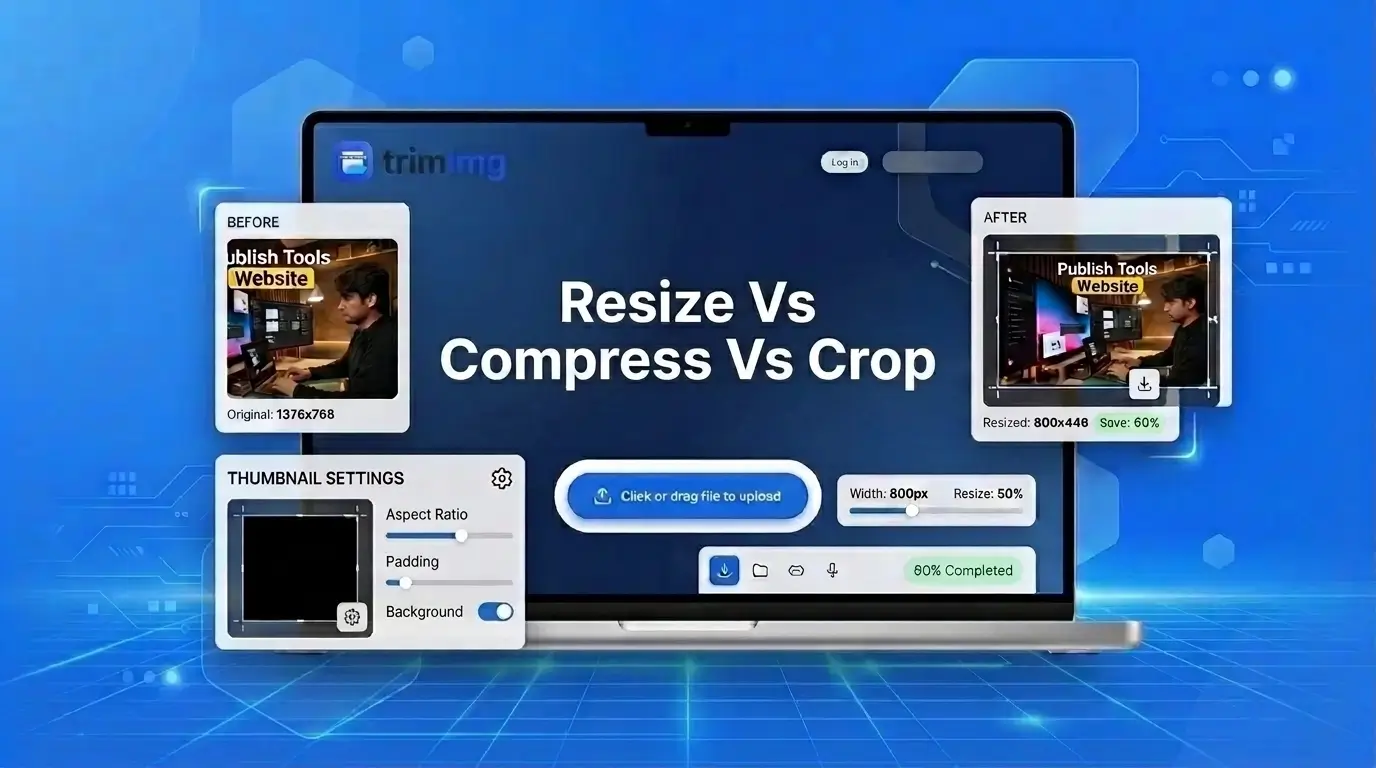
You have a 4000 × 3000 pixel photo on your phone. An application form requires a square image, but your upload keeps failing because the file is too large. Should you crop it, resize it, or compress it?
The answer depends on what the form requires. Cropping removes unwanted parts of the picture. Resizing changes its pixel dimensions, or width and height. Compression reduces the amount of data stored in the file, helping lower its file size.
These actions aren't interchangeable. Resizing doesn't necessarily make a file small enough to upload, and compression won't turn a rectangular photo into a square one. If the form has requirements for shape, pixel dimensions, and file size, you may need all three steps.
Quick answer: should you resize, compress or crop?
- Crop when you need a square image or want to remove unwanted edges.
- Resize when the required width or height in pixels differs from your image's current dimensions.
- Compress when the file exceeds the upload limit measured in KB or MB.
For our phone photo, check the form's requirements first. Crop the image to a square using your device's built-in editor, resize it to the required pixel dimensions, and compress it if the file is still too large. Check the image before uploading it.
Resizing, compressing, and cropping change different things about an image. Cropping removes part of the picture, resizing changes its pixel dimensions, and compression reduces its file size. The right choice depends on whether you need a different shape, different dimensions, or a smaller file. If your image has all three problems, you may need all three actions.
| Crop | Resize | Compress | |
|---|---|---|---|
| What changes? | Visible content and shape | Pixel dimensions | File size |
| What stays the same? | Pixel dimensions of the retained area, before any later resizing | Entire picture's composition, if proportions are preserved | Pixel dimensions |
| Effect on quality | Doesn't resample the retained pixels | Can lose detail when reduced or look soft when enlarged | Lossy compression can introduce artifacts; lossless preserves image data |
| When to use it | You need a square photo or want to remove unwanted edges | A website or form requires specific pixel dimensions | The file exceeds an upload limit |
| Which tool? | Your phone's or computer's built-in editor | TrimIMG Image Resizer | TrimIMG Image Compressor |
A quick example: imagine your phone photo is 4000 × 3000 pixels. Cropping it to 3000 × 3000 makes it square by removing part of the original image. Resizing it to smaller pixel dimensions changes how many pixels represent the picture. Compressing it reduces the file size without changing those dimensions.
One action doesn't automatically replace the others. That's why understanding the two meanings of image size is the next step.
Pixel Dimensions vs File Size: The Two Kinds of Image "Size"
The word size can mean two different things when you're working with an image. Pixel dimensions tell you how wide and tall the picture is, while file size tells you how much storage space the image file uses. Understanding this difference helps you choose the right fix instead of repeatedly changing an image without solving the actual problem.
For example, your phone photo measures 4000 × 3000 pixels. That's its pixel dimensions. Its file size, however, depends on factors such as its format, image content, and compression. Two photos with identical pixel dimensions can have very different file sizes.
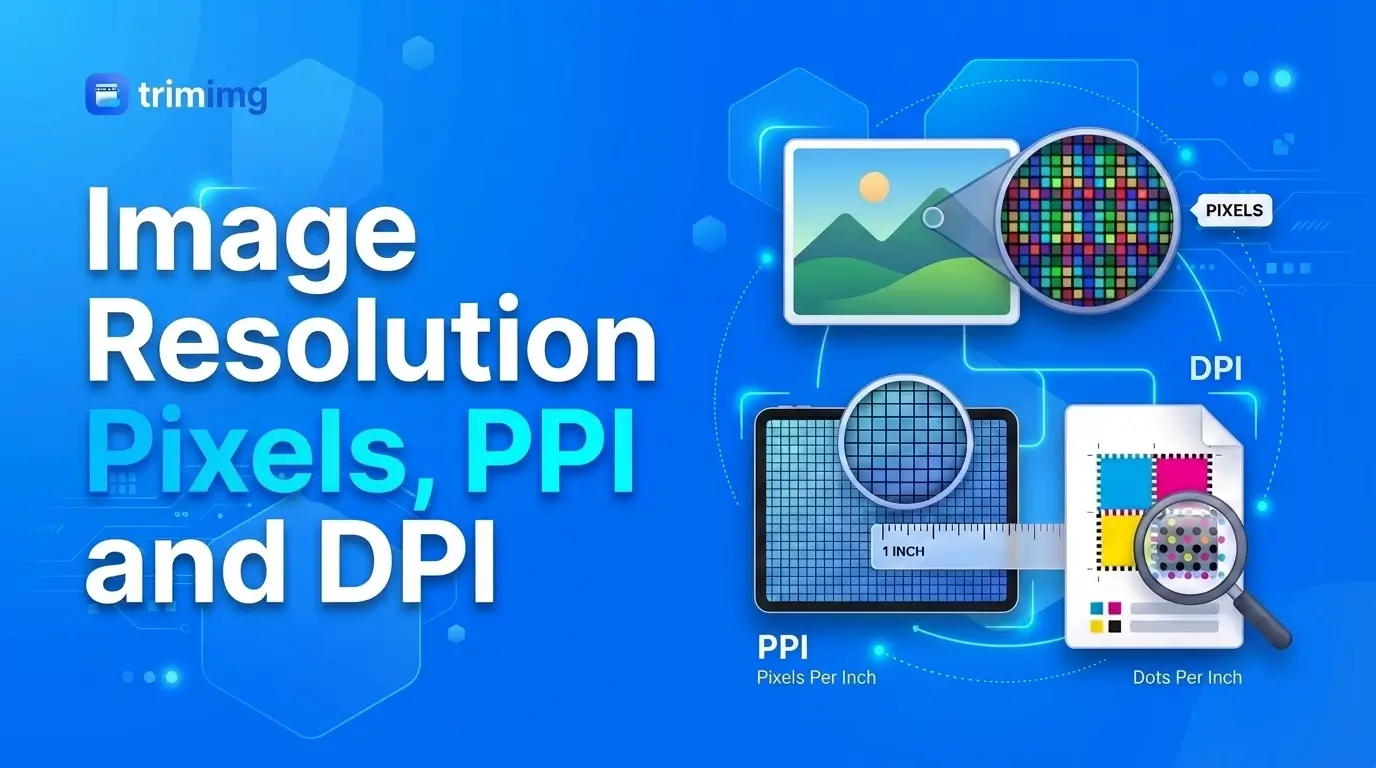
This distinction also explains why an image can look large on your screen but still be a relatively small file, or look small when displayed while containing millions of pixels. If you want to understand how pixel count relates to detail and clarity, see our guide to Image Resolution Explained.
What Are Image Dimensions?
Image dimensions describe the width and height of a digital image in pixels. Pixels are the tiny picture elements that combine to form the image. A photo measuring 4000 × 3000 pixels is 4000 pixels wide and 3000 pixels tall, giving it 12 million pixels, or 12 megapixels.
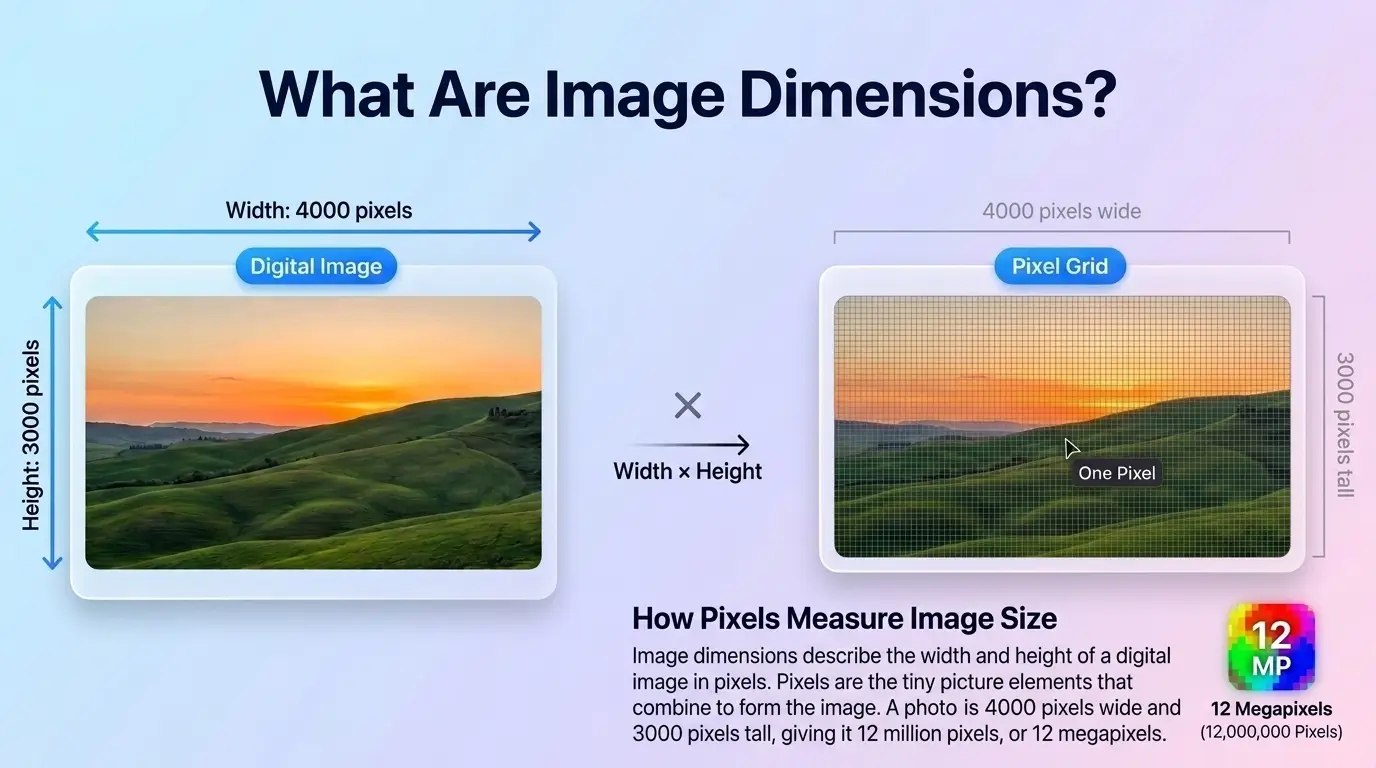
Megapixels express the total pixel count in millions; they don't tell you the file size in KB or MB. Dimensions also don't guarantee sharpness, because focus, lighting, and the quality of the original image matter too.
What Is Image Resizing?
Image resizing changes an image's pixel dimensions while keeping the entire picture visible, provided you preserve its proportions. It can make an image smaller for an upload or larger for a particular use, although enlarging cannot restore detail that the original image never captured.
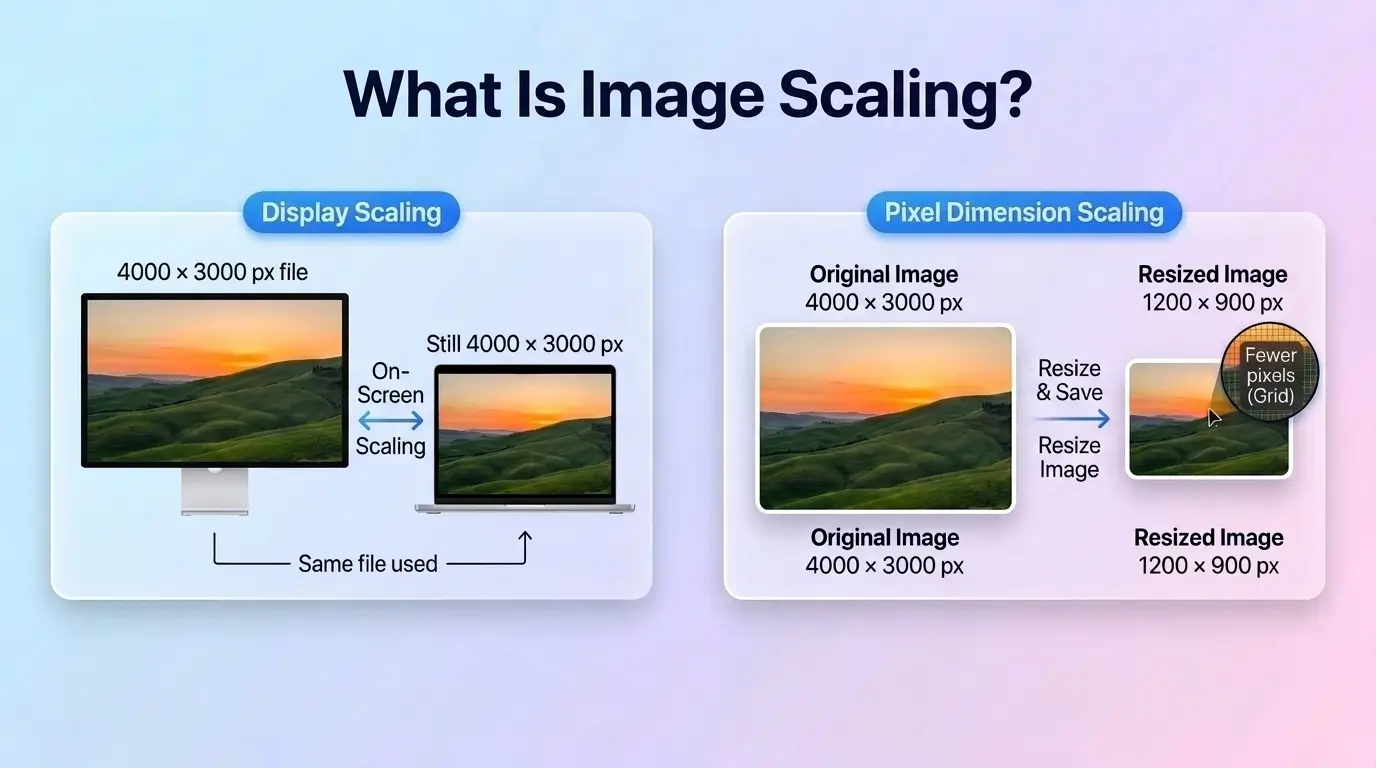
Consider the 4000 × 3000 phone photo. Resizing it to 1600 × 1200 reduces its pixel count from 12 million to 1.92 million. The new image retains 16% of the original pixels, but the whole picture remains visible.
Reducing the dimensions can also reduce file size, but the result depends on the image format and compression settings. If an upload has a strict file-size limit, you may still need compression afterward.
What Is Image Scaling?
Image scaling means making a picture appear larger or smaller. The term can describe changing its displayed size on a screen or changing its actual pixel dimensions, depending on the context.
For example, you can display a 4000 × 3000 image in a smaller space on a webpage without creating a smaller image file. If you create a new version with fewer pixels, you're changing its pixel dimensions too.
That's why the terms scaling and resizing sometimes overlap. When preparing an image for upload, check whether the requirement refers to its displayed size or its actual pixel dimensions.
What Is Resampling?
Resampling is the process of calculating pixel values when an image's pixel dimensions change. When you make an image smaller, some original pixels must be combined or discarded. When you enlarge it, the software estimates new pixel values between existing ones.
Different methods produce different results. Nearest-neighbour copies the value of a nearby pixel, which can leave visibly blocky edges. Bilinear interpolation blends nearby pixels, while bicubic interpolation uses a wider neighbourhood to calculate smoother transitions.
The method, amount of resizing, and original image quality all affect the result. Enlarging a small image substantially can make it look soft because the software must estimate detail that wasn't captured in the first place.
Canvas Size vs Image Size
Canvas size vs image size refers to the difference between the picture's boundaries and the surrounding workspace in an image editor. Changing the canvas can add empty space around a picture without changing the picture itself. Changing the image's pixel dimensions resizes the picture.
This distinction matters when an editor offers both settings: adding space around an image isn't the same as making the image smaller.
Now that pixel dimensions are clear, there's another part of an image to consider: its shape, which determines whether it fits the space you need.
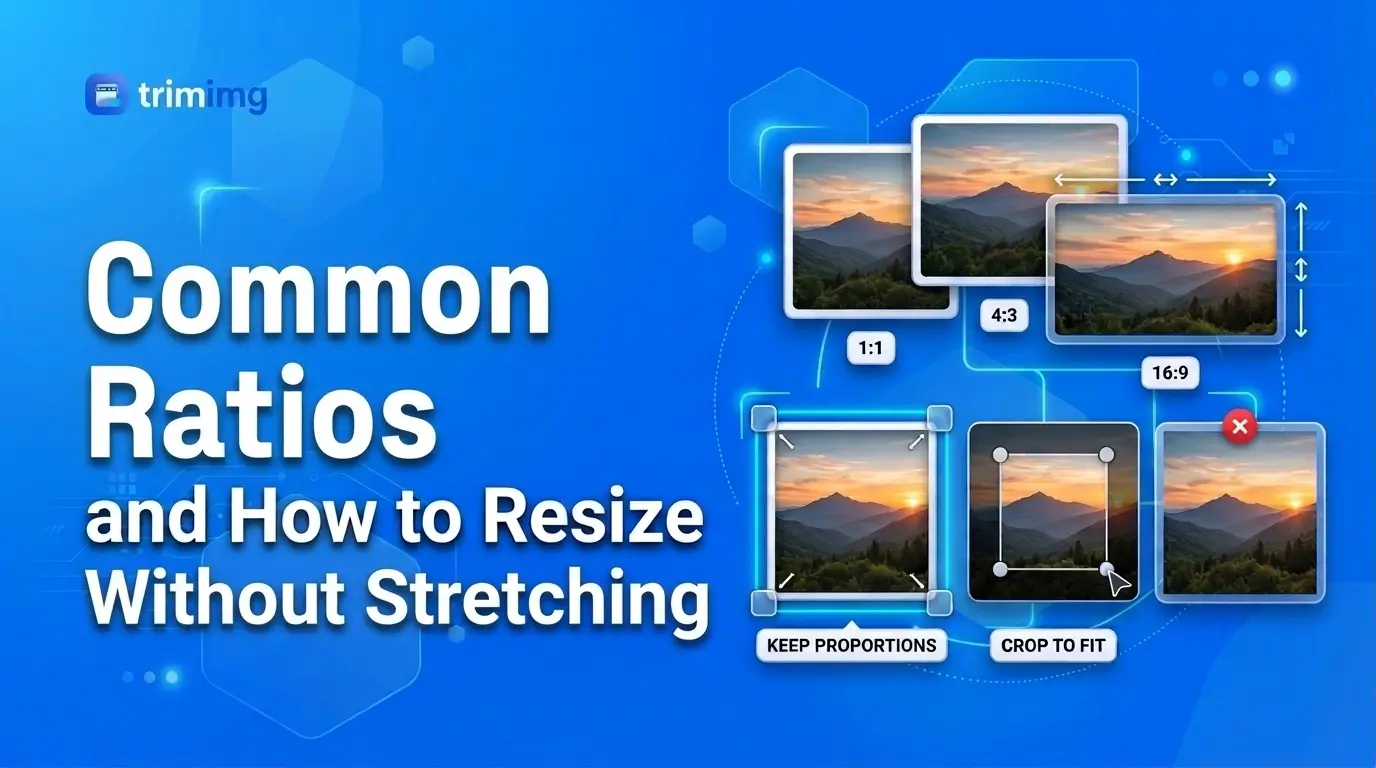
What Is Aspect Ratio? Why It Matters When You Resize or Crop
What is aspect ratio? It is the relationship between an image's width and height, usually written as two numbers separated by a colon. The aspect ratio determines whether an image is wide, tall, or square. Choosing the right ratio helps your image fit a website, profile picture, product listing, or upload form without unwanted stretching.
For example, an image measuring 1920 × 1080 pixels has a 16:9 aspect ratio, commonly used for widescreen content. An image measuring 1000 × 1000 pixels has a 1:1 aspect ratio, meaning its width and height are equal.
When you resize an image while preserving its proportions, its dimensions change but its aspect ratio stays the same. A 4000 × 3000 photo has a 4:3 ratio, so resizing it to 1600 × 1200 keeps the same shape. It becomes smaller in pixel dimensions without cutting anything out.
Cropping works differently. It removes part of the image to create a new composition or fit a required shape. If an application form asks for a square photo, resizing the original 4:3 image alone will not make it square. You need to crop it to a 1:1 ratio first, then resize it if the form specifies pixel dimensions.
What Is Image Cropping?
What is image cropping? It is the process of removing unwanted outer areas of a picture to change its composition or aspect ratio. Cropping can help you focus on a person, remove distracting edges, or turn a rectangular photo into a square one.
Imagine cropping your 4000 × 3000 phone photo into a 3000 × 3000 square. You remove 1000 pixels from the width while keeping the full height. The resulting image contains 9 million pixels, or 75% of the original pixel count.
Cropping does not resample the pixels you keep, although it reduces the total number of pixels in the image. It may also reduce file size, but that depends on the image format and compression. TrimIMG does not offer a crop tool, so use your phone's or computer's built-in image editor to crop the photo before resizing or compressing it.
Crop vs Resize: Which One Changes the Picture?
Crop vs resize comes down to what changes: cropping removes visible content, while resizing changes the image's pixel dimensions. Cropping can change the composition and aspect ratio; resizing can make the entire picture smaller or larger while preserving its proportions.
For example, cropping your 4000 × 3000 photo to 3000 × 3000 removes the left and right edges to make it square. Resizing that square image to 1000 × 1000 reduces its dimensions while keeping the square composition.
If you need a specific shape, crop first. Then resize the remaining image to the required pixel dimensions. However, follow the upload requirements: if no crop is needed, resizing alone may be enough.
Once the shape and dimensions are right, the third action addresses the amount of data stored in the file: compression.
Lossy vs Lossless Compression: How Image Compression Works
Lossy vs lossless compression describes two ways to reduce an image file's size. Lossy compression removes some image data to achieve a smaller file, while lossless compression reduces file size without permanently discarding the original image data. The best choice depends on how small the file needs to be and how much visual detail you want to preserve.
For example, if your 4000 × 3000 phone photo exceeds an upload limit, compression may help without changing its pixel dimensions. You can keep the image at 4000 × 3000 pixels while reducing the amount of data stored in the file.
However, compression is not a guarantee of identical visual quality. Strong lossy compression can create visible artifacts, such as blocky patches, blurred edges, or unusual patterns around text and fine details. Lossless compression preserves image data, but the reduction in file size may be more limited.
If you need a smaller file for a website or form, choose the compression approach that meets the file-size limit while keeping the image looking acceptable. If the upload also requires different pixel dimensions, resize the image separately.
What Is Image Compression?
What is image compression? It is the process of encoding an image more efficiently so that the file uses less storage space. Compression changes how image data is stored, rather than directly changing the image's width and height in pixels.
The two main approaches are lossy and lossless compression. Lossy compression removes some information that may be less noticeable to viewers. This can produce substantially smaller files, but the lost information cannot be fully recovered from the compressed version. Repeatedly editing and saving a lossy image can introduce further quality loss, depending on the format and settings.
Lossless compression reduces file size while preserving the image data. When the image is decoded, that data can be recovered exactly. However, lossless compression does not always make a file dramatically smaller, especially if the image is already efficiently encoded.
Compression is useful when an image exceeds an upload limit measured in KB or MB. It can also help pages load faster by reducing the amount of data visitors need to download. If you need to keep the existing pixel dimensions, use an approach that compresses the file without resizing it. You can use TrimIMG's Image Compressor for this task.
JPG vs PNG Compression
JPG vs PNG compression matters because the formats handle image data differently. JPG (JPEG) typically uses lossy compression and is commonly suitable for photographs with gradients, textures, and many colours. It can produce relatively small files, although aggressive compression may make details look less clear.
PNG uses lossless compression, making it useful for graphics, screenshots, illustrations, and images that need crisp edges or transparency. A PNG file may be larger than a comparable JPG photograph, but the best format depends on the image's content and intended use.
Neither format is always the best choice. A photograph saved as JPG may be much smaller, while a graphic with text or transparent areas may be better suited to PNG. Converting a file from one format to another can change its size and quality, depending on the format and settings used.
If the image already looks right and only exceeds the upload limit, try compression first. If the file remains too large, consider resizing it to the required dimensions before compressing again.
Image Too Large to Upload? Reduce the Size Without Losing Quality
If your image is too large to upload, first identify what the website or form is rejecting. It may have a maximum file size in KB or MB, specific pixel dimensions, an aspect ratio requirement, or an accepted file format. These are different restrictions, so the right fix depends on the error message.
To reduce image size without losing quality, start with the least destructive change that meets the requirement. If the image is already the correct shape and dimensions, try lossless compression or carefully applied lossy compression. If the dimensions are larger than required, resize the image. If the form requires a different shape, crop it using your device's built-in editor.
For our 4000 × 3000 phone photo, imagine the form requires a square image and also sets a maximum file size. Cropping can make the photo square, resizing can bring it to the required pixel dimensions, and compression can help meet the file-size limit. You may need all three steps, but only apply the ones the form actually requires.
Common Upload Problems and the Right Fix
The error message usually points towards the type of change you need. Use this table to choose a practical starting point.
| Upload problem | What to do | Why it helps |
|---|---|---|
| File exceeds the KB or MB limit | Compress the image | Reduces the amount of data stored in the file |
| Image dimensions are too large | Resize the image | Changes its width and height in pixels |
| Form requires a square photo | Crop to a 1:1 ratio using your device editor | Removes the outer areas to create a square composition |
| Image is too wide or too tall | Check the required aspect ratio; crop if necessary | Helps the image fit the required shape |
| File format is not accepted | Convert to a supported format | Changes the file type |
| Image looks blurry after uploading | Check the original, dimensions, and compression settings | Helps identify whether resizing or compression reduced visible detail |
| Upload fails without a clear message | Check file limits, dimensions, format, and connection | Helps narrow down the cause instead of changing everything at once |
Before changing the image, read the upload instructions carefully. A maximum file size does not tell you the required dimensions, and a pixel-dimension limit does not necessarily mean the file must be compressed.
Which Do I Need? Answer Four Questions
Answer these questions in order to choose the right action.
Does the form require a particular shape? If it asks for a square image or a specific aspect ratio, crop the picture using your phone's or computer's built-in editor. Resizing alone will not change the composition to a different shape.
Does the form specify width and height in pixels? If your image dimensions exceed the allowed values, use TrimIMG's Image Resizer to create a version with the required dimensions. Preserve the proportions unless the instructions specifically require a different shape.
Is the file still over the size limit? If the dimensions are correct but the file is too large, use TrimIMG's Image Compressor. Compression can reduce file size without changing pixel dimensions, although the amount of reduction depends on the image and compression settings.
Does the form require a different format? Convert the image to one of the formats accepted by the website. After conversion, check the resulting file size and appearance, as both can vary with the format and settings.
For the running example, crop the 4000 × 3000 photo to a square if required, resize it to the form's specified dimensions, and compress it only if the file still exceeds the upload limit. Check the final image before submitting it.
Optimize Images for Web: The Right Order to Crop, Resize and Compress
To optimize images for web use, prepare the image for its intended display size, then reduce its file size as needed. When you need to change the shape, dimensions, and file size, a practical workflow is to crop first, resize second, and compress last. This avoids compressing an image before you've decided which parts and dimensions you actually need.
Smaller, appropriately sized images can help web pages load faster because browsers have less image data to download. However, the best settings depend on where the image will appear, how large it needs to display, and how much visual detail must be preserved.
Step 1: Crop to the Right Shape
Start by checking the shape required for the image's destination. A square product thumbnail, for example, may need a 1:1 aspect ratio, while a wide banner may need a different ratio. Crop away unwanted areas using your phone's or computer's built-in editor.
For our 4000 × 3000 phone photo, cropping to 3000 × 3000 creates a square image and retains 75% of the original pixel count. Choose the crop carefully so important details, faces, or products remain visible. If the original shape already fits the intended use, skip this step.
Step 2: Resize to the Display Size
After cropping, resize the image to dimensions appropriate for how it will be displayed. A very large image used in a small space can require visitors' browsers to download more data than necessary. Google's web.dev guidance on serving images with correct dimensions explains why matching image dimensions to their display needs matters.
For example, if a website needs a 1000 × 1000 image, resizing your square photo to those dimensions reduces the number of pixels while preserving its square shape. Use TrimIMG's Image Resizer to create the required dimensions.
For responsive websites, the ideal image may depend on the visitor's screen size and the layout. A page can display images at different sizes across mobile and desktop, so one image dimension may not suit every placement. Follow the site's image requirements and avoid enlarging a small image beyond what its original detail can support.
Step 3: Compress Last
Once the shape and dimensions are correct, compress the image if its file size is still larger than necessary. TrimIMG's Image Compressor can help reduce file size without changing pixel dimensions. Review the result to make sure the image still looks clear enough for its purpose.
Return to the 4000 × 3000 phone photo: if the form requires a square image at 1000 × 1000 pixels and sets a maximum file size, crop to square, resize to 1000 × 1000, then compress if needed. Check the final dimensions, file size, format, and appearance before uploading.
This order is a useful starting point, not a universal rule. If the shape and dimensions are already correct, you may only need compression. The goal is to meet the actual requirements while avoiding unnecessary changes to the image.
Common Resize, Compress and Crop Mistakes
Even when you understand the difference between resizing, compression, and cropping, it's easy to choose the wrong action or change an image more than necessary. These common mistakes can leave you with a file that still fails to upload or a picture that looks worse than the original.
- Resizing when you only need compression: if your pixel dimensions already meet the requirements, compress the image instead of reducing its dimensions unnecessarily.
- Compressing when the image needs a different shape: compression reduces file size; it won't turn a rectangular photo into a square one. Crop the image using your device's built-in editor.
- Ignoring the aspect ratio: changing width and height independently can stretch or distort the picture. Preserve the original proportions unless a different shape is specifically required.
- Reducing dimensions too much: an image that is too small may look blurry or pixelated when displayed at a larger size. Choose dimensions based on the image's intended use.
- Using strong lossy compression: a smaller file isn't always a better result. Excessive compression can make text, edges, and fine details look worse.
- Checking only the file size: a file may meet the upload limit but still have the wrong dimensions, format, or aspect ratio. Check all the requirements before submitting it.
The safest approach is to identify the actual problem first, make only the necessary changes, and inspect the final image before using it.
How to Resize and Compress Images with TrimIMG
You can prepare an image for an upload, website, or online listing with TrimIMG's browser-based image tools. Choose the tool that matches the change you need, then check the finished image before using it.
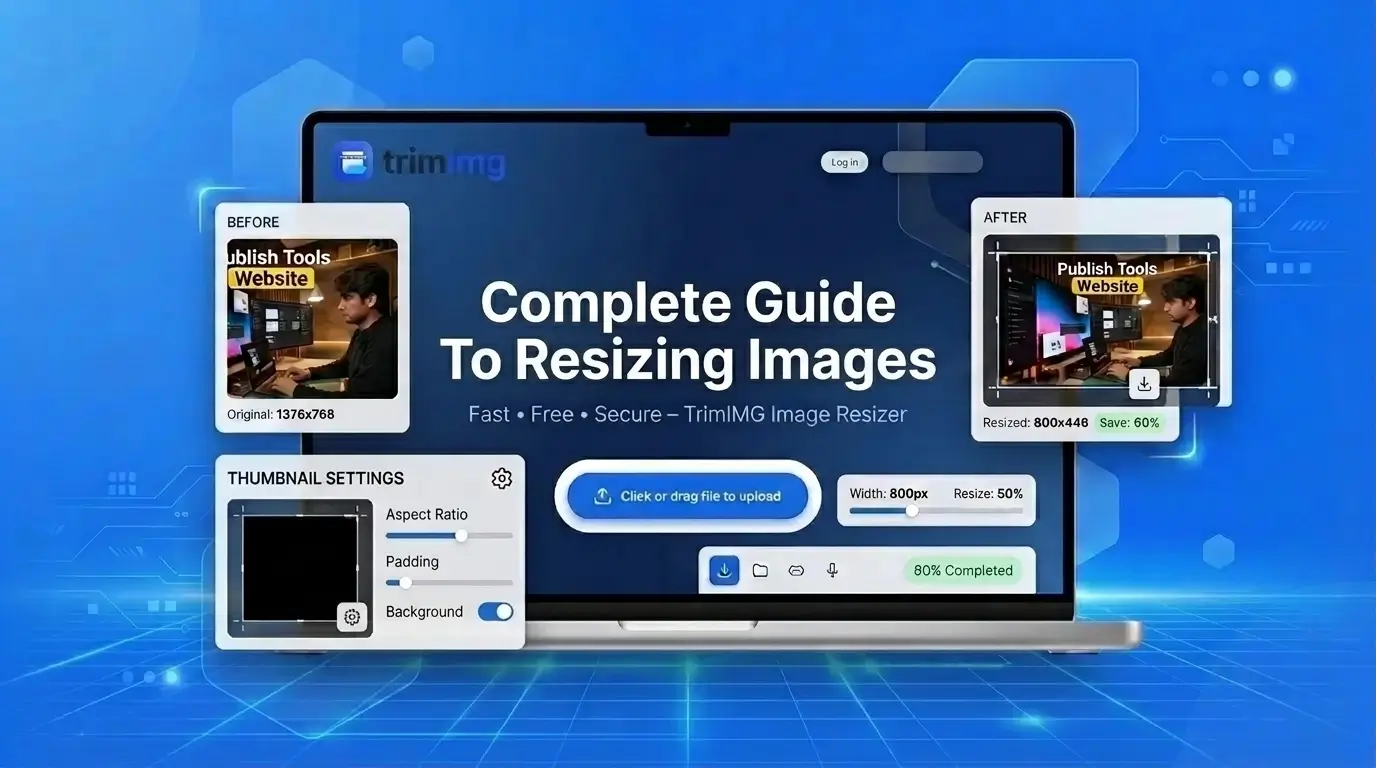
Resize: Open the Image Resizer if you need specific pixel dimensions. Upload your image and enter the required width and height, preserving the proportions when appropriate. Download the resized version once you're satisfied with the result.
Compress: Open the Image Compressor if the file is too large but its dimensions are already correct. Upload the image, apply the available compression options, and review the result before downloading it.
Crop separately: If you need a square image or a different composition, use your phone's or computer's built-in image editor first. TrimIMG does not currently provide a crop tool.
Check the final file: Confirm its dimensions, file size, format, and visual quality against the destination's requirements before uploading or publishing it.
For the 4000 × 3000 phone photo, crop it to the required shape using your device, resize it to the requested pixel dimensions with TrimIMG's Image Resizer, and use the Image Compressor if the file still exceeds the size limit.
The aim is to make only the changes you need—not to reduce every image as much as possible. Start with the destination's requirements, choose the appropriate tool, and keep the final image clear and fit for purpose.
Frequently Asked Questions
Does resizing an image reduce quality?
Resizing an image can affect its quality because changing pixel dimensions involves resampling. Making an image smaller removes or combines pixel information, while enlarging estimates new pixels and cannot restore missing detail. The result depends on the original image, the amount of resizing, and the resampling method. For best results, start with a clear original and use dimensions appropriate for the intended display.
Does resizing reduce file size?
Resizing an image often reduces file size because a smaller image contains fewer pixels to store. However, the amount of reduction depends on the image format, content, and compression settings. A resized image may still exceed an upload limit, so check the resulting file size. If its dimensions are already correct but the file is too large, compression may be the more appropriate solution.
Does compressing an image reduce its dimensions?
No. Image compression generally reduces the amount of data stored in a file without changing its pixel dimensions. For example, a 4000 × 3000 image can remain 4000 × 3000 after compression. Its file size may decrease, but the width and height remain the same. If a website requires smaller pixel dimensions, resize the image separately and then compress it if necessary.
Does cropping reduce file size?
Cropping can reduce file size because it removes part of the image and leaves fewer pixels to store. However, the actual reduction depends on the image format and how the edited image is saved. Cropping does not guarantee that a file will meet a particular KB or MB limit. If the cropped image is still too large, resize or compress it as needed.
Should I resize or compress an image?
Choose resizing when you need different pixel dimensions, such as a smaller width and height for a website or upload form. Choose compression when the dimensions are correct but the file exceeds its size limit. If both requirements apply, you may need both actions. Check whether the destination specifies pixel dimensions, maximum file size, aspect ratio, or file format before making changes.
Why is my image still large after resizing?
Your image may still have a large file size after resizing because file size depends on more than pixel dimensions. The format, image content, and compression settings also affect how much data the file contains. If the resized image meets the required dimensions but still exceeds the upload limit, use an image compressor and check whether the new file meets the limit.
Why is my image blurry after resizing?
An image may look blurry after resizing because reducing its dimensions removes or combines pixel information, while enlarging it requires software to estimate new pixel values. A low-resolution original, aggressive resizing, or unsuitable resampling can make the result more noticeable. Start with the highest-quality original available, avoid unnecessary enlargement, and inspect the resized image at its intended display size.
Is scaling the same as resizing?
Scaling and resizing are related terms, but their meaning depends on the context. Scaling can mean changing how large an image appears on a screen without creating a new image file. Resizing usually refers to changing the image's actual pixel dimensions. When preparing an image for an upload, check whether the requirement refers to its displayed size or its width and height in pixels.
Make only the changes your upload actually needs
Resizing, compressing, and cropping solve different image problems. If your image needs a different shape, crop it using your device's built-in editor. If its dimensions are too large, resize it. If the dimensions are correct but the file exceeds the upload limit, compress it. Always check the final image's dimensions, file size, format, and appearance before uploading.
Found this helpful? Share it with your team:
Related Articles
Hello, it's Mujahid Hussain Creative and Professional Senior Software Engineer with 6+ years of experience building rich and interactive websites. I have a comprehensive understanding of WordPress themes, plugins, databases, and its functions.