


How to Resize an Image Using TrimIMG
It is very easy to resize an image with TrimImg. Follow these simple steps.
Step 1: Upload Your Image
Click on upload or drag and drop your picture file in the upload section.
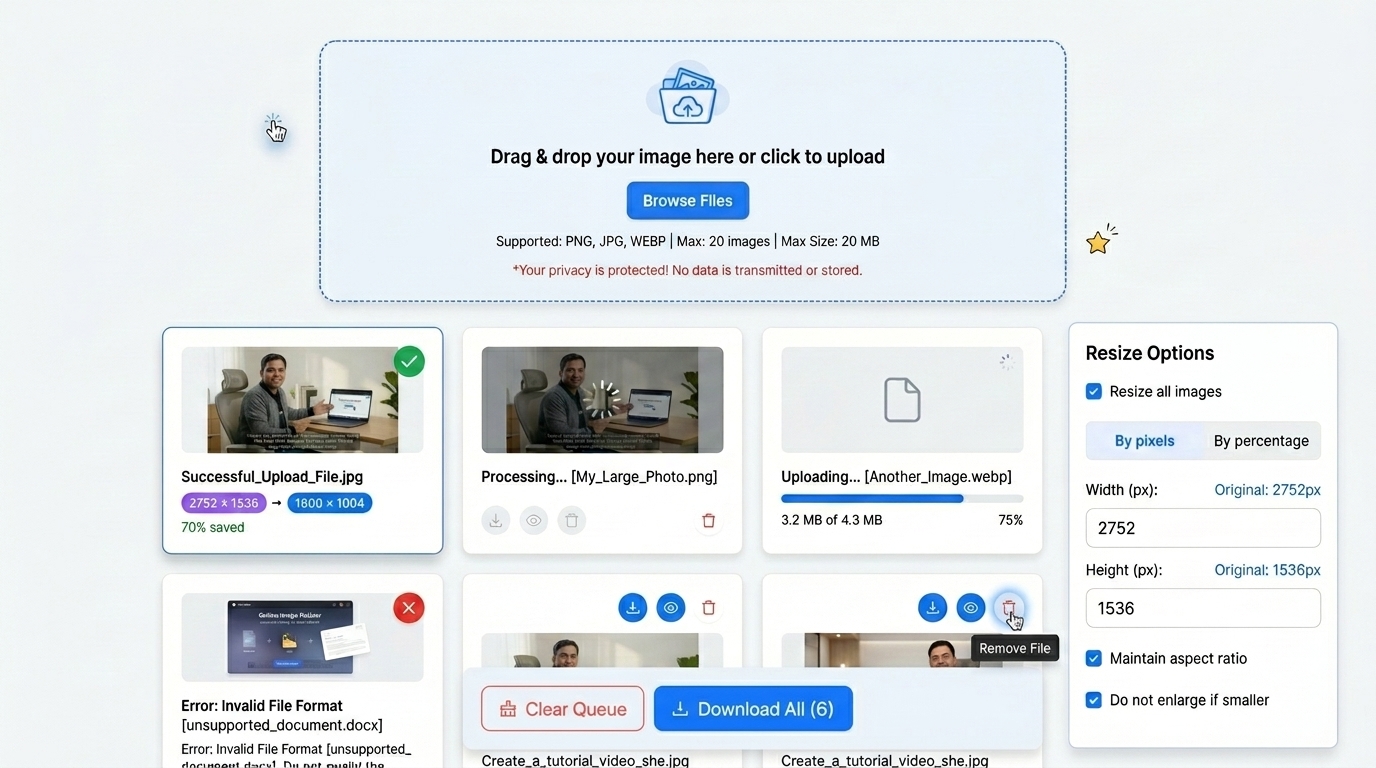
Step 2: Choose Resize Options
Once the image has been uploaded, you will get the resize options panel.
- You can resize all images to apply the same settings across them.
- Select By Pixels: Selecting by pixels lets you choose width and height.
- Select by percentage. In case you would like to scale the image by percentage.
Step 3: Adjust Image Size
Input Width (px) and Height (px) based on your requirements.
These helpful options can also be enabled:
- Keep the aspect ratio to ensure that the image is in the right proportion and is not stretched.
- Do not expand the small pictures in order not to make them larger.
Step 4: Resize the Image
The image will be processed immediately after the settings are ready.
Step 5: Download the Image
To save the resized image to the device. Click the Download button.
It doesn't need more than a few seconds. Your photo will remain clear and sharp.
Watch: How to Resize Images Online
Step-by-step video guide · TrimIMG
TrimImg Resize Image Tool Features
TrimIMG has several features that are helpful in image resizing.
Resize Image Without Losing Quality
The tool maintains a clear and sharp image. It resizes without degrading visual quality.
Resize by Width and Height
You have the option to choose a custom image size. This assists in cases when a particular size is needed on a site or platform.
Reduce Image File Size
You can also downsize pictures to KB or MB. This can be used in document upload and optimization of the website.
Multiple Image Formats Supported.
TrimImg can support the following image formats:
- PNG image resizer
- JPG image resizer
- JPEG image resizer
- WebP image resizer
- BMP image resizer
- SVG image resizer
- HEIC image resizer
- GIF image resizer
This allows the tool to be flexible to various kinds of images.
Batch Image Resizing
You can scale multiple images simultaneously. This is time-saving when dealing with numerous files.
When Should You Resize Images
Image resizing is applicable in numerous scenarios. Large images increase file size and slow down websites. Using an online image resizer helps reduce image size while keeping good quality.
Website Optimization
Large images slow page speed. Small images will help websites load faster and improve performance.
Social Media Images
Social platforms require certain image sizes. Resizing will ensure your photos are the right size.
File Upload Limits
The size of images that can be uploaded to many websites is limited. The resizing assists in lowering the KB or MB size of the image.
Storage and Sharing
A smaller image occupies less space and can be sent through email or the Internet.