


How to Convert HEIC to JPG Online for Free
 Mujahid H.
- March 20, 2026
- 5 min read
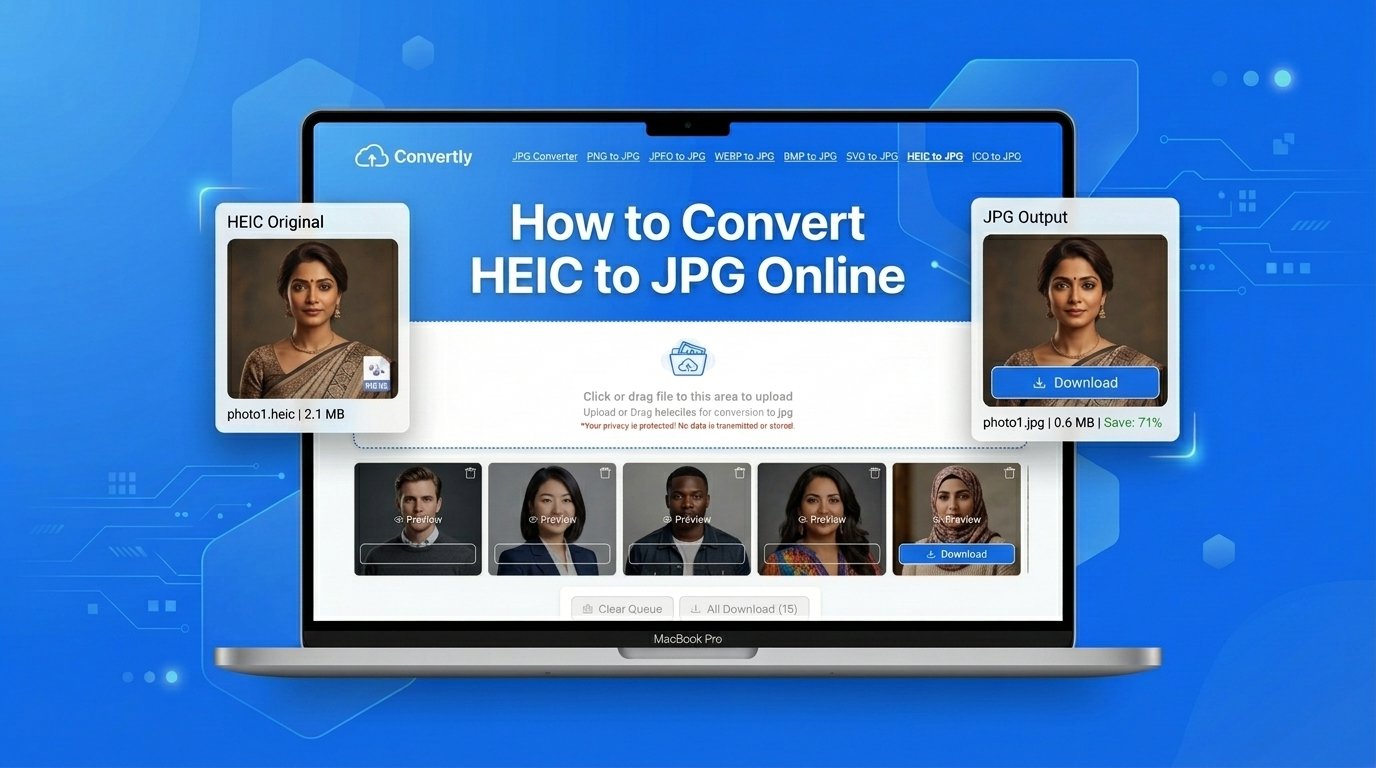
You just pick a great image file from your iPhone. You send it to your buddy, your office colleague, or try to upload it to your website or mobile app and suddenly you can face an error. The file extension is in .heic and the file will not open.
I have to say this is really disappointing for iPhone users. The iPhone uses HEIC for its photos. It is great on Apple devices but it does not work well on other things like Windows computers, Android phones, WordPress websites and most websites online. IPhone users have a lot of trouble with HEIC, the iPhone photo extension because it only works perfectly on Apple devices.
The fix is simple: convert your HEIC file to JPG. JPG works on every device, every platform, and every website without any issues.
In this article, you will study how to convert HEIC to JPG online for free, no software install, no signup required. You will also learn how to do it directly from your iPhone settings and how to batch convert multiple HEIC files at once using TrimIMG's free HEIC Converter.
What Is a HEIC File and Why Can't Windows Open It?
HEIC is a picture format that stands for High Efficiency Image Container. Apple created this format in 2017 for use on iPhones and iPads. The people at Apple wanted a way to store pictures than what they had with JPG. They thought HEIC would be an improvement, over JPG. So Apple made HEIC to work with iPhones and iPads.
The good thing about HEIC files is that they are about half the size of JPG files. They look the same. This means you can store pictures on your phone.
So if HEIC files are better than JPG files why do people want to change them?
The reason is that not all devices can use HEIC files. It is a format that only Apple devices can use easily. Windows computers can not use HEIC files unless you add a program. Most websites and email programs also do not work with HEIC files. Even some older apps on Mac computers have trouble with HEIC files.
Where HEIC Files Cause Problems
- On the Windows operating system did not open HEIC files without extra software
- WordPress CMS and website builders like bubble, wix and framer do not accept HEIC uploads
- Android apps cannot view or share HEIC photos
- Google Docs, Canva, and most design tools like photoshop and figma do not support HEIC
- Social media platforms reject or poorly display HEIC files
This is why converting HEIC to JPG is the practical solution. JPG is universally supported and works everywhere without any problems.
Why Convert HEIC to JPG Specifically?
The JPG format has been around for over 25 years. It is still the choice when you want your photos to work on everything.
One big reason is that every device and every browser and every app and every platform can use JPG files. You do not need to do anything
JPG files are also smaller than PNG files. This is because JPG uses a kind of compression that keeps the file size small. Your photos will still look good. This is great when you want to use your photos on the web.
It is easy to share JPG files. You can attach them to emails. You can upload them to websites. You can share them with the media.
Lots of people use JPG files for work. Clients use them. Employers use them. Print shops use them. Designers use them. Nobody needs any tools to use JPG files.
If you compare a HEIC file and a JPG file you will not see a difference. The JPG file might look just as good as the HEIC file. You will not notice that the JPG file is not as sharp or that the colours are not as good. This is true when you look at the photos, at normal sizes. The JPG format is still a choice because it works everywhere and it looks good.
How to Convert HEIC to JPG Online for Free — Step by Step
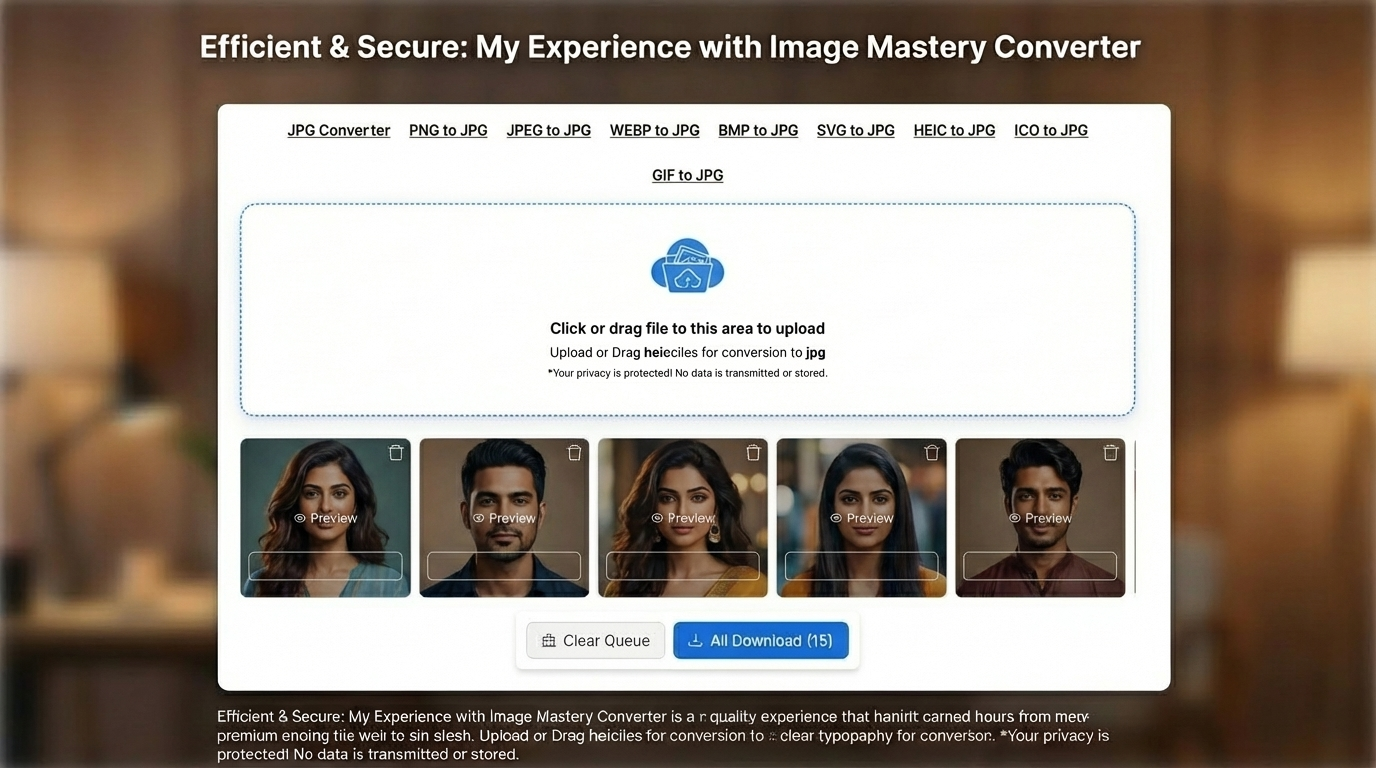
The simplest and easiest way to convert HEIC to JPG is with TrimIMG's free HEIC to JPG converter. No software installation, no signup and no premium packages. It works directly in your browser on any device like laptop, tablet and mobile.
- Step 1: Open the HEIC Converter Tool
Go to JPG to HEIC Converter on your phone, tablet, or computer. The tool loads quickly — there is nothing to install or set up software.
- Step 2: Upload HEIC File
Click the upload button or drag and drop your HEIC file onto the dragger field. You can upload a single or multiple HEIC files for batch conversion. There is a 20 files limit at once.
- Step 3: Select JPG as the Output Format
Choose JPG as your converted format from the format selector. TrimIMG also lets you convert HEIC to PNG, WebP, or other formats.
- Step 4: Convert and Download
Once the conversion process is done click the download button. This will let you save your JPG file to your folder. If you convert more than one file you can save all of them as a ZIP file.
Suggestions for Converting iPhone file to JPG Without Losing Quality
HEIC to JPG conversion is simple, but a one or two small choices can make a real difference in your final results.
Everytime convert from the primary iphone file
Not always convert a photo that has already been compressed or resized. Conversion Start from the original iPhone file for the best quality JPG output.
Choose the correct quality setting
For website images, a quality setting of 80–85% gives you good results with a tiny file size.
Consider WebP for websites
If you are uploading images to a modern website, converting HEIC to WebP instead of JPG gives you an even smaller file size with the same great quality. Use TrimIMG's WebP Converter for this.
Frequently Asked Questions (FAQ)
Can I convert HEIC to JPG without software installed?
You can change HEIC to JPG without getting any software. You do not have to make an account or get anything. Just open a website that changes HEIC to JPG in your internet browser, add your HEIC picture, pick JPG as the type and get your JPG picture. You can do all this in a short time.
Does converting HEIC to JPG affect image quality?
There is a difference because JPG uses lossy compression. However if you set the quality to 80-90% the difference is hard to notice. The image results are the same and you need a close look to see any changes.
Can I convert HEIC to JPG on my iPhone directly?
Yes I can do that. There is a website called TrimIMG that I can use on my iPhone. I just need to open the Safari browser, go to trimimg.com and find the HEIC Converter. Then I can upload the photo I want to change from my photo library on my iPhone. After that I can download the photo, as a JPG file.
Is TrimIMG HEIC Converter free?
Yes, It's free. There is no need for sign-up, subscription, and no watermark added to your images file.
Conclusion
HEIC is really good for saving space on your iPhone.. It causes problems when you try to use it elsewhere. The good news is that you can easily convert HEIC to JPG in less than 30 seconds.
Try it now: Convert HEIC to JPG free with TrimIMG and share your photos without any compatibility problems.
Free · No sign-up · Works on all devices
Convert HEIC to JPG Online for Free
HEIC is really good for saving space on your iPhone.. It causes problems when you try to use it elsewhere. The good news is that you can easily convert HEIC to JPG in less than 30 seconds.
Found this helpful? Share it with your team:
Related Articles
Hello, it's Mujahid Hussain Creative and Professional Senior Software Engineer with 6+ years of experience building rich and interactive websites. I have a comprehensive understanding of WordPress themes, plugins, databases, and its functions.