Pixels to Inches, CM and MM: Complete Conversion Chart
 Mujahid H.
- October 27, 2026
- 11 min read
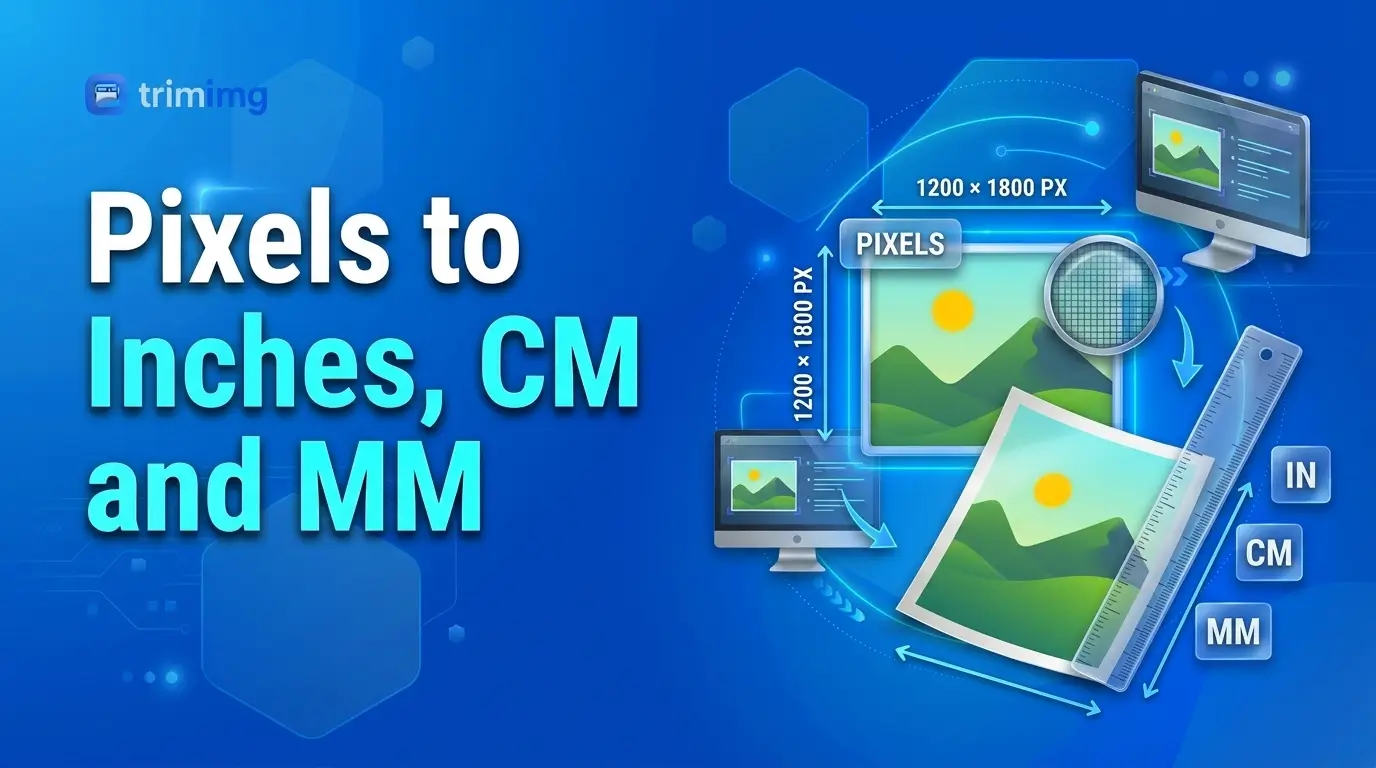
Need to convert pixels to inches, centimeters (cm), or millimeters (mm)? The result depends on the image's pixel dimensions and its resolution in pixels per inch (PPI). Use the formulas and charts below to calculate print dimensions, prepare an image for a document, or work out how many pixels you need for a specific physical size.
Quick answer: pixels to inches, cm and mm
Use these formulas when you know the pixel count and target PPI:
- Inches = pixels ÷ PPI
- Centimeters = (pixels ÷ PPI) × 2.54
- Millimeters = (pixels ÷ PPI) × 25.4
For example, a 1,000-pixel-wide image at 300 PPI is 3.33 inches wide, or 8.47 cm / 84.67 mm. At 96 PPI, that same 1,000-pixel dimension represents 10.42 inches.
The pixel count has not changed in either example. Only the calculated physical size changes.
| Pixel dimension | At 96 PPI | At 150 PPI | At 300 PPI |
|---|---|---|---|
| 100 px | 1.04 in / 2.65 cm | 0.67 in / 1.69 cm | 0.33 in / 0.85 cm |
| 360 px | 3.75 in / 9.53 cm | 2.40 in / 6.10 cm | 1.20 in / 3.05 cm |
| 500 px | 5.21 in / 13.23 cm | 3.33 in / 8.47 cm | 1.67 in / 4.23 cm |
| 1,000 px | 10.42 in / 26.46 cm | 6.67 in / 16.93 cm | 3.33 in / 8.47 cm |
| 1,080 px | 11.25 in / 28.58 cm | 7.20 in / 18.29 cm | 3.60 in / 9.14 cm |
| 1,920 px | 20 in / 50.80 cm | 12.80 in / 32.51 cm | 6.40 in / 16.26 cm |
| 3,000 px | 31.25 in / 79.38 cm | 20 in / 50.80 cm | 10 in / 25.40 cm |
These are calculated physical dimensions, not recommendations for how large an image should appear on a website or phone. For web graphics, the required pixel dimensions and the layout usually matter more than embedded print-resolution metadata.
Need to change an image's pixel width or height? Use the TrimIMG Image Resizer after calculating your target dimensions.
How to convert pixels to inches
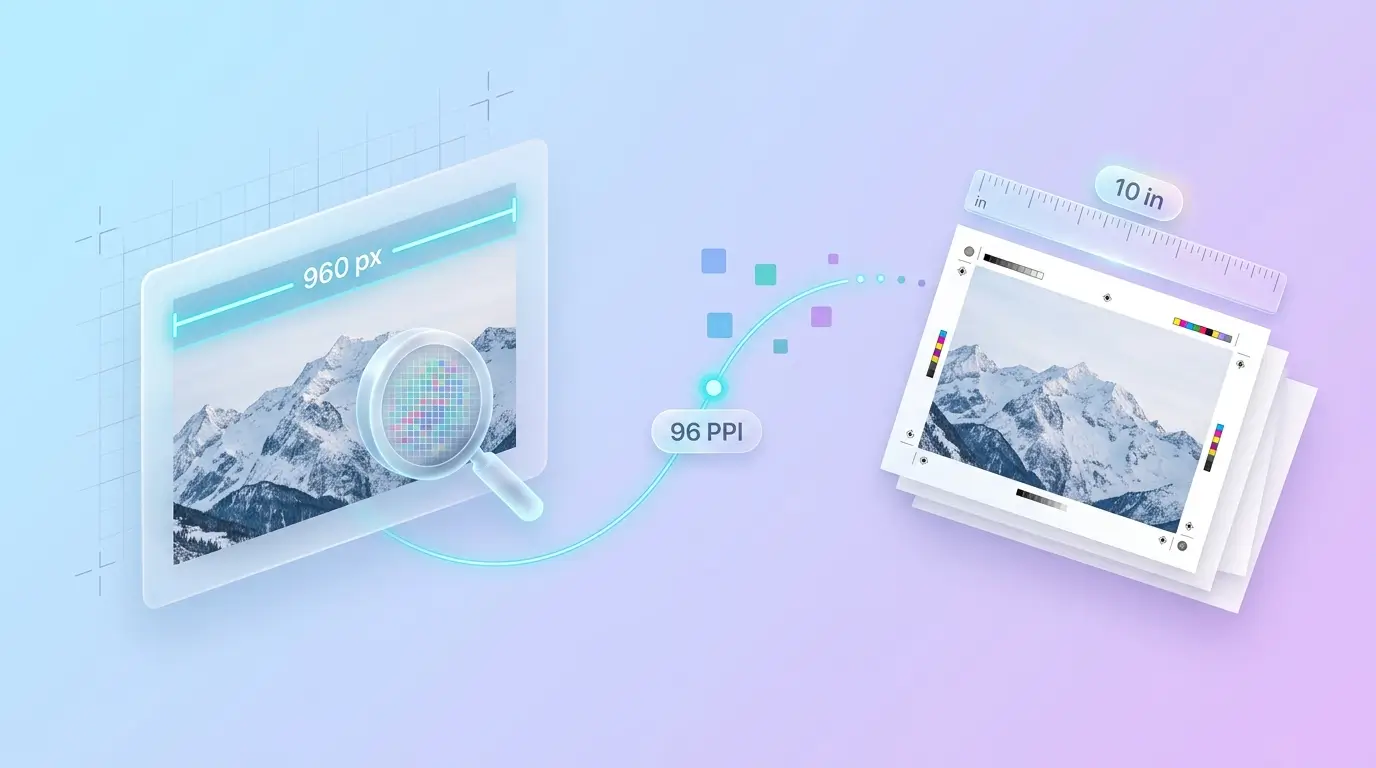
To convert pixels to inches, divide the pixel dimension by the PPI value.
Formula: inches = pixels ÷ PPI
Examples:
- 1,500 px ÷ 300 PPI = 5 inches
- 1,920 px ÷ 96 PPI = 20 inches
- 800 px ÷ 200 PPI = 4 inches
The formula works for width or height. To calculate the physical size of a complete image, calculate both dimensions using the same PPI.
Pixels to inches chart
| Pixels | 72 PPI | 96 PPI | 150 PPI | 300 PPI | 600 PPI |
|---|---|---|---|---|---|
| 100 px | 1.39 in | 1.04 in | 0.67 in | 0.33 in | 0.17 in |
| 360 px | 5.00 in | 3.75 in | 2.40 in | 1.20 in | 0.60 in |
| 500 px | 6.94 in | 5.21 in | 3.33 in | 1.67 in | 0.83 in |
| 1,000 px | 13.89 in | 10.42 in | 6.67 in | 3.33 in | 1.67 in |
| 1,080 px | 15.00 in | 11.25 in | 7.20 in | 3.60 in | 1.80 in |
| 1,350 px | 18.75 in | 14.06 in | 9.00 in | 4.50 in | 2.25 in |
| 1,920 px | 26.67 in | 20.00 in | 12.80 in | 6.40 in | 3.20 in |
| 3,000 px | 41.67 in | 31.25 in | 20.00 in | 10.00 in | 5.00 in |
| 4,000 px | 55.56 in | 41.67 in | 26.67 in | 13.33 in | 6.67 in |
How many inches is 1,080 pixels?
It depends on the resolution: 1,080 pixels is 15 inches at 72 PPI, 11.25 inches at 96 PPI, 7.2 inches at 150 PPI, 3.6 inches at 300 PPI, and 1.8 inches at 600 PPI.
For social media, “1,080 pixels” usually describes the digital image dimensions, not a required print size.
How big is a 1920 × 1080 image in inches?
A 1920 × 1080 image measures 20 × 11.25 inches at 96 PPI or 6.4 × 3.6 inches at 300 PPI. Its aspect ratio remains 16:9 in both cases.
If you're preparing an image for a screen, read our guide to common aspect ratios and how to resize without stretching.
How to convert pixels to centimeters (px to cm)
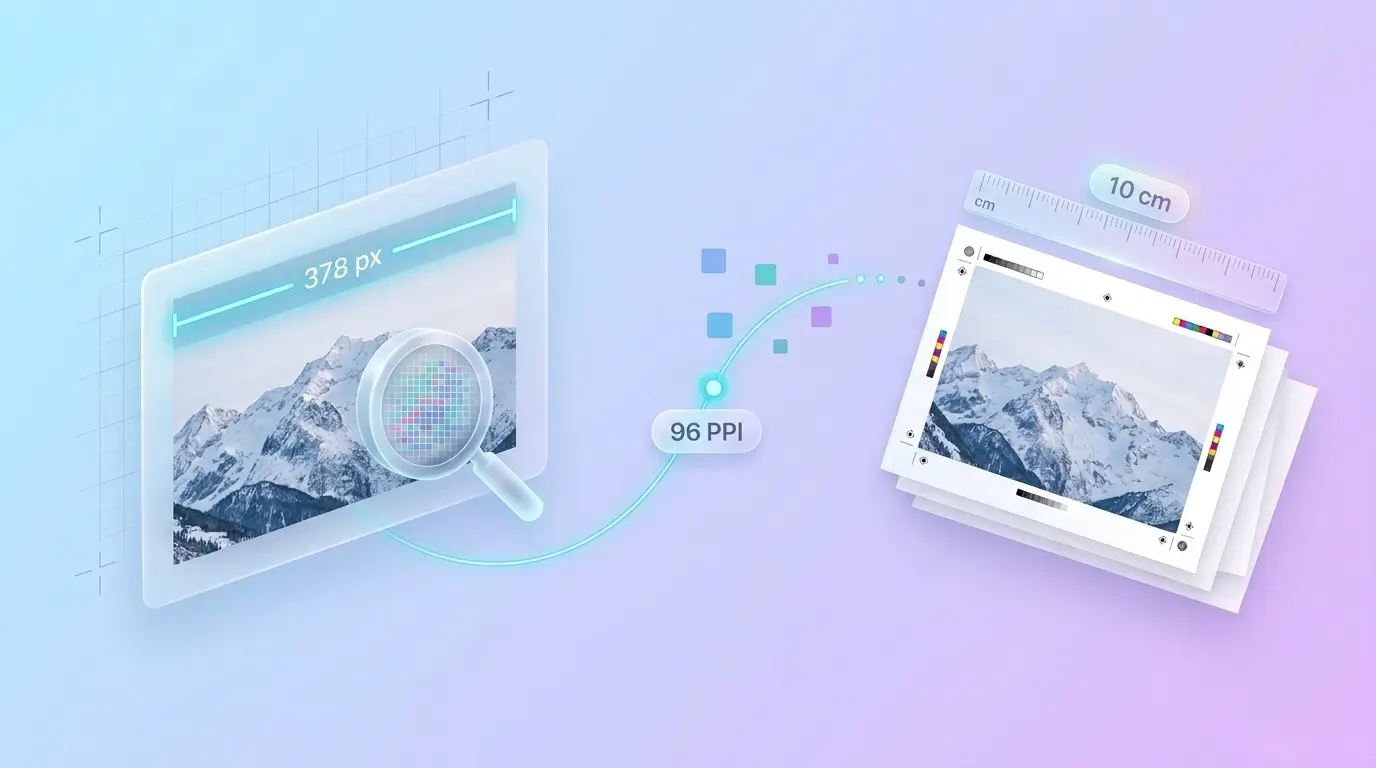
One inch equals exactly 2.54 centimeters. First divide the pixel count by PPI to get inches, then multiply by 2.54.
Formula: cm = (pixels ÷ PPI) × 2.54
Examples:
- 1,200 px ÷ 300 × 2.54 = 10.16 cm
- 1,000 px ÷ 96 × 2.54 = 26.46 cm
- 500 px ÷ 150 × 2.54 = 8.47 cm
Pixels to cm chart
| Pixels | 72 PPI | 96 PPI | 150 PPI | 300 PPI | 600 PPI |
|---|---|---|---|---|---|
| 100 px | 3.53 cm | 2.65 cm | 1.69 cm | 0.85 cm | 0.42 cm |
| 360 px | 12.70 cm | 9.53 cm | 6.10 cm | 3.05 cm | 1.52 cm |
| 500 px | 17.64 cm | 13.23 cm | 8.47 cm | 4.23 cm | 2.12 cm |
| 1,000 px | 35.28 cm | 26.46 cm | 16.93 cm | 8.47 cm | 4.23 cm |
| 1,080 px | 38.10 cm | 28.58 cm | 18.29 cm | 9.14 cm | 4.57 cm |
| 1,350 px | 47.63 cm | 35.72 cm | 22.86 cm | 11.43 cm | 5.72 cm |
| 1,920 px | 67.73 cm | 50.80 cm | 32.51 cm | 16.26 cm | 8.13 cm |
| 3,000 px | 105.83 cm | 79.38 cm | 50.80 cm | 25.40 cm | 12.70 cm |
| 4,000 px | 141.11 cm | 105.83 cm | 67.73 cm | 33.87 cm | 16.93 cm |
How many pixels are in one centimeter?
There is no single answer without specifying PPI. At 96 PPI, one centimeter corresponds to approximately 37.8 pixels. At 300 PPI, it corresponds to approximately 118.11 pixels.
To convert centimeters back to pixels, use:
Pixels = (centimeters ÷ 2.54) × PPI
For example, 10 cm at 300 PPI requires about 1,181 pixels.
How to convert pixels to millimeters (px to mm)
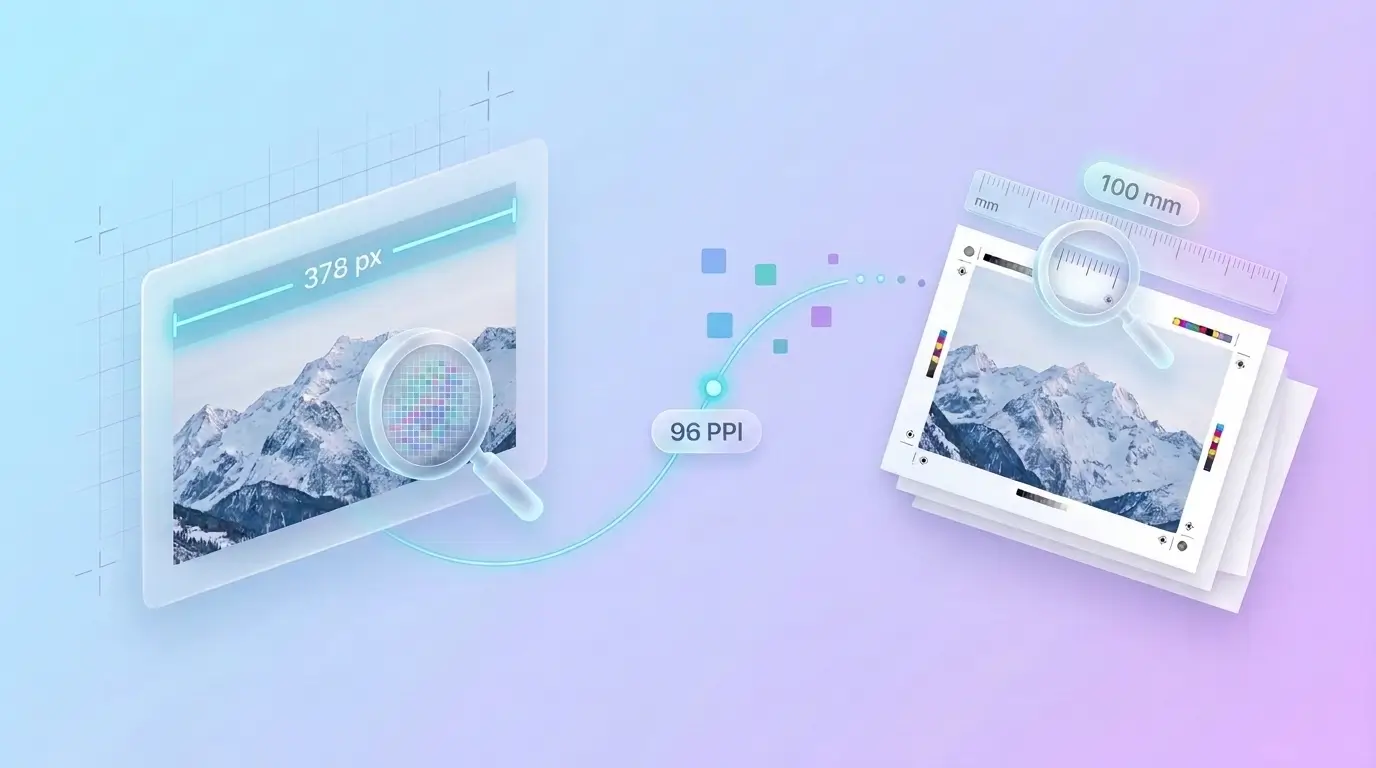
One inch equals 25.4 millimeters. Divide the pixel count by PPI, then multiply by 25.4.
Formula: mm = (pixels ÷ PPI) × 25.4
For example, 1,350 px at 300 PPI equals 114.3 mm.
Pixels to mm chart
| Pixels | 72 PPI | 96 PPI | 150 PPI | 300 PPI | 600 PPI |
|---|---|---|---|---|---|
| 100 px | 35.28 mm | 26.46 mm | 16.93 mm | 8.47 mm | 4.23 mm |
| 360 px | 127.00 mm | 95.25 mm | 60.96 mm | 30.48 mm | 15.24 mm |
| 500 px | 176.39 mm | 132.29 mm | 84.67 mm | 42.33 mm | 21.17 mm |
| 1,000 px | 352.78 mm | 264.58 mm | 169.33 mm | 84.67 mm | 42.33 mm |
| 1,080 px | 381.00 mm | 285.75 mm | 182.88 mm | 91.44 mm | 45.72 mm |
| 1,350 px | 476.25 mm | 357.19 mm | 228.60 mm | 114.30 mm | 57.15 mm |
| 1,920 px | 677.33 mm | 508.00 mm | 325.12 mm | 162.56 mm | 81.28 mm |
| 3,000 px | 1,058.33 mm | 793.75 mm | 508.00 mm | 254.00 mm | 127.00 mm |
| 4,000 px | 1,411.11 mm | 1,058.33 mm | 677.33 mm | 338.67 mm | 169.33 mm |
To convert millimeters back to pixels:
Pixels = (millimeters ÷ 25.4) × PPI
For a 35 mm dimension at 300 PPI, the calculation gives approximately 413 pixels. A 45 mm dimension requires approximately 531 pixels. These are mathematical conversions only; official passport and visa photo rules may specify additional pixel, framing, and file requirements.
How big is one pixel in inches, cm and mm?
A pixel does not have a universal physical size. Its calculated size depends on the PPI used for the output.
Formula: one pixel in mm = 25.4 ÷ PPI
| Resolution | One pixel in inches | One pixel in cm | One pixel in mm |
|---|---|---|---|
| 72 PPI | 0.0139 | 0.0353 | 0.3528 |
| 96 PPI | 0.0104 | 0.0265 | 0.2646 |
| 150 PPI | 0.0067 | 0.0169 | 0.1693 |
| 300 PPI | 0.0033 | 0.0085 | 0.0847 |
| 600 PPI | 0.0017 | 0.0042 | 0.0423 |
These figures are conversion references. They do not mean every monitor displays a pixel at that exact physical size.
PPI vs DPI: what's the difference?
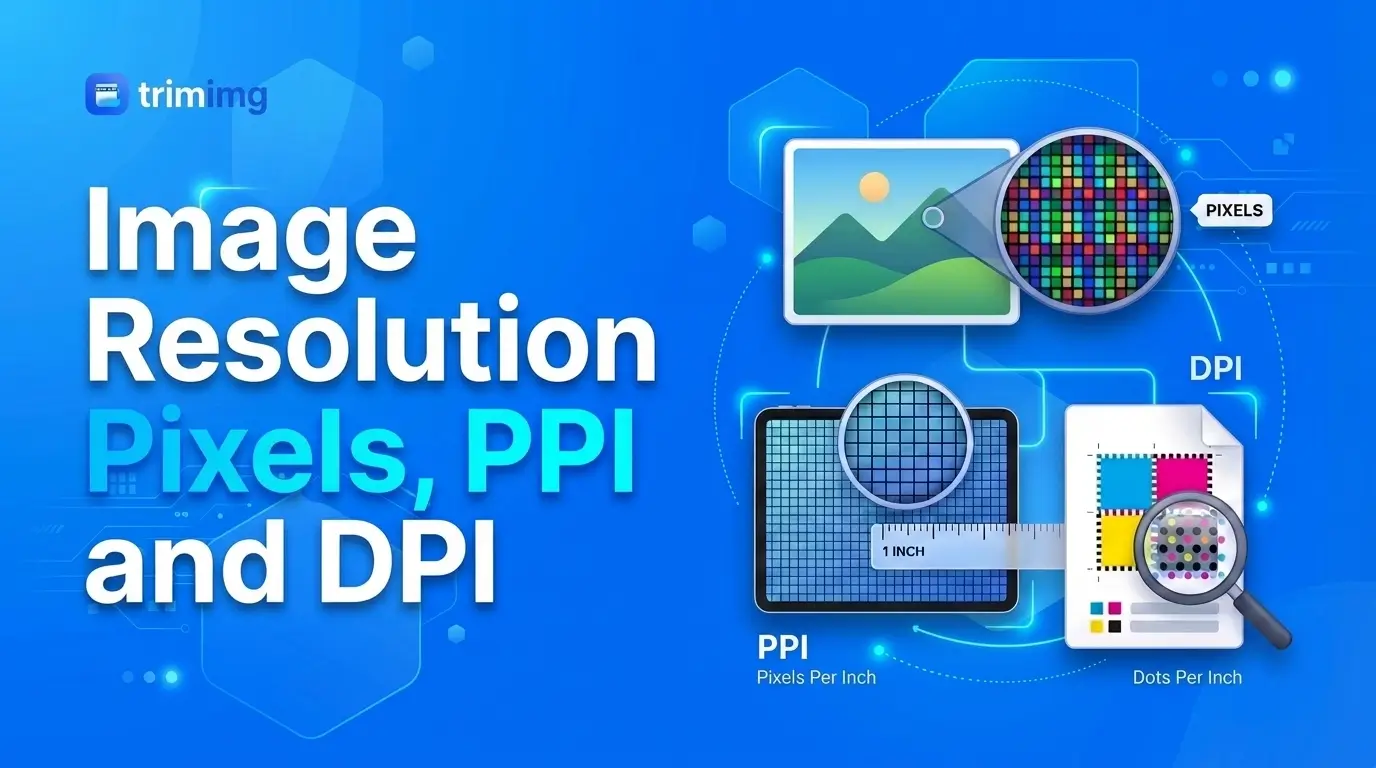
PPI and DPI are often used interchangeably in everyday print instructions, but they describe different things.
- PPI (pixels per inch) describes how many image pixels are assigned to each inch of the printed image.
- DPI (dots per inch) describes how many ink or toner dots a printer places in an inch.
A printer may use multiple ink dots to reproduce the color information in one image pixel. So a file prepared at 300 PPI does not require a printer setting of exactly 300 DPI.
Many apps and online searches say “DPI converter” when they mean converting pixels to a physical size. For the calculations in this guide, PPI is the more precise term. For a deeper explanation, read Image Resolution Explained: Pixels, PPI and DPI.
Which PPI should you use: 72, 96, 150, 300 or 600?
The best PPI depends on the output device, print size, viewing distance, and the level of detail in the image.
| PPI | Common use | What to know |
|---|---|---|
| 72 PPI | Legacy workflows and some large-format calculations | Not a universal screen or print requirement |
| 96 PPI | CSS reference calculations and some screen-related workflows | CSS pixels are reference units, not a promise of physical screen size |
| 150 PPI | Draft prints and some large prints viewed from a distance | May be sufficient when viewed farther away |
| 300 PPI | Many photos, flyers, brochures, and business cards | A useful starting point for detailed prints |
| 600 PPI | Fine line art and high-detail workflows | Useful only when the source and output device can benefit from the extra resolution |
For print, calculate effective PPI from the image dimensions and intended print size. For web graphics, prioritize suitable pixel dimensions, responsive layout, and file size rather than changing DPI metadata without a reason.
How to calculate the pixels needed for a print
If you know the physical width and height of the print, multiply each measurement in inches by the target PPI.
- Pixels = inches × PPI
- Pixels = (centimeters ÷ 2.54) × PPI
- Pixels = (millimeters ÷ 25.4) × PPI
For example, a 4 × 6 inch print at 300 PPI needs 1,200 × 1,800 pixels. A 5 × 7 inch print at 300 PPI needs 1,500 × 2,100 pixels.
Common print sizes at 300 PPI
| Print size | Approximate pixel dimensions (width × height) |
|---|---|
| Business card, 3.5 × 2 in | 1,050 × 600 px |
| Photo, 4 × 6 in | 1,200 × 1,800 px |
| Photo, 5 × 7 in | 1,500 × 2,100 px |
| Print, 8 × 10 in | 2,400 × 3,000 px |
| Print, 11 × 14 in | 3,300 × 4,200 px |
| Print, 16 × 20 in | 4,800 × 6,000 px |
| Poster, 24 × 36 in | 7,200 × 10,800 px |
These are reference dimensions calculated at 300 PPI. Confirm bleed, crop marks, color profile, and resolution requirements with your print provider before exporting a final file.
A4 size in pixels at different PPI values
A4 paper measures 210 × 297 mm (approximately 8.27 × 11.69 inches).
| Paper size | 72 PPI | 96 PPI | 150 PPI | 300 PPI | 600 PPI |
|---|---|---|---|---|---|
| A4, 210 × 297 mm | 595 × 842 | 794 × 1,123 | 1,240 × 1,754 | 2,480 × 3,508 | 4,961 × 7,016 |
Values are rounded to whole pixels. For a typical high-quality A4 print, 2,480 × 3,508 pixels at 300 PPI is a useful reference, but the print provider's requirements take priority.
Passport and visa photo dimensions: pixels and physical size
Passport and visa photo specifications vary by country and application. Do not rely on a general conversion chart alone: check the official instructions for the application you are submitting.
| Example requirement | Reference size |
|---|---|
| US visa photo | Square digital image, commonly 600 × 600 to 1,200 × 1,200 px |
| US printed photo | 2 × 2 inches (about 51 × 51 mm) |
| UK digital passport photo | Check the current GOV.UK digital-photo rules |
| UK printed passport photo | 35 × 45 mm |
Official guidance: US visa photo requirements and UK passport photo guidance.
A 35 × 45 mm print at 300 PPI corresponds mathematically to about 413 × 531 pixels. That calculation is not a substitute for the digital dimensions, composition, background, or file-size rules set by the relevant authority.
Is your image resolution high enough for printing?
To estimate print sharpness, divide the image's pixel dimension by the intended print dimension in inches.
Effective print PPI = pixels ÷ print dimension in inches
For example, an image that is 1,800 pixels wide and printed 6 inches wide has an effective resolution of 300 PPI.
| Effective print resolution | General guidance |
|---|---|
| 300 PPI or more | Often suitable for detailed prints viewed close up |
| 200–299 PPI | Often good for everyday photo printing |
| 150–199 PPI | May work well for larger prints viewed from farther away |
| Below 150 PPI | Fine detail may appear soft, depending on the image and viewing conditions |
These are guidelines, not guarantees. Focus, original detail, compression, sharpening, paper, printer quality, and viewing distance all affect the result. Large posters can often use lower PPI than small prints viewed close up.
Does changing DPI make an image sharper?
No—not if you only change the resolution metadata. Suppose an image is 1,200 pixels wide. If you change its setting from 72 PPI to 300 PPI with resampling turned off, it still contains 1,200 pixels. Its calculated print width changes from about 16.67 inches to 4 inches, but no new image detail is created.
If you enable resampling and increase the pixel dimensions, software generates additional pixels by estimating values from the existing ones. This can make an image larger, but it cannot guarantee recovery of details missing from the original.
For more information, see Adobe's guide to image size and resolution and our article on what happens to pixels when you resize an image.
CSS pixels vs physical pixels on a screen
A CSS inch equals 96 CSS pixels in the web layout model, but a CSS pixel is not necessarily the same as one physical pixel on a monitor or phone. High-density displays can use multiple physical pixels to represent one CSS pixel, and browsers can scale content based on device settings.
For web images, check the actual pixel dimensions and the size at which the image will be displayed. Supplying an image that is far larger than necessary can waste bandwidth, while supplying one that is too small can make it look soft on high-density screens.
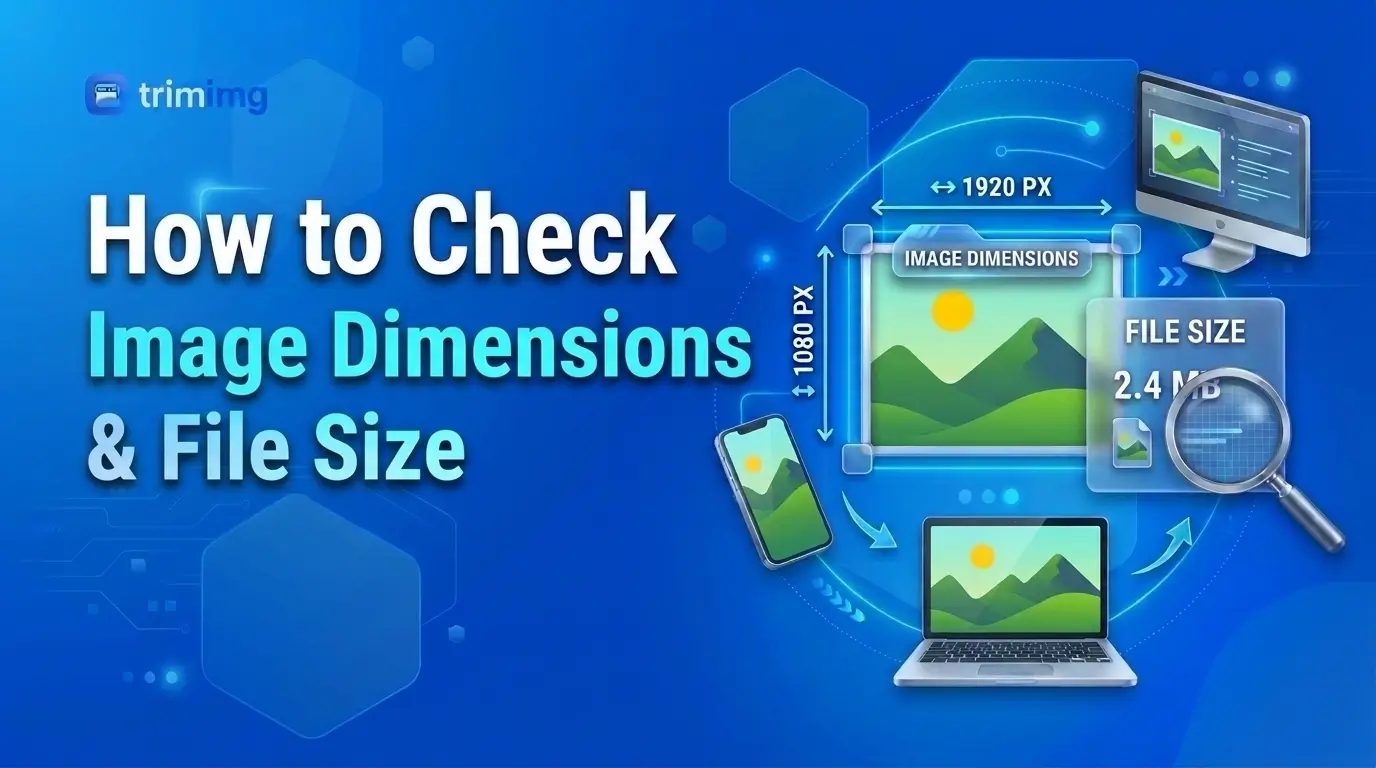
To learn how to inspect a file's actual dimensions, see How to Check an Image's Dimensions and File Size on Any Device.
How to convert pixels to inches in Photoshop, Windows, Mac and Canva
The formula stays the same across tools, but the settings you change are different.
Photoshop
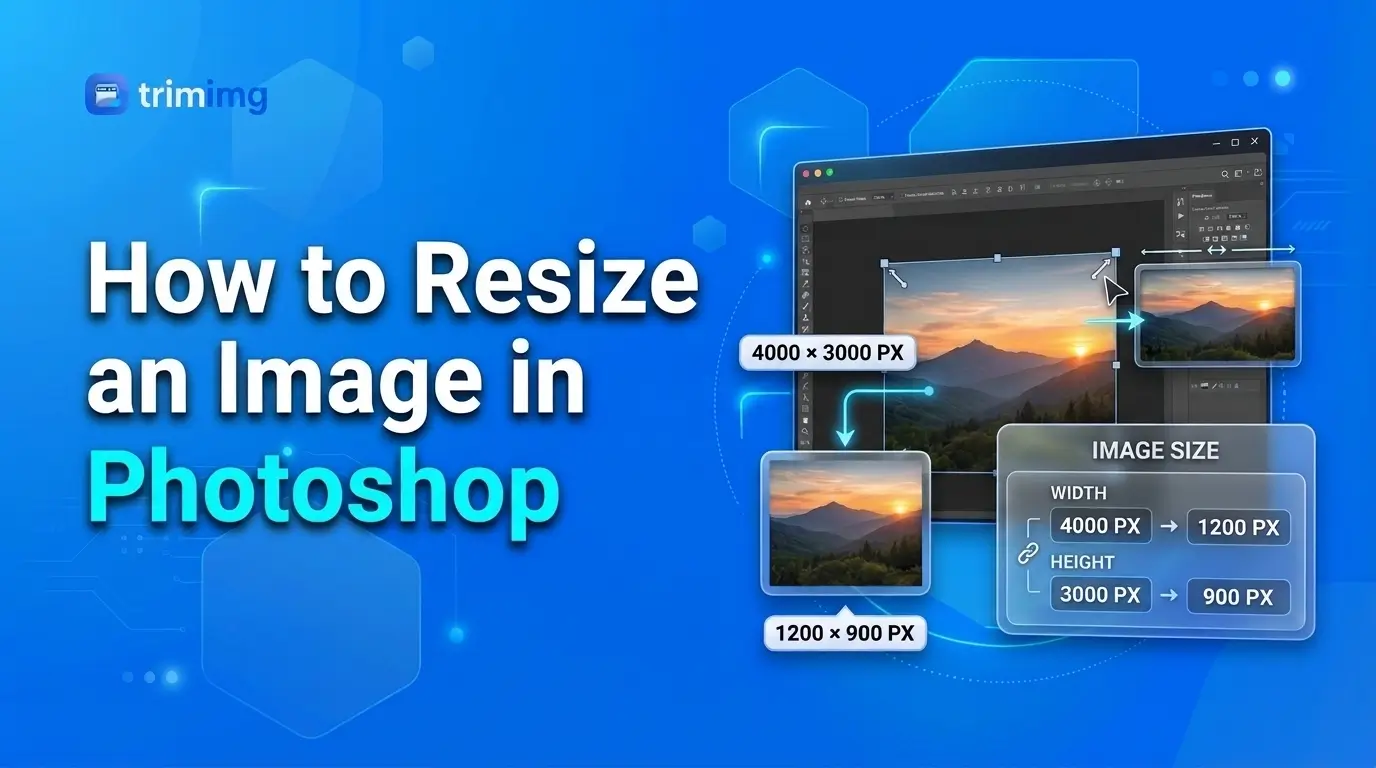
- Open the image and choose Image → Image Size.
- Check the pixel width and height.
- Select inches, centimeters, or millimeters for the physical dimensions.
- Disable Resample if you want to change print size without changing the pixel count.
- Enable Resample only when you intend to change the pixel dimensions.
The available labels may differ by Photoshop version.
Windows
To check image dimensions, right-click the file in File Explorer, choose Properties, and open Details. Look for dimensions and resolution metadata, if available. To change pixel dimensions, use an image editor or an online image resizer.
Mac
Open the image in Preview and choose Tools → Adjust Size. Review the dimensions and resolution. Disable Resample image if you want to change the physical size without changing the number of pixels.
Canva
Choose the design dimensions or resizing options available in your Canva workflow. For print projects, check the final physical size and export requirements with the print provider; do not assume a design's on-screen appearance confirms its printed dimensions.
Procreate
When creating a canvas, choose the intended physical size and PPI. For example, a 6 × 8 inch canvas at 300 PPI requires 1,800 × 2,400 pixels. Setting the canvas correctly at the start can help avoid unnecessary upscaling later.
Resize an image to exact pixel dimensions with TrimIMG
Once you've worked out the pixel width and height you need, use the TrimIMG Image Resizer to set those dimensions online.
- Open the Image Resizer.
- Upload your image.
- Enter the required width and height in pixels.
- Keep the aspect ratio locked if you want to preserve the image's proportions.
- Apply the resize and download the result.
- Check the final dimensions before printing or uploading.
If your image must fit a particular physical print size, calculate the required pixel dimensions using the target PPI first. Keep in mind that resizing pixel dimensions and changing print-resolution metadata are different operations.
If your dimensions are already correct but the file is too large to upload, use the TrimIMG Image Compressor instead. For a full explanation of which operation to choose, read Resize vs Compress vs Crop.
Frequently Asked Questions
How do I convert pixels to inches?
Divide the pixel dimension by the target PPI. For example, 1,500 pixels at 300 PPI equals 5 inches.
How many inches is 1,000 pixels at 300 PPI?
1,000 ÷ 300 = approximately 3.33 inches.
How many inches is 1,080 pixels?
At 96 PPI, 1,080 pixels equals 11.25 inches. At 300 PPI, it equals 3.6 inches.
How many pixels are in one centimeter?
At 96 PPI, one centimeter corresponds to about 37.8 pixels. At 300 PPI, it corresponds to about 118.11 pixels.
How many millimeters is one pixel?
At 96 PPI, one pixel corresponds to about 0.2646 mm. At 300 PPI, it corresponds to about 0.0847 mm.
How many pixels does A4 need at 300 PPI?
An A4 page is approximately 2,480 × 3,508 pixels at 300 PPI. Confirm any bleed or printer-specific requirements before preparing the final artwork.
Is 72 DPI good for printing?
It can work for some large-format prints viewed from a distance, but it may be insufficient for small prints viewed close up. Judge the effective PPI based on the image's pixel dimensions and intended print size, not just the metadata label.
Does increasing DPI improve image quality?
Not by itself. Changing metadata without resampling changes the calculated physical print size, not the image's pixel count. Upscaling adds estimated pixels but cannot guarantee new detail.
What is the difference between image size and file size?
Image dimensions describe the width and height in pixels. File size describes how much storage the image uses, usually measured in KB or MB. If the pixel dimensions are correct but the file is too large, compression may be the better option.
Should I resize or compress an image for an upload?
Resize when the required pixel dimensions are too large or too small. Compress when the file exceeds a KB or MB limit. Some uploads have both requirements, so check both before submitting.
Final thoughts
Converting pixels to inches, centimeters, and millimeters is straightforward once you know the target PPI. Divide pixels by PPI to get inches; multiply that result by 2.54 for centimeters or 25.4 for millimeters. To work backward from a physical size, multiply inches by the target PPI or convert centimeters and millimeters to inches first.
For many photo prints, 300 PPI is a useful starting point. For web graphics, focus on the pixel dimensions required by the layout and the device rather than changing DPI metadata without a reason.
After calculating the dimensions, use the TrimIMG Image Resizer to resize your image to the required pixel width and height. If the dimensions are already correct and you only need a smaller file, use the Image Compressor.
Resize your image to the exact pixel size you need
No installs, no sign-up. Calculate your target dimensions above, then use TrimIMG's free online resizer to set them in seconds.
Found this helpful? Share it with your team:
Hello, it's Mujahid Hussain Creative and Professional Senior Software Engineer with 6+ years of experience building rich and interactive websites. I have a comprehensive understanding of WordPress themes, plugins, databases, and its functions.