How to Resize an Image on Android Without an App
 Mujahid H.
- October 24, 2026
- 8 min read
Phone cameras take sharp photos, but the files are often too big to upload, email or send. Learning how to resize images on Android takes only a couple of minutes, and you do not need to install anything.
There are three ways to resize a photo on Android without an app:
- The Gallery editor on Samsung phones, which resizes by percentage.
- A crop workaround in Google Photos, which has no resize tool.
- A free online image resizer in Chrome, which works on any Android phone and lets you set exact pixels.
Below you will find the steps for each, plus how to pick the right one for your job and how to resize an image on an Android phone without losing quality.
How to Edit the Size of a Photo
Resizing a photo means changing its width and height in pixels. Fewer pixels also make the file smaller, which is the core of how to change the size of a photo on Android.
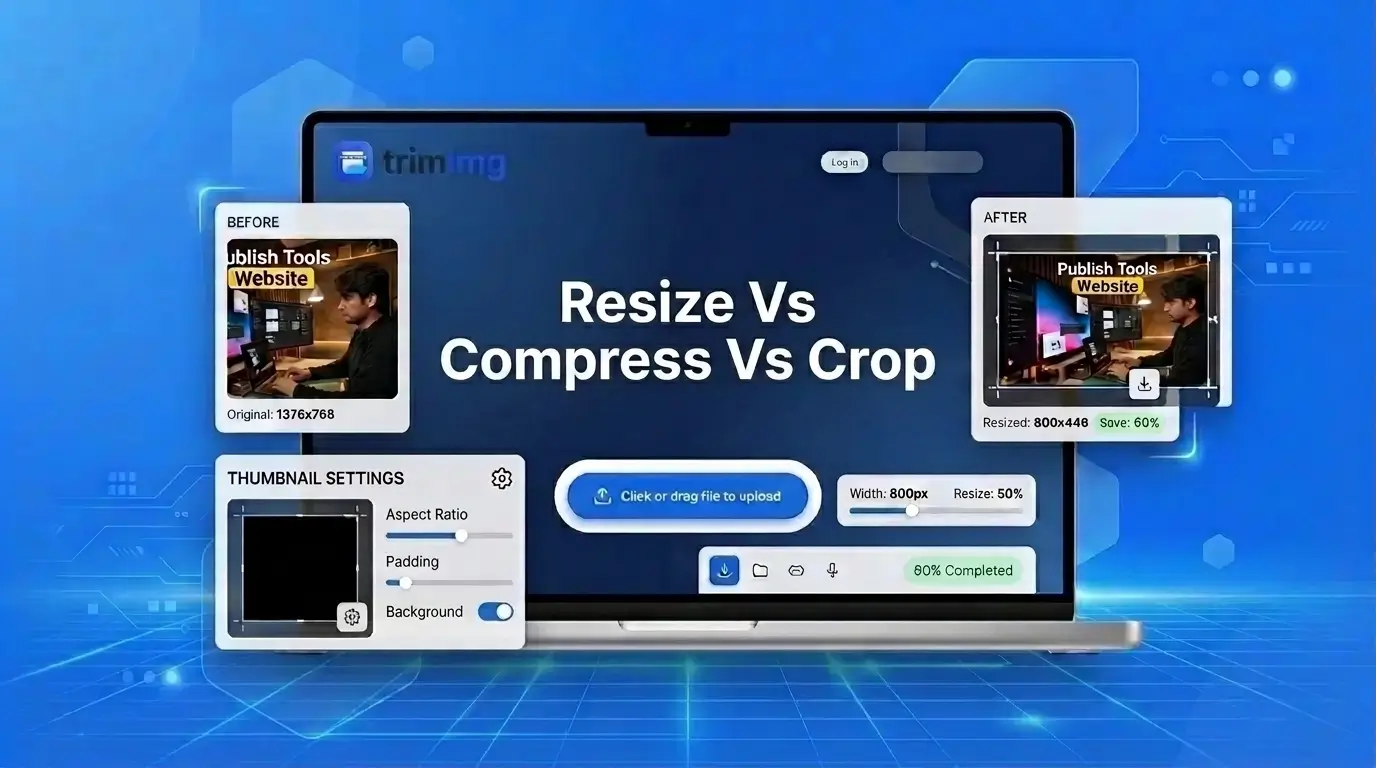
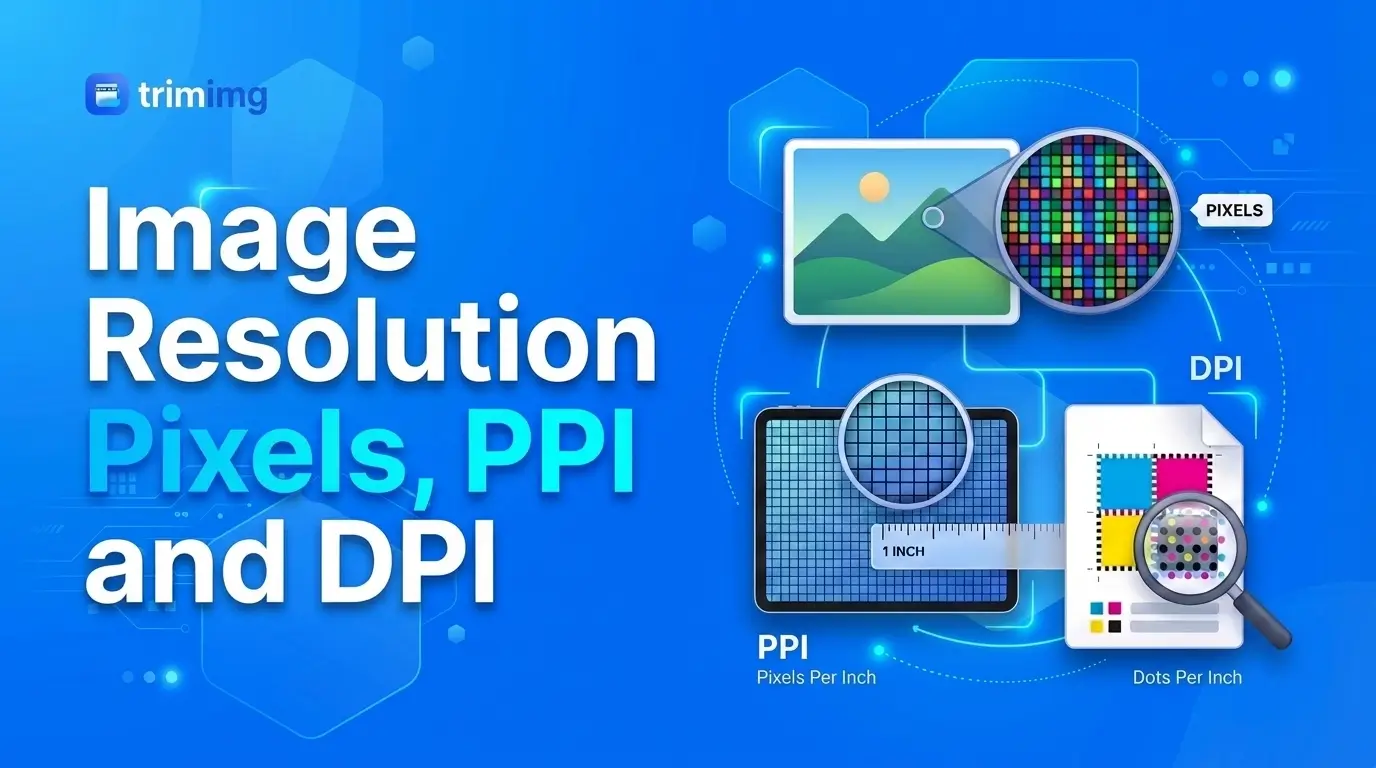
Pixel dimensions and file size are different things. Pixel dimensions describe how wide and tall a picture is, while file size measures the storage it uses in KB or MB. Resizing changes the first and usually reduces the second. Compression reduces file size without necessarily changing pixel dimensions. Learn more about image resolution, pixels, PPI and DPI.
Size matters because oversized files waste data and time. An image should generally match the dimensions at which it will be displayed, rather than downloading unnecessary pixels. The same principle applies when you send a large photo that will only be viewed on a small screen.
Most people resize for one of three reasons: a form or website rejects the file, an email or chat will not send it, or the phone is running out of storage. If the main issue is a file-size limit, you may also need to compress images without losing quality.
Resize a Picture on Android with the Gallery App
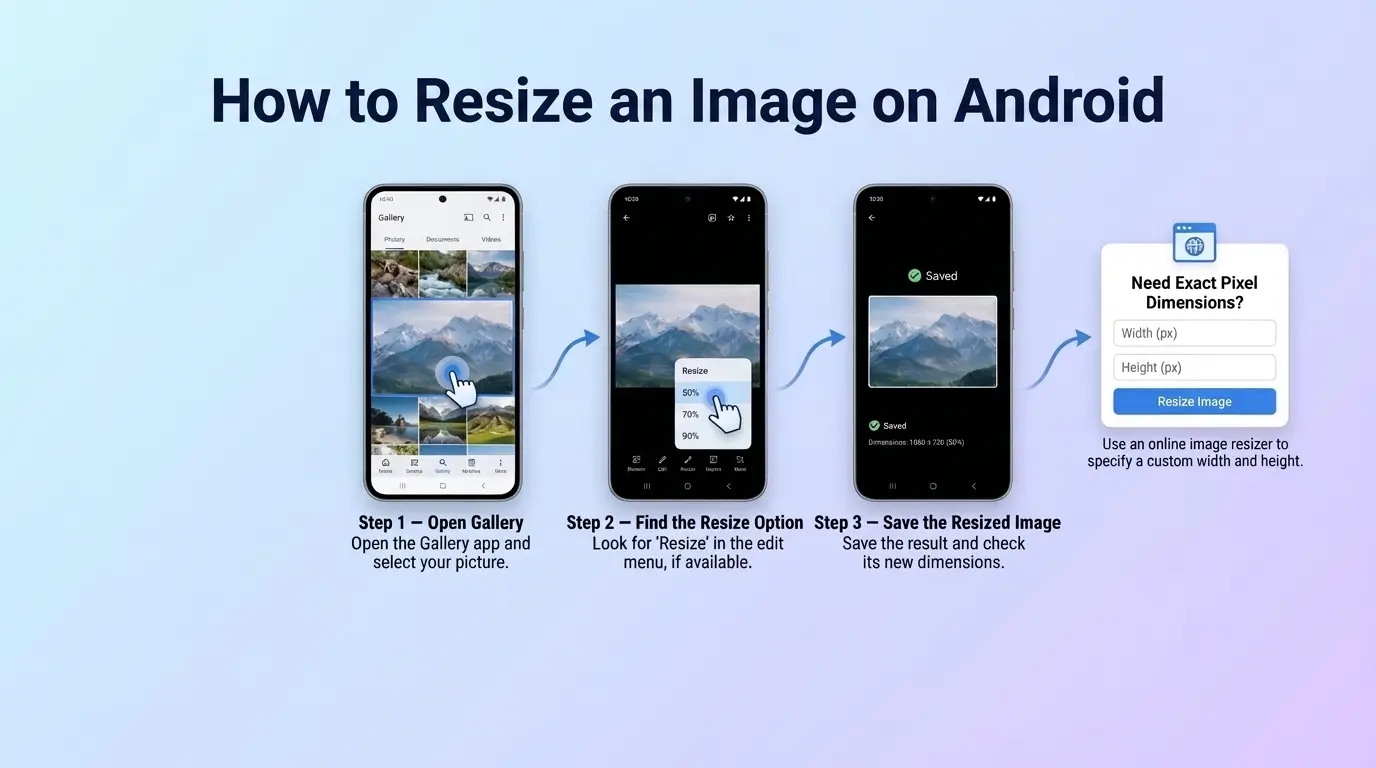
Many phones have a basic editor inside the Gallery app, but a resize option is not available on every device. Samsung Gallery, for example, may offer percentage-based resizing, depending on the model and software version. If your phone does not have this feature, you can use an online image resizer to enter specific pixel dimensions.
| Phone | Resize in Gallery or Photos | How it works |
|---|---|---|
| Samsung Galaxy | Yes, on most models | Percentage of the original |
| Google Pixel | No | Crop only |
| Other brands | Varies by model | Look in the Edit menu |
The variation is real. Samsung's own support page says the resize feature may not be available depending on the model. If your phone has no resize option, skip to the online method.
Samsung
Here is how to resize an image on Android Samsung phones with the Gallery app:
- Open Gallery and tap the photo.
- Tap the pencil icon to edit.
- Tap the three dot menu, then Resize.
- Pick a percentage, such as 80, 60, 40 or 20 percent.
- Tap Save or Done.
Know the limits before you start. The tool resizes by percentage only, so you cannot type an exact width and height. Samsung says it cannot make a photo larger than the original. It also notes that on Android 11, saving overwrites the original photo. Duplicate the photo first if you want to keep the full size version.
Google Pixel
Google Photos does not have a resize tool. HelpDeskGeek notes that the Photos app on Pixel phones has no resize option, only editing and crop tools.
You can still crop images on Android to make a file smaller. Open the photo in Google Photos, tap Edit, choose Crop, drag the corners inward and save the result as a copy. Keep in mind that cropping cuts away part of the picture. It changes the frame, not just the size.
If you want to resize an image on a Google Pixel without cropping, or you searched for a Google Photos resize option and found none, use the online method next.
Android Image Resizer: Resize Online in Chrome
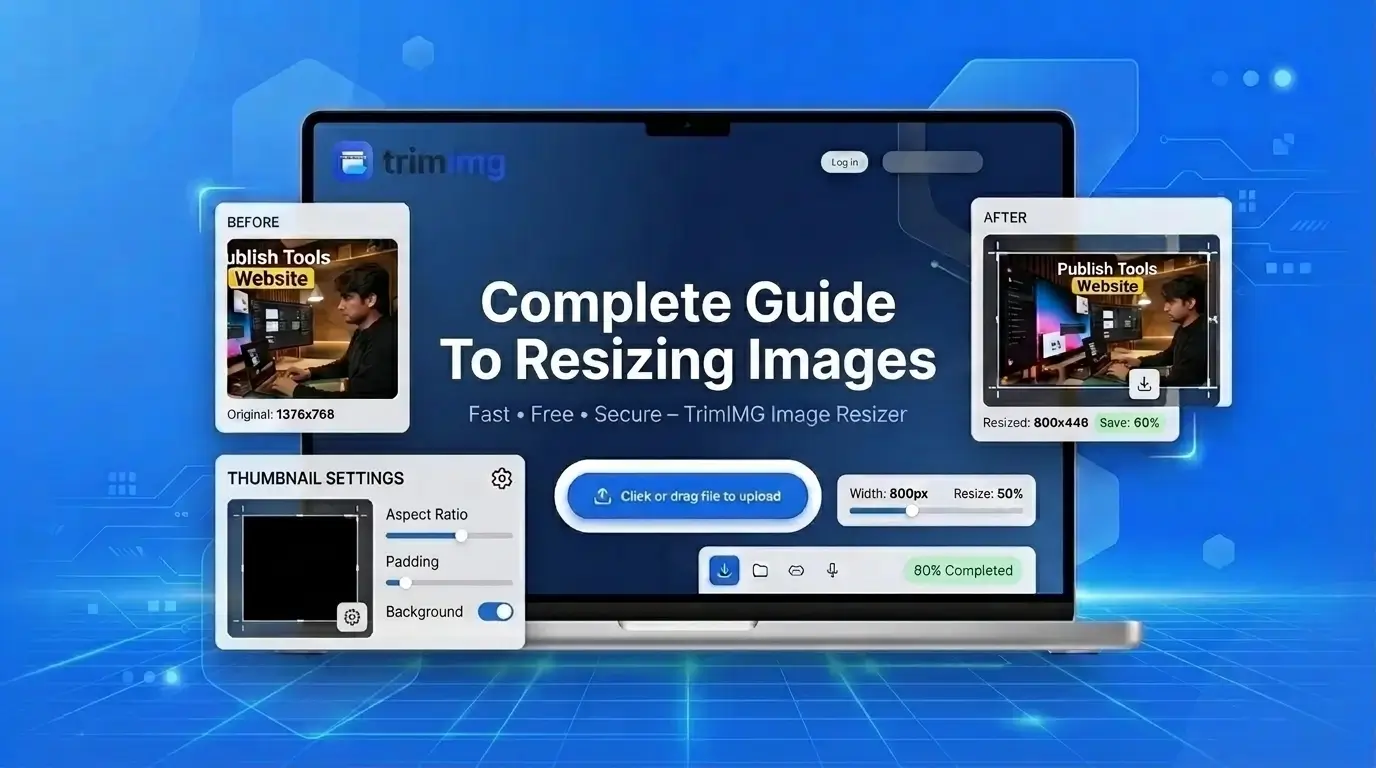
A browser tool works on any Android phone with Chrome, takes no storage and lets you set exact pixels, which the Gallery option cannot do. Follow these steps to resize an image online on Android with the TrimIMG Image Resizer:
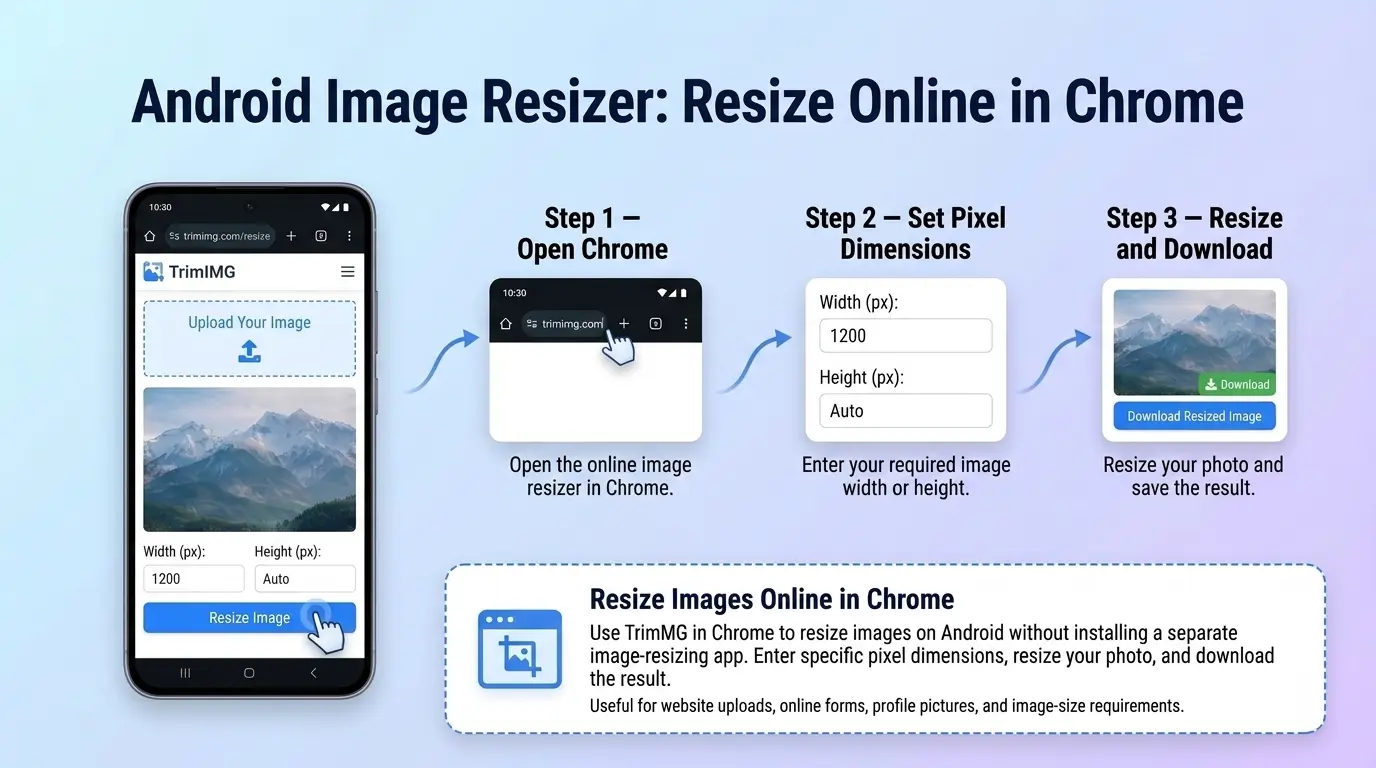
- Open Chrome and go to trimimg.com, then open the Image Resizer.
- Tap the upload button and pick your photo from Gallery or Files.
- Enter the new width or height in pixels, or choose a percentage. Keep the aspect ratio locked.
- Download the resized image.
Chrome normally saves the file to the Downloads folder, which you can open from the Files app. The photo in your Gallery stays as it was.
Not sure which setting to use? This table helps.
| Your goal | Best option | Example |
|---|---|---|
| Quick shrink for sharing | Percentage | Resize to 50 percent |
| A form or profile picture asks for a size | Exact pixels | 800 by 800 pixels |
| An upload limit in KB | Resize, then compress | Under 200 KB |
Resize an Image Without Losing Quality
Making a photo smaller removes some pixels, so a little fine detail may be lost. When you resize an image once from the original file, the difference is often difficult to notice on a phone screen. Enlarging a small image can make it look soft because the tool must generate additional pixels. Learn more about image resampling to understand how resizing affects image quality.
Three habits help preserve quality: start with the original, resize only once, and avoid enlarging a low-resolution photo unnecessarily.
Without Stretching
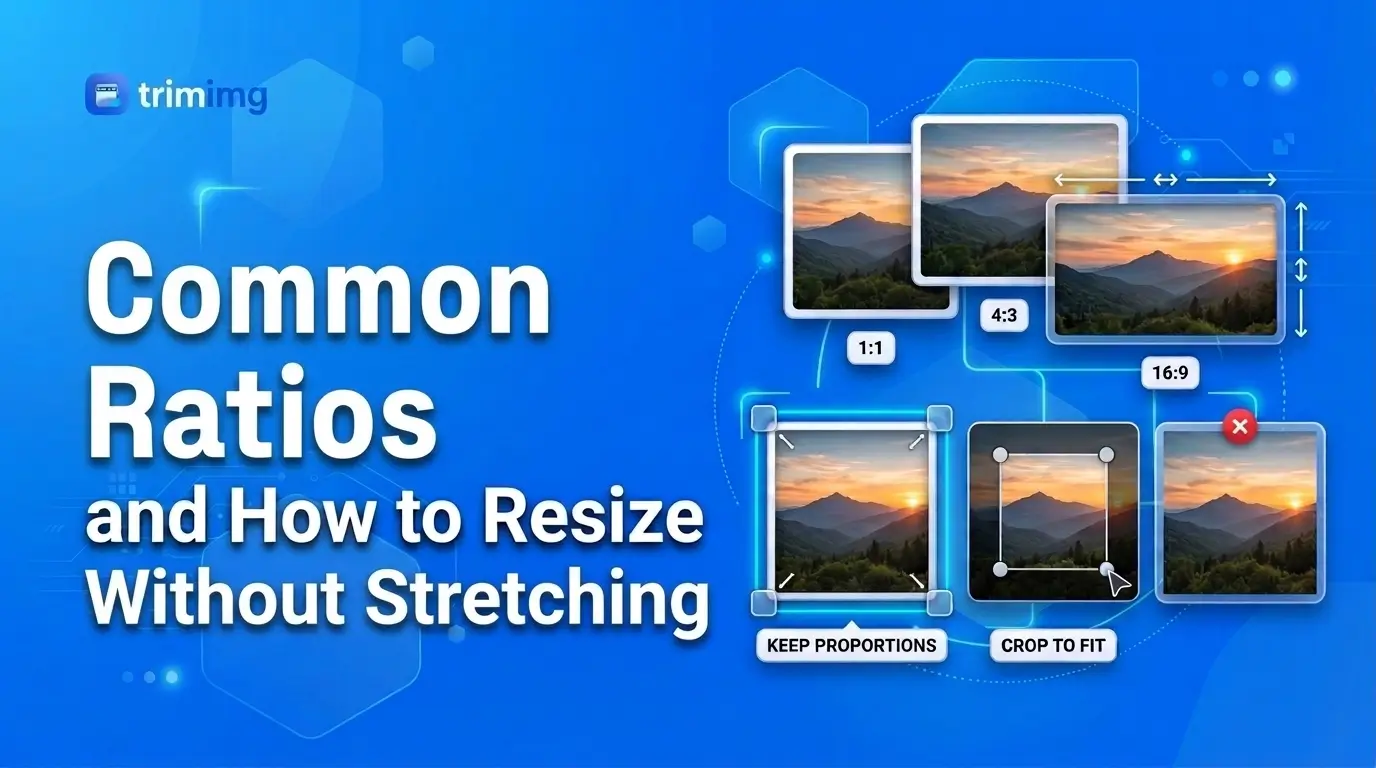
Stretching happens when width and height change by different proportions. To resize an image without stretching, keep the aspect ratio locked and change only one dimension. A 4:3 photo forced into a 16:9 shape may look distorted. If you need a different shape, crop the image first, then resize it. See the image aspect ratio guide for common ratios and how they affect image dimensions.
JPG
JPG is a lossy format, meaning repeated saves can reduce image quality. To resize a JPG while preserving as much detail as possible, start with the original image, resize it once, and avoid repeatedly saving edited copies.
PNG
PNG supports transparency and preserves sharp edges, making it useful for logos, icons, and graphics. To resize a PNG, reduce its pixel dimensions and keep it in PNG format when transparency matters. Converting it to JPG removes transparency. If you need another format, use an image converter.
Reduce Image Size on Android
Resizing is a useful way to reduce image file size on Android because fewer pixels generally require less storage. If the image is still too large, compression can reduce the file size further without necessarily changing its pixel dimensions.
You can compress an image online and check whether the result meets your target, such as 100 KB or 200 KB.
Reduce Photo File Size on Android Phone Online
To reduce photo file size on an Android phone online and hit a specific limit:
- Resize the photo to the pixel size you need.
- Compress it with an online compressor.
- Check the file size in your Gallery details or file manager.
- If it is still too big, lower the pixel size a little and try again.
Reduce Photo Size on Samsung
To reduce photo size on a Samsung phone, use the Gallery resize steps above. You can also lower the photo resolution in the camera settings before you shoot, as SlashGear explains.
Messaging apps shrink photos automatically too. In one SlashGear test, an 8 MB photo came out of WhatsApp at about 83 KB. That works for chatting, but it gives you no control over the result, so do not rely on it for forms or documents.
FAQs
How do I resize a photo on my Android phone without an app?
On a Samsung phone, open the photo in Gallery, tap Edit, open the three dot menu and choose Resize. On any other Android phone, open an online resizer in Chrome, upload the photo, enter the size and download it.
Can I resize a photo in Google Photos?
No. Google Photos only offers crop, which cuts off part of the picture. To change the size without cropping, use a browser resizer.
How do I reduce photo size in KB on Android without an app?
Lower the pixel size first, then compress the file with an online compressor until it fits the limit, such as 100 KB or 200 KB.
Can I resize several photos at once?
Samsung's Gallery resizes one photo at a time. For a batch, use an online resizer that accepts multiple files and checks its upload limit.
Does resizing reduce quality?
Making a photo smaller removes some detail, but it usually looks fine at normal viewing size. Making a photo bigger causes blur.
Can I resize a photo without cropping it?
Yes. Samsung's percentage option and any online resizer with a locked aspect ratio scale the whole picture instead of cutting parts off.
Conclusion
You can resize an image on Android without an app in under a minute. Use the Gallery editor if you have a Samsung and a percentage is enough. Use the crop workaround in Google Photos only when losing part of the frame is fine. For exact pixels, no cropping and any Android phone, use an online resizer in Chrome.
Try the TrimIMG Image Resizer on your phone and set the exact size you need.
Resize your image in seconds
No installs, no sign-up. Use TrimIMG's free online resizer in Chrome to set the exact pixel size you need.
Found this helpful? Share it with your team:
Hello, it's Mujahid Hussain Creative and Professional Senior Software Engineer with 6+ years of experience building rich and interactive websites. I have a comprehensive understanding of WordPress themes, plugins, databases, and its functions.