How to Check an Image's Dimensions and File Size on Any Device
 Mujahid H.
- October 26, 2026
- 9 min read
If you need to upload a photo, prepare an image for a website, or meet a platform's size requirements, you may need to check its dimensions and file size first. The good news is that you can usually find this information without installing any software.
On Windows, you can check an image through File Explorer. On a Mac, use Finder or Preview. On an iPhone or Android phone, open the photo's information or details panel. You can also use an online image size checker or your browser's developer tools.
The method you choose depends on where the image is stored and what information you need.
Quick Answer: How to Check Image Dimensions and File Size
Use the following methods to find the dimensions and file size of an image.
| Device or method | How to check |
|---|---|
| Windows | Right click the image, select Properties, then open Details |
| Mac | Open the image in Preview and select the Info button |
| iPhone | Open the photo in Photos and tap the Info button or swipe up |
| Android | Open the photo in Google Photos or check the file in a file manager |
| Online | Upload the image to an image size checker |
| Website image | Right click the image and select Inspect in Chrome |
Image dimensions are usually shown as width × height in pixels, such as 1920 × 1080 px. File size is shown in bytes, KB, or MB. These measurements describe different things, so check both if you have a specific upload requirement.
How to Check Image Dimensions and File Size on Windows
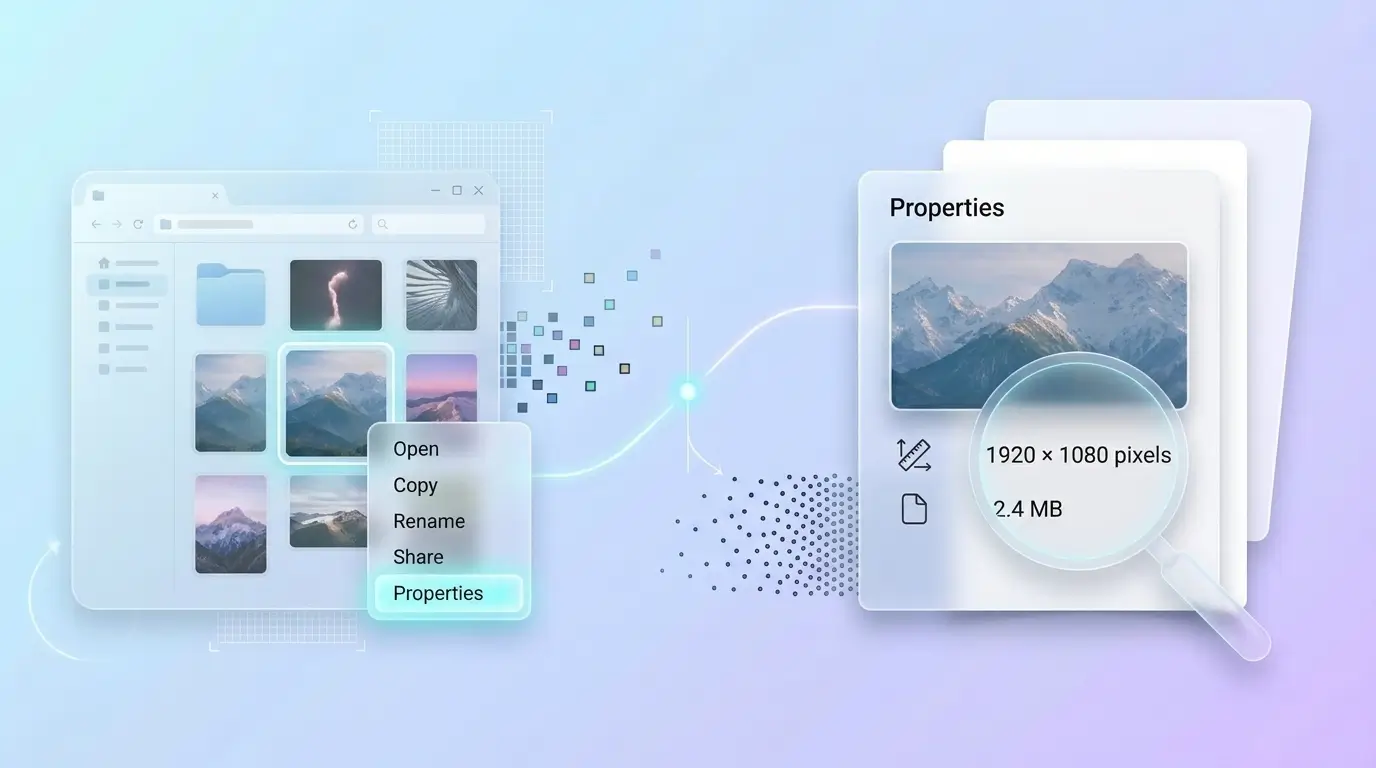
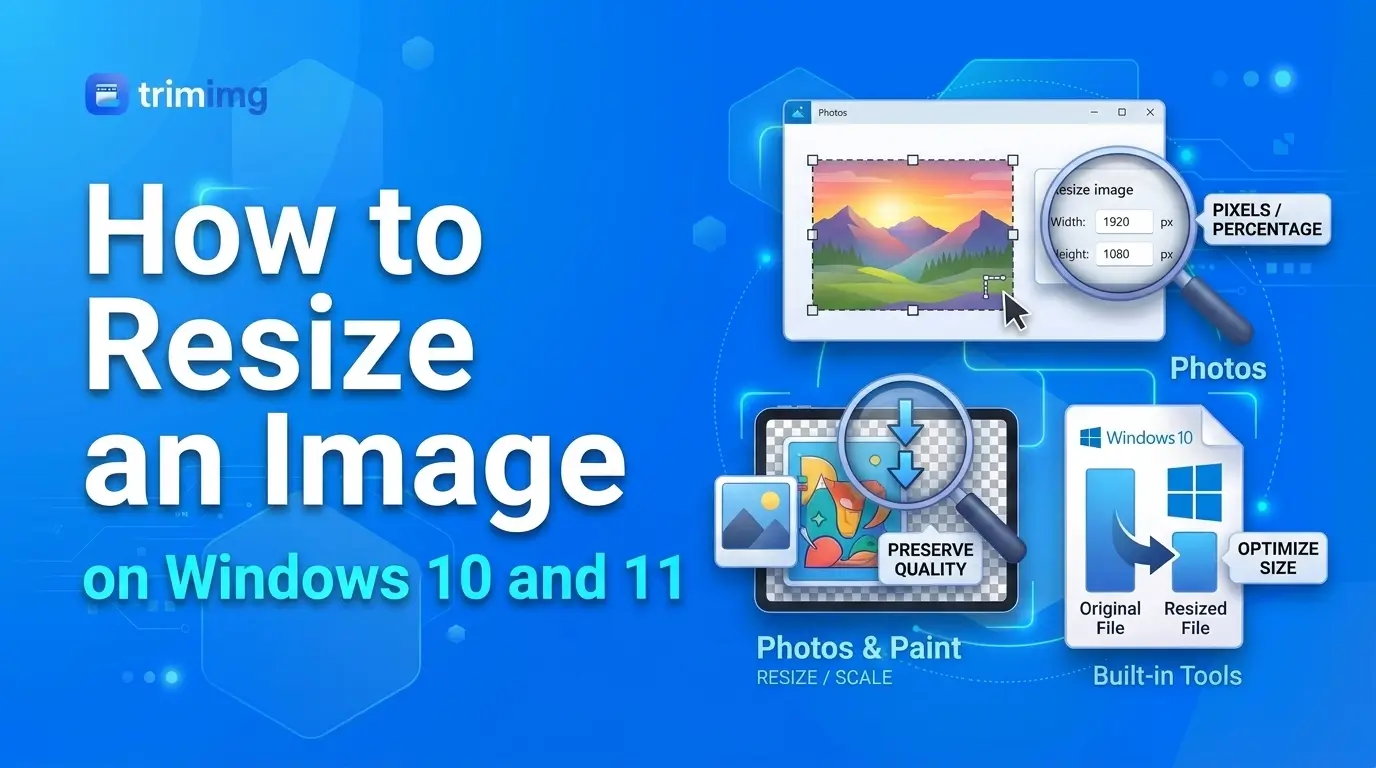
Windows provides a built in way to check image properties. You do not need to open the image in an editing program.
Method 1: Use File Properties
- Open File Explorer and find the image you want to check.
- Right click the image.
- Select Properties.
- Open the Details tab.
- Look for the image dimensions, width, and height.
- Return to the General tab to check the file size.
The Details tab may also show information such as camera details, date taken, and image resolution, depending on the file.
For example, if the dimensions are 3000 × 2000 pixels, the image is 3000 pixels wide and 2000 pixels tall. If the file size is 2.4 MB, that is the amount of storage space the file occupies.
Some image formats do not display every detail in Windows. If the dimensions are missing, try another method below.
Method 2: Check Multiple Images at Once
If you need to check several photos, File Explorer can save time.
- Open the folder containing your images.
- Change the folder view to Details.
- Right click a column heading, such as Name or Date modified.
- Enable the Dimensions column if it is available.
You can now see the dimensions of supported images in the folder without opening each file individually. You can also use the Size column to compare file sizes.
If an image is stored online through a cloud service, its details may not appear until the file is downloaded or available on your device.
Microsoft's File Explorer guide explains common file management features.
How to Check Image Dimensions and File Size on a Mac
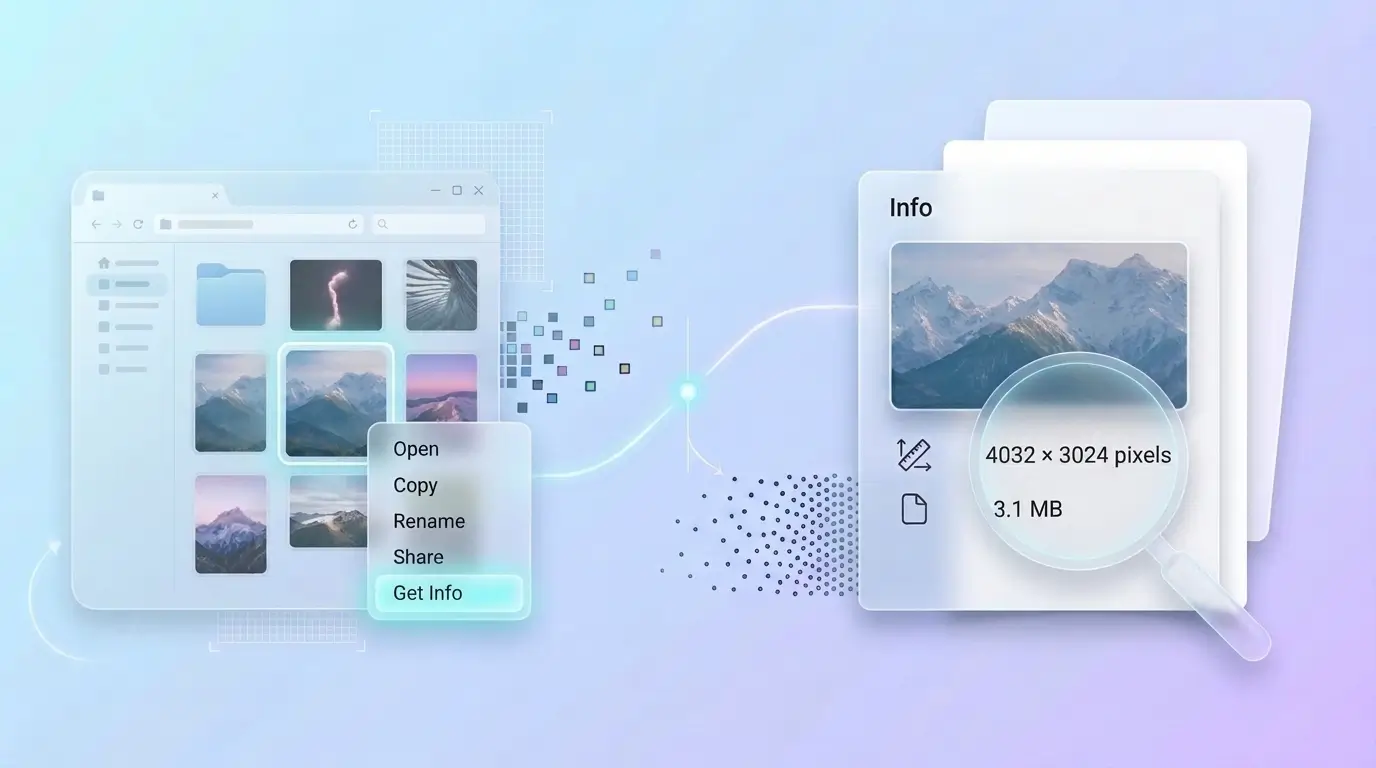
Mac users can check image information through Finder or Preview. Preview is particularly useful when you need to see image dimensions and resolution together.
Method 1: Use Finder's Get Info
- Open Finder and locate your image.
- Control click the file, or right click it.
- Select Get Info.
- Look under General for the file size.
- Check the More Info section for dimensions when they are available.
Finder may not display all image information for every file. If you cannot find the dimensions, open the image in Preview instead.
Method 2: Use Preview
- Open the image in Preview.
- Click the Info button in the toolbar.
- Review the information in the Inspector window.
- Open the relevant information panel to view the image's dimensions, resolution, and other available details.
Apple's Preview user guide explains how to inspect image information.
This method is useful when you need to find image dimensions in pixels or check resolution before printing.
How to Check Photo Size on an iPhone
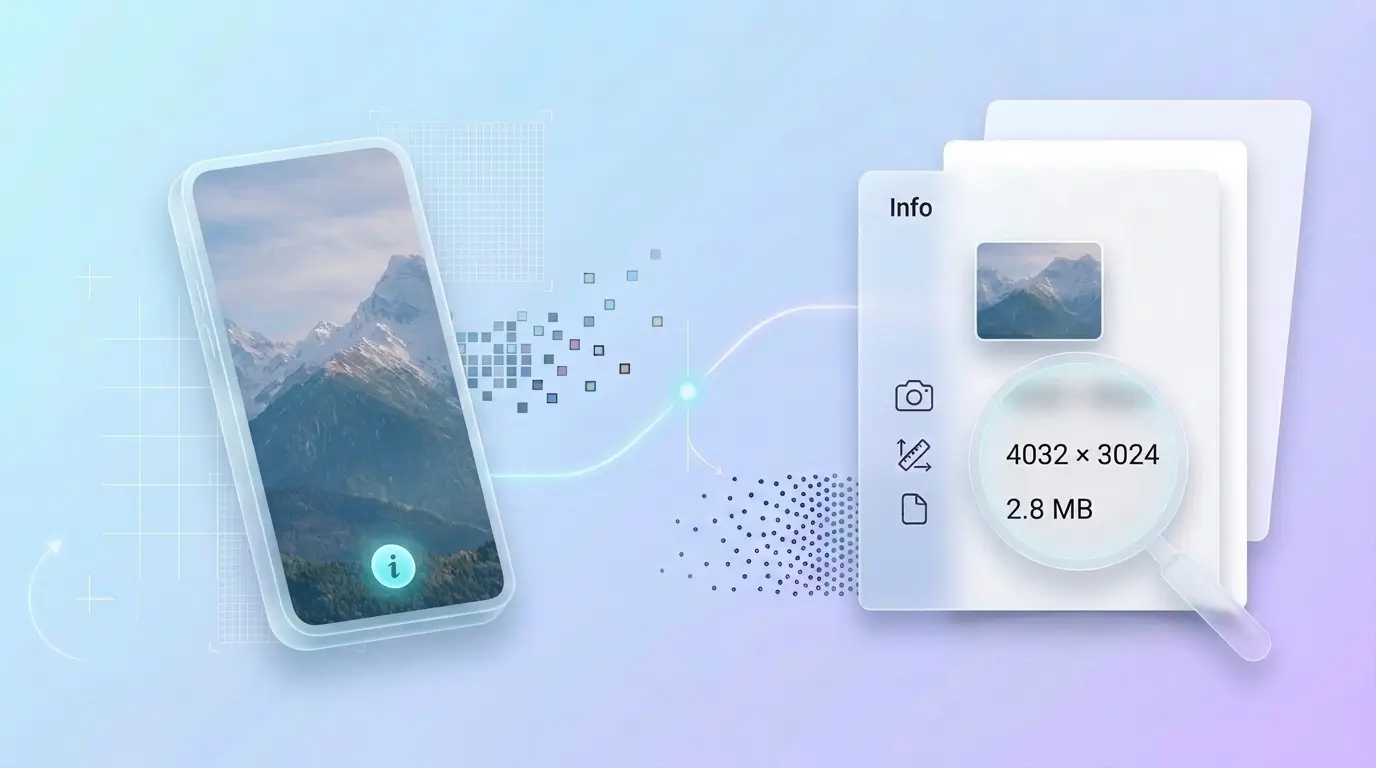
You can check photo information directly on an iPhone without installing an additional app.
Check a Photo in the Photos App
- Open Photos.
- Select the picture you want to check.
- Tap the Info button or swipe up on the photo.
- Review the information displayed for that image.
Depending on the photo and your iOS version, the information panel may show the file size, camera details, date, and other metadata.
If the pixel dimensions are not displayed clearly, you can check the saved image using a file manager or an online image size checker.
Check an Image Saved in Files
If the picture is saved in the Files app rather than Photos:
- Open Files.
- Find the image.
- Touch and hold the file.
- Review the available information options.
The available details depend on the file and your iOS version. If you need the exact width and height in pixels, use a method that explicitly reports pixel dimensions.
Apple explains the available photo information in its iPhone user guide.
How to Check Image Dimensions on Android
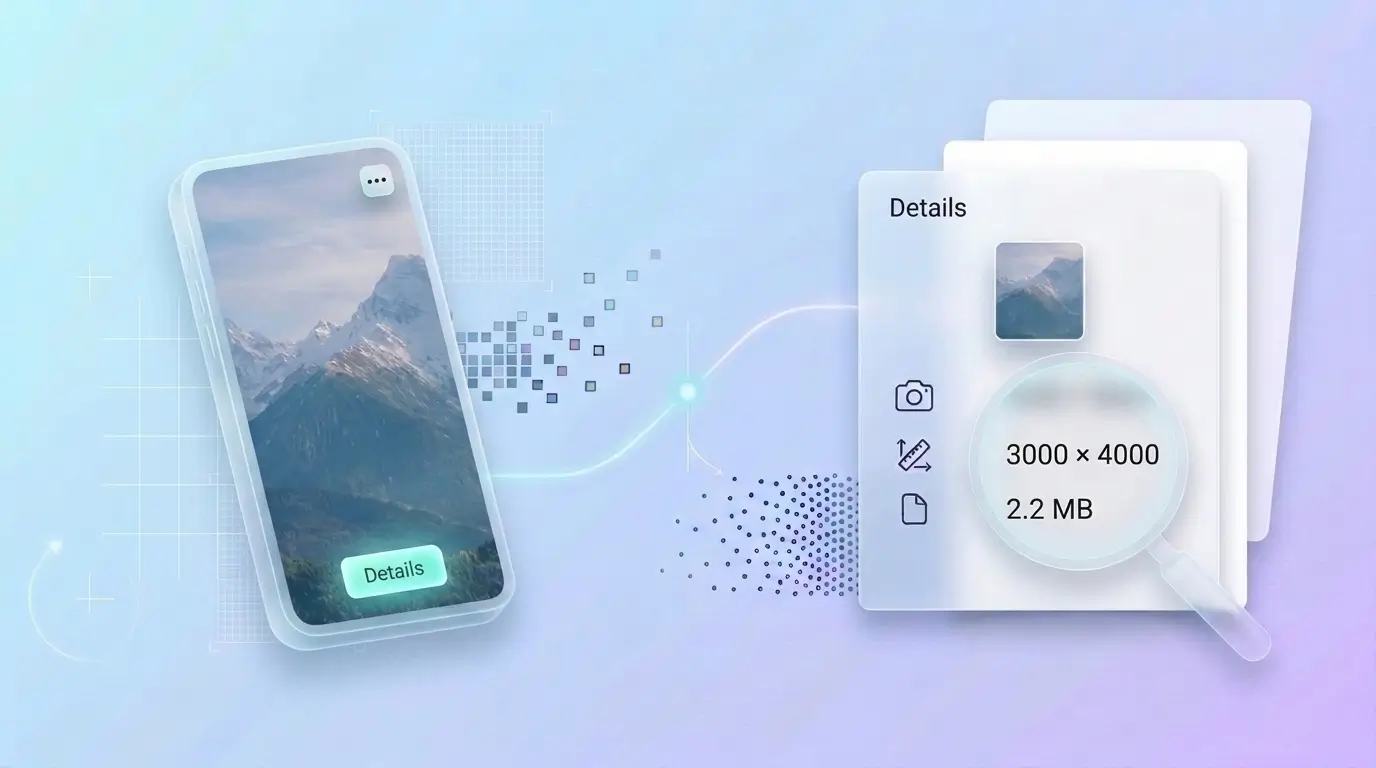
Android phones use different gallery apps and file managers, so the exact steps may vary by manufacturer. Google Photos and Files by Google are useful starting points.
Method 1: Use Google Photos
- Open Google Photos.
- Select the picture.
- Swipe up or open the photo's information panel.
- Look under Details for the available image information.
Depending on the image and app version, you may see the file name, date, dimensions, file size, or other details.
If the dimensions are not visible, try the file manager method.
Method 2: Use Files by Google
- Open Files by Google.
- Find the image in the relevant folder or category.
- In grid view, touch and hold the file and tap More. In the list view, tap More beside the file.
- Select File info if available.
- Review the displayed information.
Files by Google provides file information, although the exact details shown can vary. You can follow its official file information instructions.
If your phone uses a different file manager, look for options such as Details, Properties, or File info.
How to Check Image Dimensions Online
An online image size checker is useful when you do not want to search through device settings or install an application.
It can be particularly helpful when you have received an image through a message, downloaded it from a website, or need to check its specifications before uploading it somewhere else.
Steps to Use an Online Image Size Checker
- Open an image size checker in your browser.
- Select the image from your device.
- Wait for the image information to appear.
- Check the width and height in pixels.
- Review the file size in KB or MB, if provided.
A tool may also display the image format and aspect ratio. Check which details it actually reports, because not every image dimensions finder provides the same information.
If you need to check a photo before uploading it to a website, compare both its pixel dimensions and file size with the website's requirements.
You can use TrimIMG's image tools when you need to work with an image after checking it. For example, an image resizer can help change its dimensions, while an image compressor can reduce its file size.
How to Check the Dimensions of an Image on a Website
Sometimes the image you need is already displayed on a webpage. You may want to know its size without downloading it first.
In Google Chrome on a computer:
- Open the webpage containing the image.
- Right click the image and select Inspect.
- Look at the highlighted image element in Developer Tools.
- Check the displayed width and height information.
Chrome may show the image's intrinsic dimensions and its displayed size, depending on the selected element and the inspection panel.
The intrinsic dimensions are the image's actual pixel width and height. The displayed dimensions describe how large it appears on the page. These values can differ because a website may resize an image using CSS.
Google documents this approach in its guide to checking image dimensions with Chrome.
Keep in mind that websites sometimes serve a smaller version of an image instead of the original. If you need the original file's dimensions, make sure you are inspecting the correct image resource.
How to Understand Image Dimensions and File Size
Once you find an image's information, you need to know what the numbers mean. Pixel dimensions, file size, resolution, and physical size are related, but they are not interchangeable.
What Are Image Dimensions?
Image dimensions describe the width and height of a digital image, usually measured in pixels.
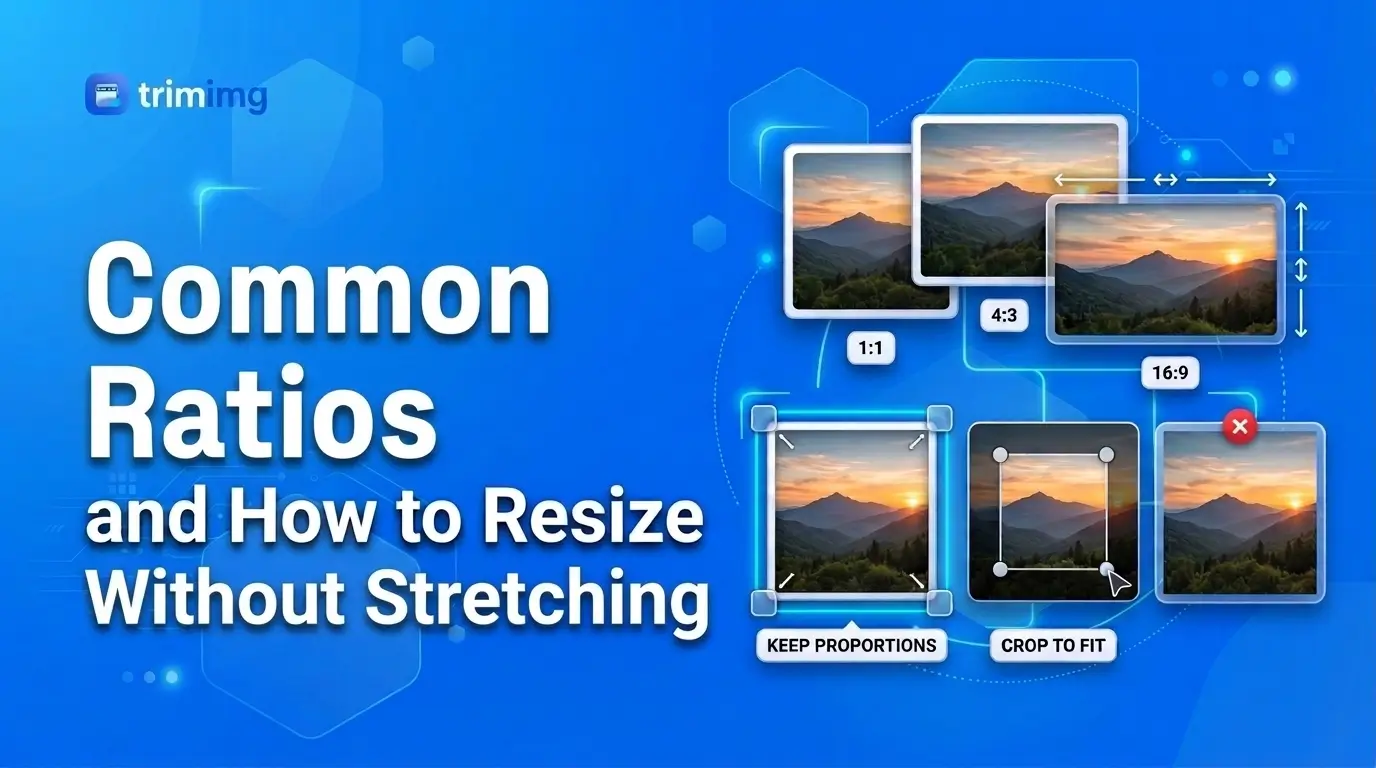
For example, an image measuring 1920 × 1080 pixels contains 1920 pixels across and 1080 pixels vertically. Its aspect ratio is 16:9.
Common image dimensions include:
| Dimensions | Common use |
|---|---|
| 1080 × 1080 px | Square social media images |
| 1080 × 1350 px | Portrait social media posts |
| 1920 × 1080 px | Widescreen video and images |
| 1080 × 1920 px | Vertical stories and short videos |
| 1200 × 628 px | Common landscape promotional graphics |
These are examples, not universal requirements. Always check the specifications of the platform, website, or application where you plan to use the image.
How to Find Image Size in Pixels
To find image size in pixels, look for a width and height measurement in the image's Properties, Get Info, Details, or Inspector panel.
For example:
- Width: 2400 pixels
- Height: 1600 pixels
- Pixel dimensions: 2400 × 1600 px
Multiply the width by the height to calculate the total number of pixels. A 2400 × 1600 image contains 3,840,000 pixels, or approximately 3.84 megapixels.
This calculation gives you the pixel count. It does not tell you how many KB or MB the image occupies on your device.
What Is the Difference Between File Size and Dimensions?
Image dimensions describe how many pixels an image contains. File size describes how much digital storage the image file uses.
For example, two JPEG images could both measure 2000 × 1500 pixels, but one might be 400 KB while the other is 1.5 MB.
The difference can come from compression, image content, color information, metadata, and file format. A PNG, JPEG, and WebP image with identical dimensions can have very different file sizes.
Use dimensions when you need to meet a pixel requirement. Use file size when you need to meet an upload limit or reduce storage and transfer costs.
How to Check File Size in KB, MB, or Bytes
File size may appear in bytes, kilobytes (KB), megabytes (MB), or another storage unit.
- Bytes represent the underlying amount of digital data.
- KB and MB are larger units used to describe file size.
- A file listed as 2 MB is larger than a file listed as 500 KB, although the exact conversion depends on the unit convention used.
Some operating systems and applications round the displayed size, so the number you see may not match the exact byte count.
If a website sets a maximum upload size, check the actual file size rather than estimating it from the image's dimensions. A large image in pixels is not always the largest file in MB.
What Is the Difference Between Dimensions, Resolution, and Megapixels?
These terms are often used together, but each describes something different.
Dimensions are the pixel width and height of an image.
Megapixels describe the total number of pixels in millions. A 4000 × 3000 image contains 12 million pixels, or approximately 12 megapixels.
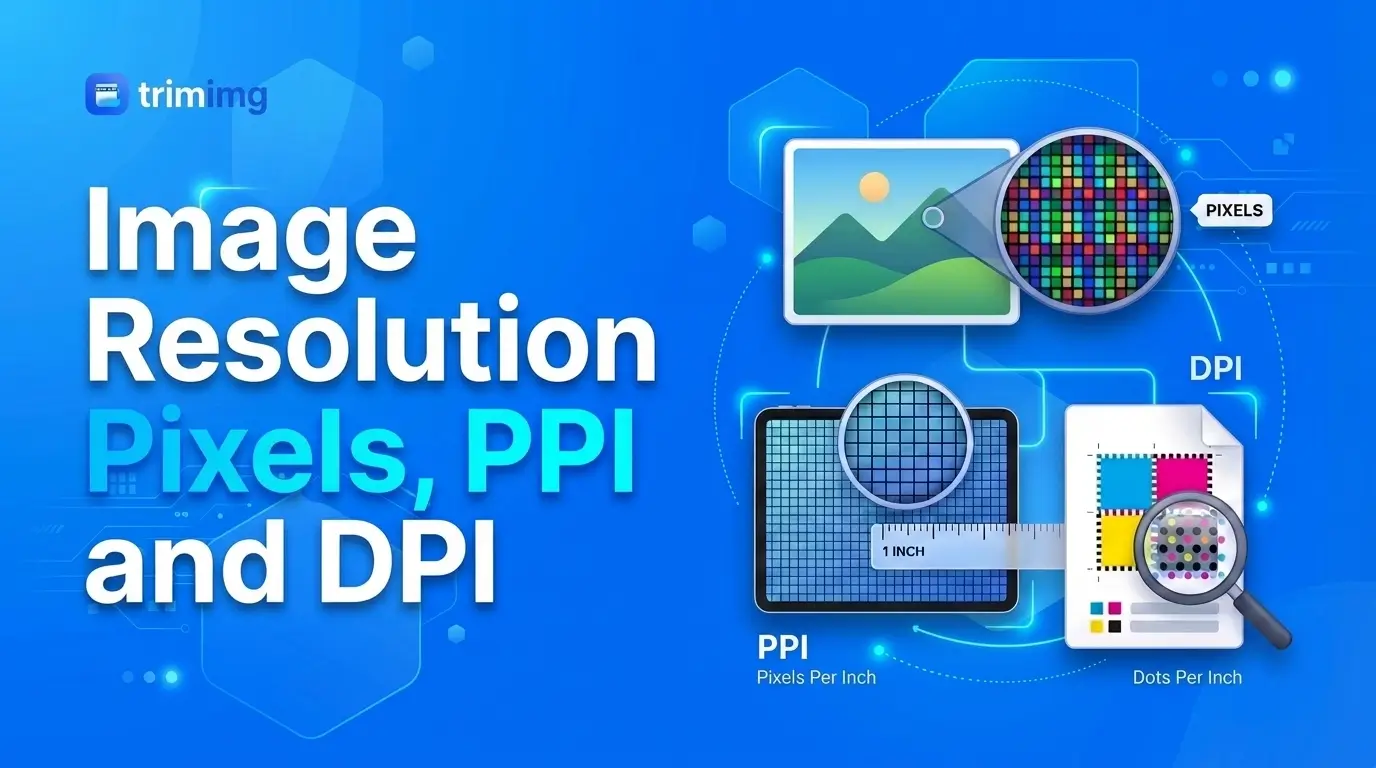
Resolution can refer to pixel dimensions in everyday conversations, but in print settings it often means pixels per inch (PPI). Dots per inch (DPI) refers to printed dots and is commonly discussed in printing workflows.
An image's pixel dimensions alone do not determine its physical print size. For example, a 3000-pixel-wide image printed at 300 pixels per inch produces a print that is 10 inches wide.
Changing the PPI value without resampling does not add or remove pixels. Changing the pixel dimensions through resampling does change the image data.
Adobe explains these relationships in its guide to image size, resolution, and resampling.
How to Check Image Dimensions in Centimeters
If you need to know the physical size of an image in centimeters, first check whether the application provides a physical size or resolution value.
For a print measurement, use this formula:
Physical size in centimeters = pixel dimensions ÷ PPI × 2.54
For example, a 1200-pixel-wide image printed at 300 PPI would be 10.16 cm wide.
This measurement describes its size when printed at that resolution. It does not mean the image has a fixed physical width on every screen. If you're unsure how these values relate, see the difference between pixels, PPI, and DPI.
If an online image size checker only reports pixels, you need the intended print resolution to calculate a meaningful physical size.
What to Do If an Image Is Too Large
Finding the dimensions and file size is often the first step. What you should do next depends on the problem.
If the Pixel Dimensions Are Too Large
Use an online image resizer to reduce the width and height to the required dimensions. Keep the aspect ratio locked if you want to preserve the image's proportions.
Reducing the pixel dimensions removes image data, so keep a copy of the original if you may need it later. To understand what you lose and what you don't, read does resizing an image reduce quality.
If the File Size Is Too Large
Use image compression to reduce image file size. The result depends on the image format, compression settings, and image content.
JPEG and WebP often work well for photographs. PNG is useful for graphics that need transparency or sharp edges, although its file size can be larger for some images. Our comparison of PNG vs JPG vs WebP helps you pick the right one.
Check the compressed result before replacing the original. Excessive compression can introduce visible artifacts, so learn how to compress images without visible quality loss.
If the Image Must Meet an Upload Limit
Check both requirements separately. An upload form may set a maximum pixel width and height as well as a maximum file size.
An image can meet the pixel requirement but still exceed the MB limit. It can also have a small file size while being too small in pixels for the intended use. In that case, you can upscale a low-resolution image to reach the minimum size.
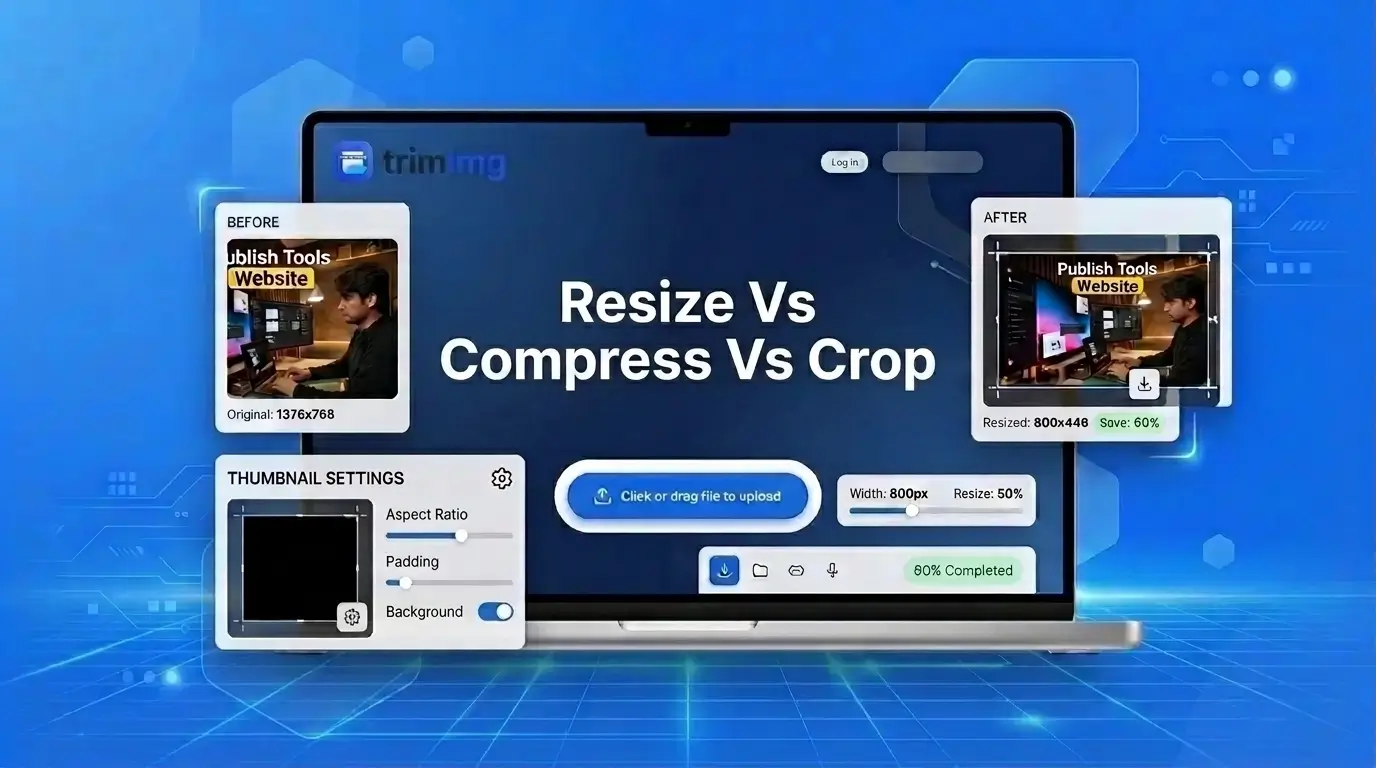
Resize the image if its dimensions are wrong, compress it if its file size is too large, or do both if necessary. If you're not sure which fix you need, see when to resize, compress, or crop an image.
Frequently Asked Questions
How do I check image dimensions without opening the image?
On Windows, right click the image, select Properties, and open Details. On Mac, right click the file and select Get Info.
How do I check photo size on my phone?
On iPhone, open Photos and tap the Info button. On Android, open the image in Google Photos and check its details. iPhone photos are often saved as HEIC, which some websites reject; you can convert HEIC to JPG before uploading.
How can I check image dimensions online?
Upload your image to an online image size checker. It can show the image's width and height in pixels and may also display its file size.
Are image dimensions and file size the same?
No. Dimensions measure width and height in pixels, while file size measures storage space in KB or MB.
How do I find image size in pixels?
Check the image's Properties, Get Info, or Details panel. Dimensions appear as width × height, such as 1920 × 1080 pixels.
How do I check an image's resolution?
Open the image's information panel or an image editor and look for its resolution. For printing, check the PPI or DPI value as well as the pixel dimensions.
How do I check image dimensions in centimeters?
You need the image's pixel dimensions and intended print resolution. At 300 PPI, an image 1200 pixels wide prints at approximately 10.16 cm wide.
Can two images have the same dimensions but different file sizes?
Yes. Image format, compression, image content, and metadata can cause files with identical pixel dimensions to have different sizes.
How do I reduce an image's file size?
Use an image compressor to reduce the file size. For photos, you can compress JPG images directly in your browser. If its pixel dimensions are also too large, resize the image as well.
How do I check image dimensions in Photoshop?
Open the image in Photoshop, select Image, then Image Size. The dialog shows the pixel dimensions and resolution.
Final Thoughts
Checking an image's dimensions and file size takes only a few steps once you know where to look. Use Properties on Windows, Preview on a Mac, the photo information panel on a phone, or an online checker when you need a quick result.
Remember to check the measurement that matches your task. Pixel dimensions matter when an image must fit a particular layout, while file size matters when an upload or storage limit applies. If the image does not meet the requirement, resize or compress it as needed, then check the result before using it.
Check and fix your image in seconds
No installs, no sign-up. Use TrimIMG's free online tools to resize or compress your image once you know its dimensions and file size.
Found this helpful? Share it with your team:
Hello, it's Mujahid Hussain Creative and Professional Senior Software Engineer with 6+ years of experience building rich and interactive websites. I have a comprehensive understanding of WordPress themes, plugins, databases, and its functions.