How to Resize an Image to 50KB Online
 Mujahid H.
- November 7, 2026
- 9 min read
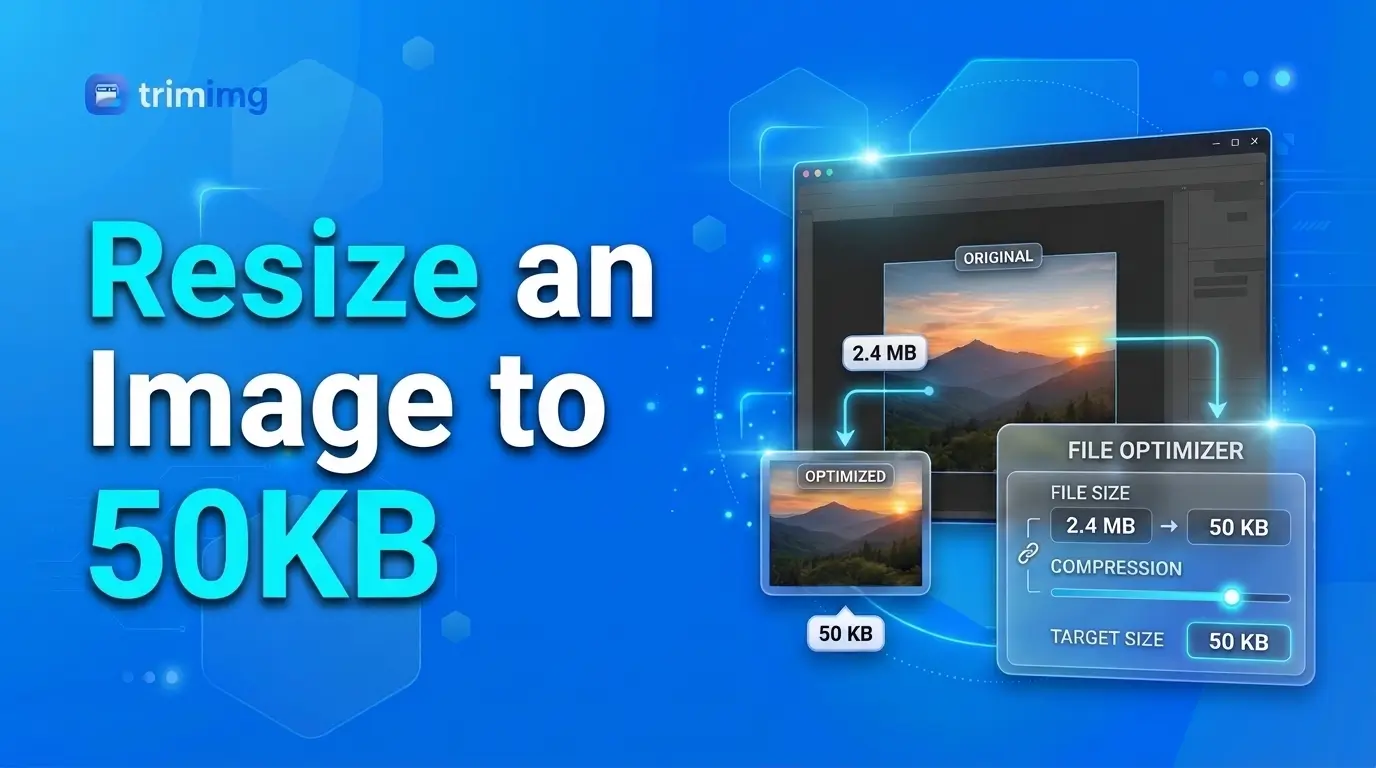
An online image resizer can help you prepare a photo for websites, application forms and other upload requirements.
Follow these steps:
- Open the online image resizer.
- Upload your original JPG, PNG or another supported image.
- Check the original file size and dimensions.
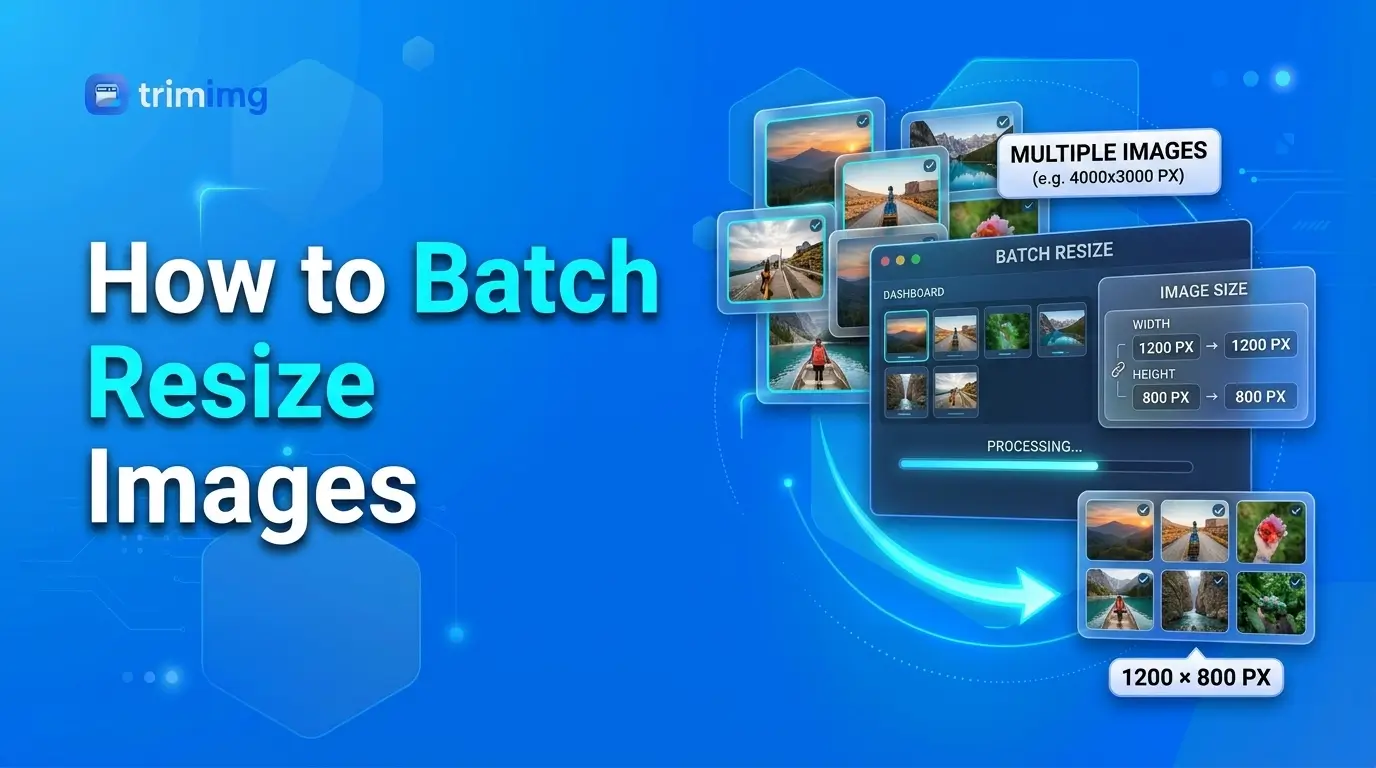
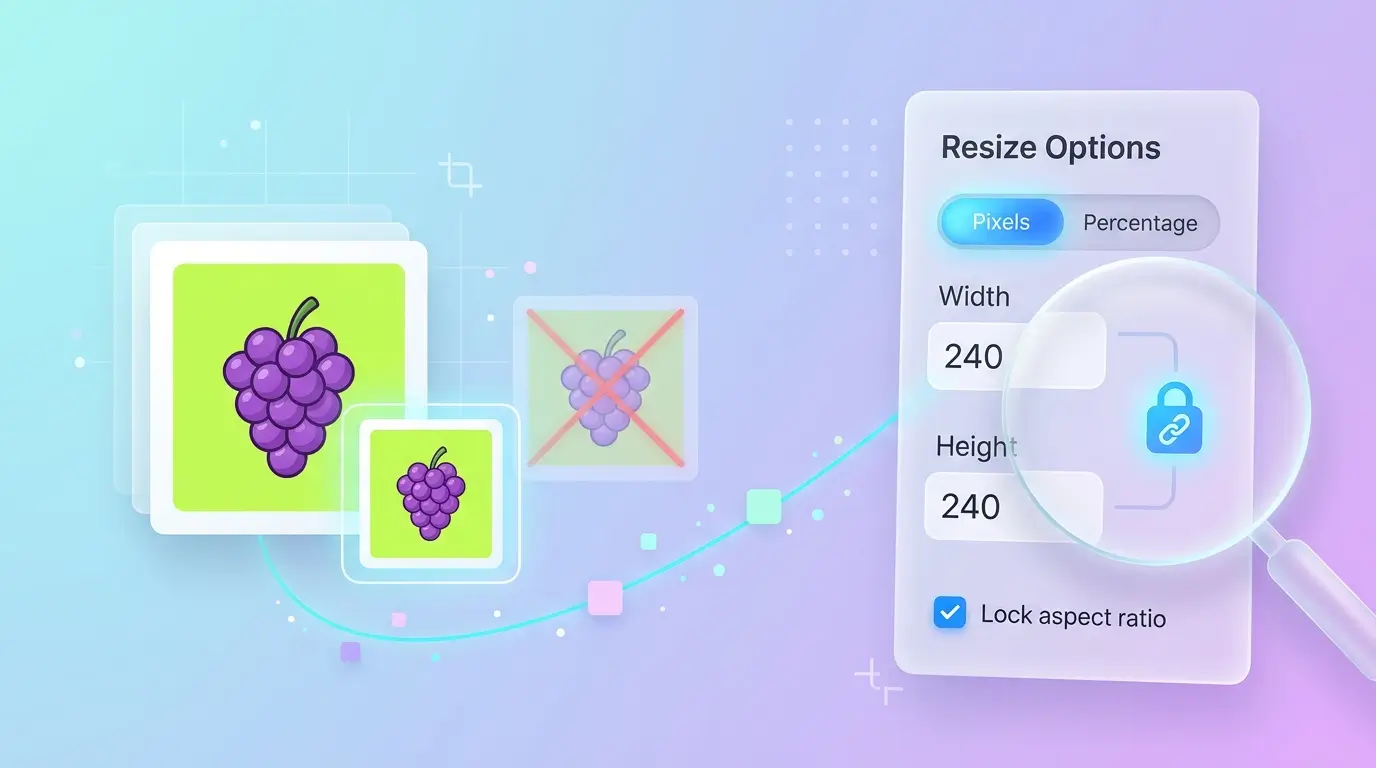
- Reduce the image dimensions if they are larger than necessary.
- Choose a suitable output format and compression setting where available.
- Download the processed image.
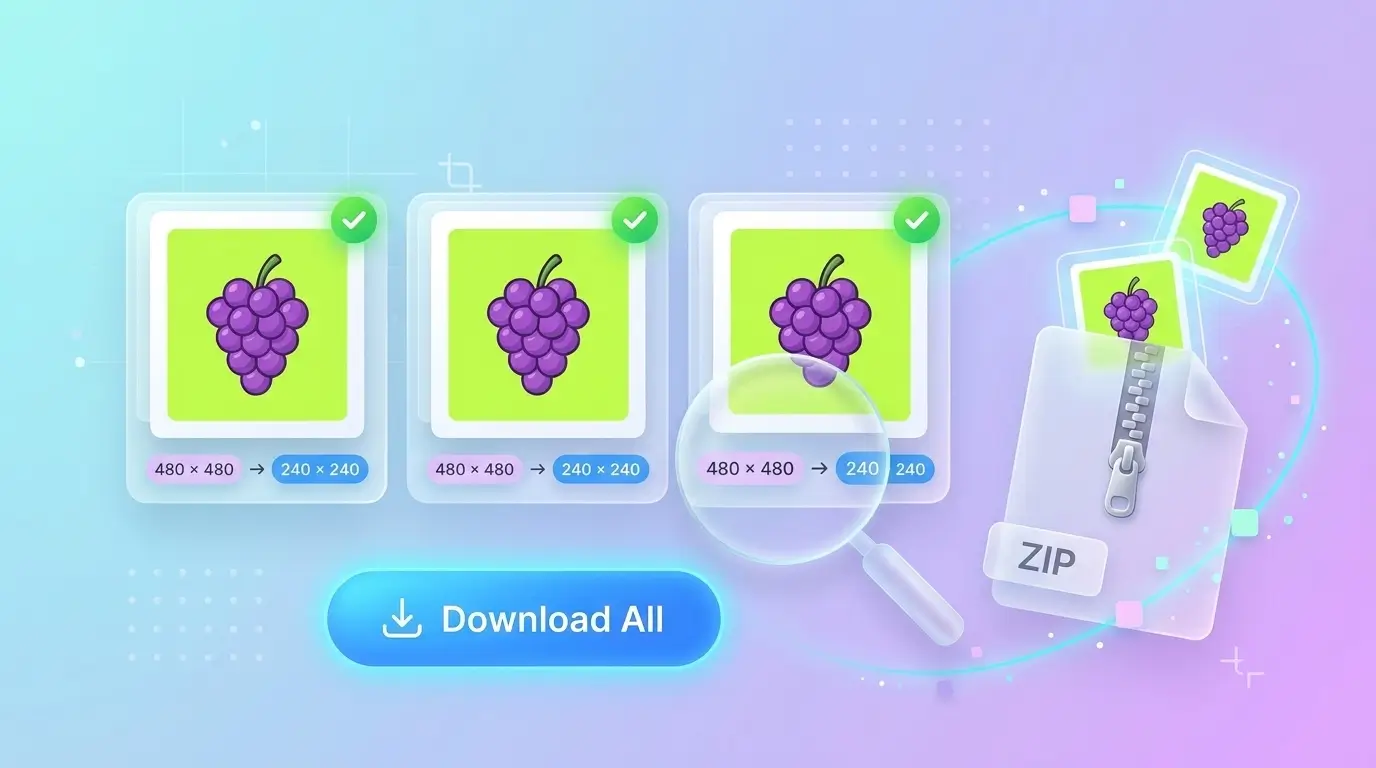
- Check the final file size. If it is still above 50KB, adjust the dimensions or compression and try again.
Important: Setting an image to a particular width and height does not guarantee a 50KB output. File size also depends on image content, format, compression quality and metadata.
A simple graphic may reach 50KB more easily than a detailed photograph, even when both have identical dimensions.
Why Do You Need to Reduce an Image to 50KB?
A 50KB upload limit is common in situations where websites need small image files to process or store submissions.
You may need to reduce an image to 50KB for:
- Online registration forms
- Passport or identity-related applications
- Profile photographs
- Examination and admission forms
- Job applications
- Signature and document uploads
- Websites with strict image-size requirements
However, a file-size limit is only one part of the requirement. Some websites also specify image dimensions, aspect ratio, accepted formats and minimum quality standards.
Check those instructions before resizing. A photo that is below 50KB may still be rejected if its dimensions or format are incorrect.
How to Make a JPG Under 50KB
JPG, also known as JPEG, is commonly used for photographs because it supports lossy compression. This allows image files to become much smaller, although stronger compression can reduce visible quality.
To make a JPG smaller than 50KB:
- Open the original photograph.
- Crop unnecessary areas if the intended use allows it.
- Reduce its pixel dimensions while maintaining the required aspect ratio.
- Save it as JPG using a suitable compression setting.
- Check the resulting file size.
- If it remains above 50KB, reduce the dimensions or increase compression gradually.
- Open the final image and inspect its details.
Example: Reducing a large JPG photograph
Suppose you have a photograph with the following properties:
| Property | Original image |
|---|---|
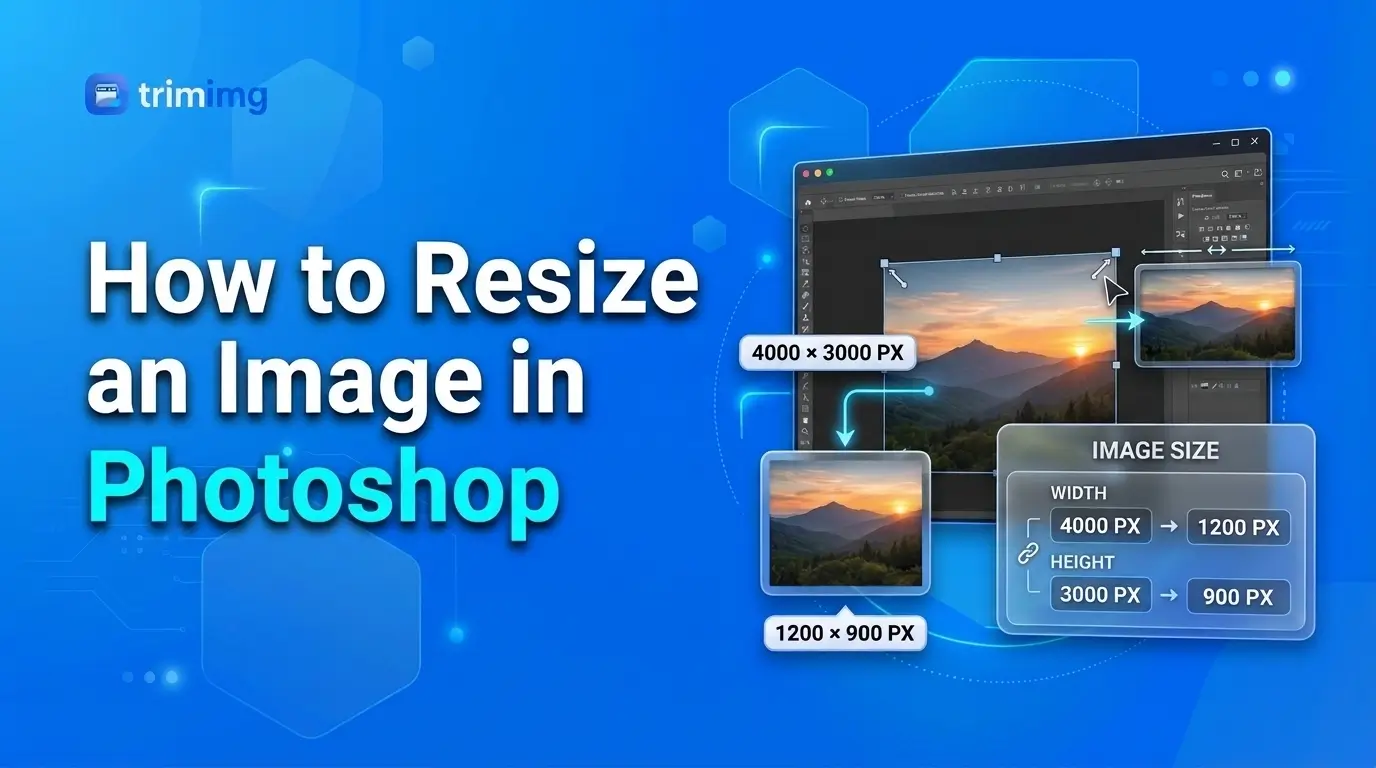
| Dimensions | 4000 × 3000 pixels |
| Format | JPG |
| File size | 3.5 MB |
| Required file size | Under 50KB |
The original photograph is much larger than the required limit. You would need to reduce its dimensions and apply JPEG compression.
There is no universal width or quality percentage that will produce exactly 50KB. Different photographs contain different amounts of visual information, so the same settings can produce different file sizes.
Start with moderate adjustments and check the output before making more aggressive changes.
How to Reduce a Passport Photo to 50KB
Passport-style photographs often have specific requirements. Depending on the application, the website may specify a particular width, height, aspect ratio, background color and file-size limit.
Do not resize a passport photo based only on its 50KB limit. First, check the official photo instructions.
Use this workflow:
Step 1: Check the photo requirements
Find the required dimensions, accepted file format and maximum file size. Some applications also specify background color, face position and head size.
Step 2: Crop the photograph correctly
If the application requires a specific aspect ratio, crop the image before resizing. Keep the person's face and other required details within the permitted area.
Step 3: Resize the image
Reduce the pixel dimensions to the required values. If the application provides exact dimensions, use those rather than guessing.
Step 4: Choose the right format
JPG is often suitable for passport photographs when the application accepts it. Use the format specified by the website.
Step 5: Adjust compression
If the image is still larger than 50KB, adjust the JPEG compression gradually. Avoid excessive compression that makes facial details blurry.
Step 6: Check the final result
Confirm that the image is below 50KB and still meets the application's photo requirements. Check the dimensions and open the image before uploading it.
Remember: A passport photo must meet the official image requirements, not just the file-size limit. Do not reduce it so much that important facial details become unclear.
How to Reduce a PNG Image to 50KB
PNG is useful for graphics, screenshots, logos and images that require transparency. However, PNG photographs can be considerably larger than equivalent JPG files.
If you need to make a PNG image smaller than 50KB, consider these options:
- Remove unnecessary blank areas by cropping.
- Reduce dimensions if the original image is larger than required.
- Reduce unnecessary color information when appropriate.
- Use PNG optimization where available.
- Consider converting to JPG or WebP if transparency is not required and the destination accepts the format.
For a signature, logo or graphic with sharp edges, PNG may preserve important details better than JPG. For a photograph with a plain background, JPG may produce a smaller file.
Do not convert every PNG to JPG automatically. The correct format depends on the image and its intended use.
Which Image Format Should You Use for a 50KB Limit?
Choosing an appropriate format can help you reach the required file size while retaining useful image detail.
| Format | Best suited for | What to consider |
|---|---|---|
| JPG/JPEG | Photographs and passport-style images | Efficient compression, but excessive compression can reduce detail |
| PNG | Logos, screenshots and transparency | Can be larger, especially for photographs |
| WebP | Web photographs and graphics | Often provides efficient compression, but may not be accepted by every upload form |
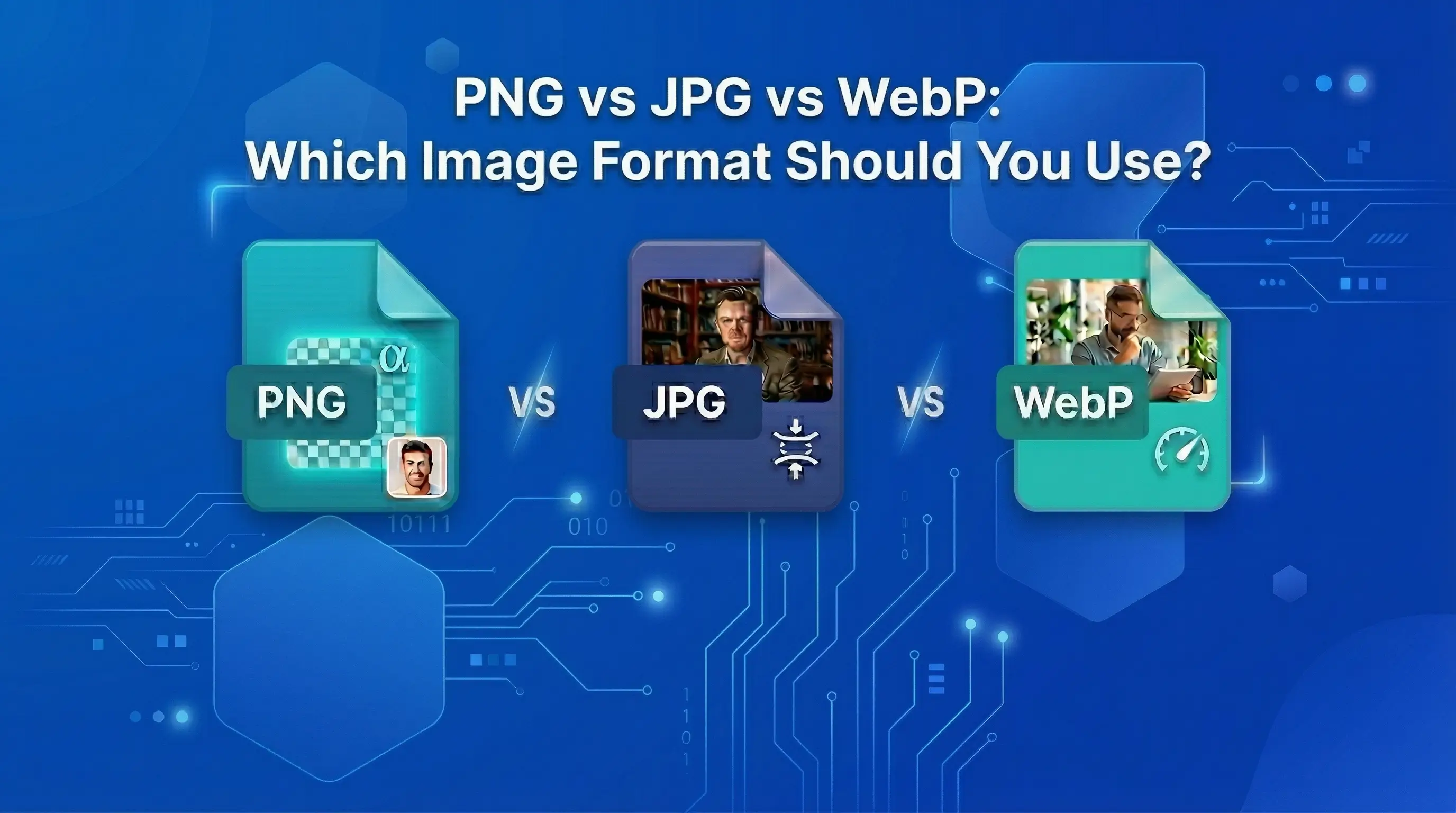
For most photographs, JPG is a practical starting point if the receiving website accepts it. PNG is often more suitable when you need transparency or sharp graphic edges.
You can learn more in the guide to choosing between PNG, JPG and WebP.
What Image Dimensions Should You Use for a 50KB File?
There is no single image dimension that guarantees a file size of 50KB. A detailed photograph and a simple graphic can have very different file sizes even when their pixel dimensions are identical.
Use these guidelines:
- Follow the exact dimensions if the website provides them.
- Maintain the aspect ratio unless the application requires cropping.
- Avoid unnecessarily large pixel dimensions.
- Do not reduce the image below the minimum dimensions specified by the website.
- Check the file size after resizing and compression.
For example, a small profile photograph may need fewer pixels than a large website image. A passport photo, however, may have strict dimension requirements that you must preserve.
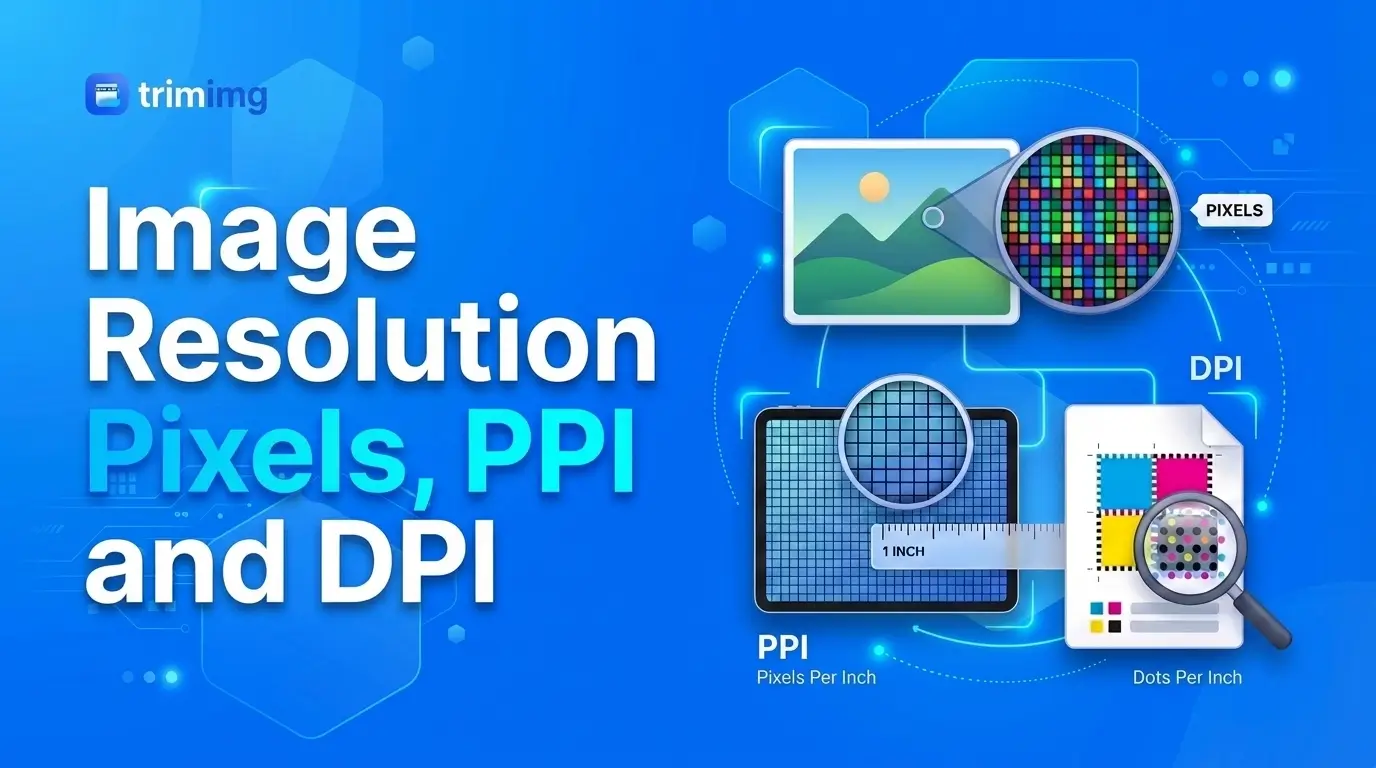
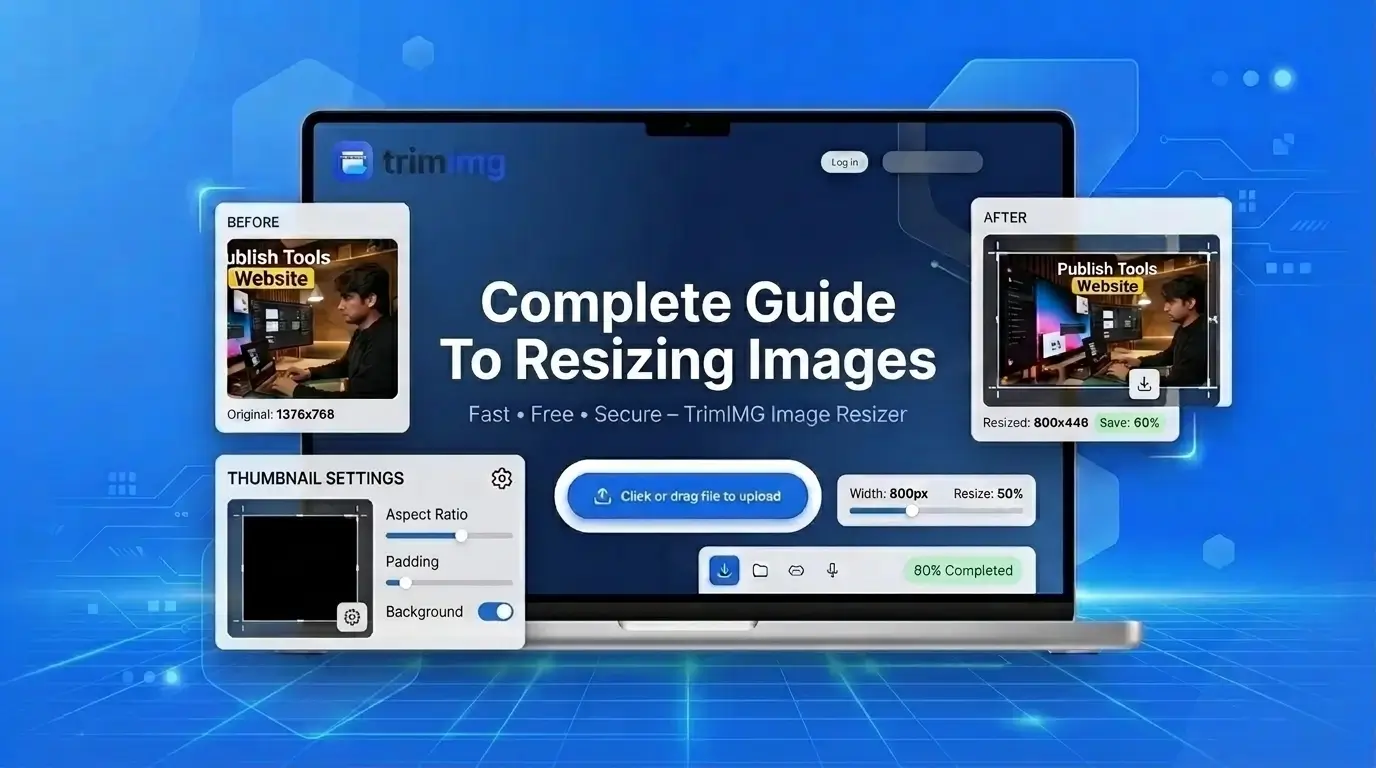
If you're unsure how pixel dimensions affect an image, see the complete guide to resizing images.
How to Reduce Photo Size to 50KB Without Making It Blurry
A 50KB limit can be challenging for detailed photographs. The goal is to reduce unnecessary data while keeping the image clear enough for its intended purpose.
Try these techniques:
- Start with the original photograph. Avoid repeatedly compressing an already compressed image. Each lossy JPEG save can introduce additional quality degradation.
- Crop before resizing. Remove unnecessary background areas when cropping is allowed. This can reduce the amount of image data that needs to be stored.
- Use suitable dimensions. Do not keep more pixels than the website or application requires.
- Adjust compression gradually. Avoid immediately choosing the lowest quality setting. Make smaller changes and inspect the result.
- Choose an appropriate format. JPG is often suitable for photographs, while PNG can be better for transparent graphics and crisp edges.
- Check important details. Look at faces, text, edges and fine textures. If they become blurry or distorted, try less aggressive compression.
For a deeper explanation of the relationship between resizing and image quality, read does resizing an image reduce quality?
Why Is My Image Still Larger Than 50KB?
If your image remains above 50KB after resizing, several factors may be responsible.
The image dimensions are still too large
A photograph with thousands of pixels may remain relatively large after a small reduction. If the intended use permits it, reduce the dimensions further.
The photograph contains a lot of detail
Hair, foliage, textured backgrounds and image noise can require more data than simple shapes or plain backgrounds.
The compression setting is too gentle
A small adjustment to compression may not be enough to meet a strict 50KB limit. Increase compression gradually while checking the image.
You're using an unsuitable format
A PNG photograph may be larger than a JPG version. If the destination accepts JPG and transparency is unnecessary, try converting the image.
The image contains unnecessary data
Some images contain metadata such as camera information, timestamps and other details. Removing unnecessary metadata may help, although it will not always produce a significant reduction.
Common Mistakes When Reducing an Image to 50KB
Avoid these mistakes when preparing images for strict upload limits:
- Ignoring the required dimensions: A file under 50KB may still be rejected if its dimensions are incorrect.
- Using excessive compression: A smaller file is not better if the photograph becomes unusable.
- Changing the aspect ratio unnecessarily: Stretching an image can distort faces and other important content.
- Converting formats without checking compatibility: The upload form may reject a format even if it produces a smaller file.
- Working from an already compressed copy: Repeated compression can gradually reduce image quality.
- Checking only the file size: Always open the final image and inspect it before uploading.
Frequently Asked Questions
How do I resize an image to 50KB online?
Upload the image to an online resizing tool, reduce its dimensions if necessary and adjust compression using a suitable format. Download the result and check the file size. If it remains above 50KB, make further adjustments.
How do I make a JPG under 50KB?
Crop unnecessary areas, reduce the pixel dimensions and apply JPEG compression gradually. Check the resulting file size after each adjustment to avoid making the image unnecessarily blurry.
Can I reduce a passport photo to 50KB?
Yes, provided the required dimensions and image-quality standards can still be met. Check the official application requirements before changing the photo. Some passport and identity applications have strict specifications beyond the maximum file size.
Why is my PNG larger than 50KB?
PNG files can be relatively large, especially when they contain photographs or many colors. Try optimizing the PNG, reducing unnecessary dimensions or converting it to JPG if transparency is not required and the website accepts JPG.
How can I reduce a photo below 50KB without losing quality?
You cannot always reduce a detailed photograph to below 50KB without some quality loss. Start with the original, crop unnecessary areas, use appropriate dimensions and apply moderate compression. Inspect the result before uploading it.
Does changing image dimensions reduce file size?
Usually, reducing pixel dimensions can lower file size because fewer pixels need to be stored. However, the final result also depends on the image format, compression, content and metadata.
Is 50KB enough for a passport photo?
It depends on the application. Some websites accept small passport photographs, while others require larger files or specific dimensions. Follow the official instructions rather than assuming 50KB is sufficient for every application.
Final Thoughts
Reducing an image to 50KB is possible for many photographs and graphics, but the right method depends on the original image and the upload requirements.
For photographs, start by checking the required dimensions, then resize and apply suitable JPG compression. For PNG graphics, consider optimization and whether transparency is necessary. For passport photos, always follow the official requirements and preserve enough detail for the image to remain usable.
You can use the TrimIMG image resizer to prepare supported images for online uploads. Always check the downloaded file's size, dimensions and visual quality before submitting it.
Resize your photo to 50KB in seconds
No installs, no sign-up. Upload your image, adjust dimensions and compression, and download a file ready for your form.
Found this helpful? Share it with your team:
Hello, it's Mujahid Hussain Creative and Professional Senior Software Engineer with 6+ years of experience building rich and interactive websites. I have a comprehensive understanding of WordPress themes, plugins, databases, and its functions.